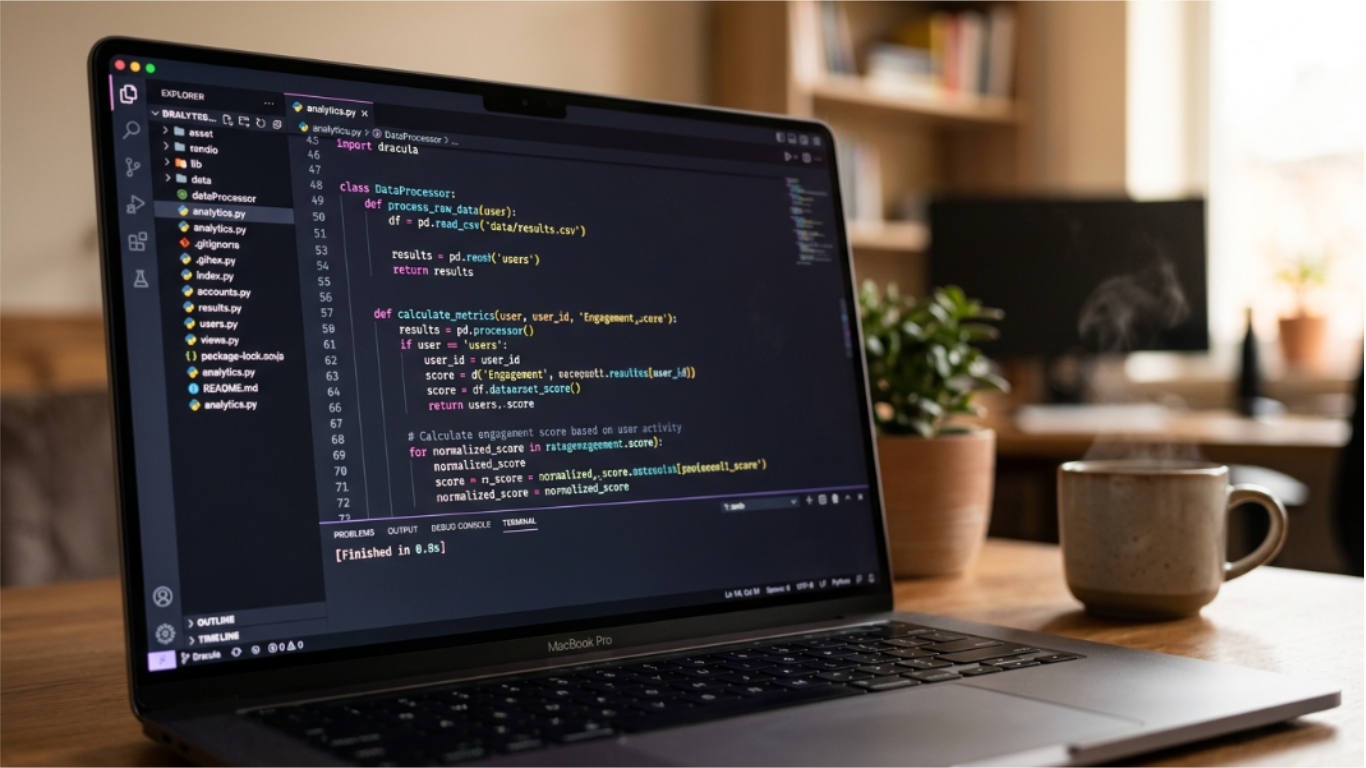
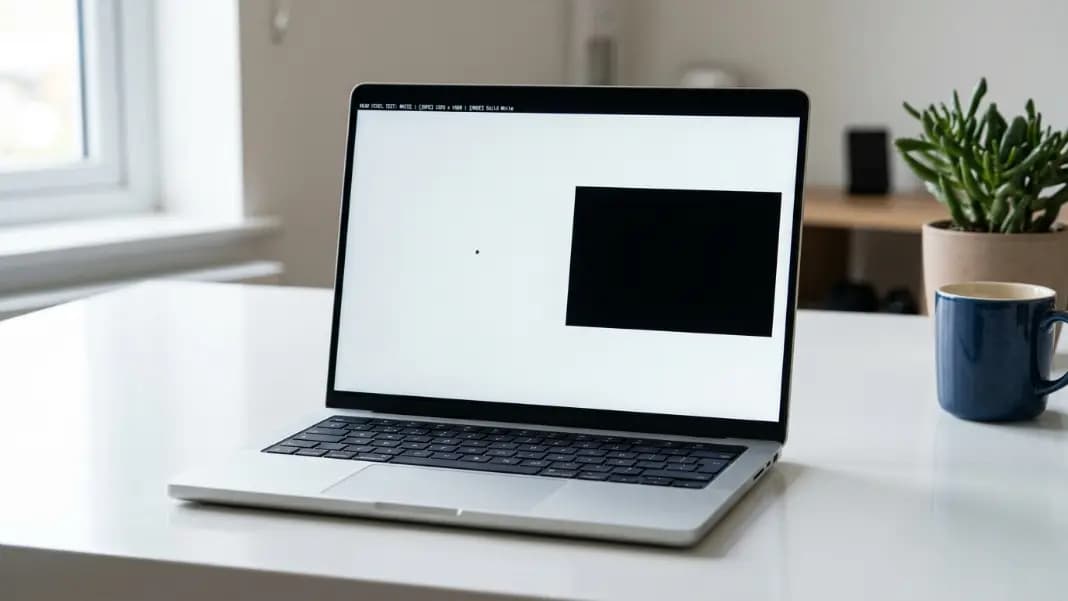
Your roommate's laptop is on the kitchen table. You have two minutes while they are in the other room. You open a browser tab, go fullscreen, and set a fake Windows update screen to 47%. When they come back, they see the blue screen with "Working on updates" in large white text. They set down their coffee and do not touch the machine. Ten minutes later, they are still waiting.
The Windows update prank works through behavioral conditioning more than visual realism. Unlike the broken screen prank, a fake BSOD, or the scrolling terminal in a hacker typer, the update screen does not trigger fear of damage. It triggers a specific learned behavior: do not interrupt an update. Windows has drilled that instruction into users for years. The prank hijacks it. This guide explains how the update screen changed across Windows versions, what separates a convincing fake from one that gets spotted immediately, and why the conditioning effect is the real mechanism.
What Is a Fake Windows Update Screen?
A fake Windows update screen is a browser-based overlay that replicates the visual design of a Windows update in progress. The real update screen appears when Windows installs system updates before or after a restart. It occupies the full display, shows a progress percentage, and displays the "Don't turn off your PC" warning. No other application is running and the keyboard has limited functionality.
The fake version reproduces this visually using a fullscreen browser tab. It shows the same background color, the same text layout, the same percentage counter, and the same warning message. Nothing on the computer changes. The update is not running. The operating system is not doing anything unusual. The browser is simply displaying an image that looks like the update screen.
Browser-based fake update tools require only a few seconds to set up. Open the tool, choose the Windows version that matches the target machine, enter fullscreen mode, and step away. The screen is indistinguishable from a real update at the viewing distances that apply in most indoor settings.
How the Windows Update Screen Changed Across Versions
The visual design of the Windows update screen changed substantially across versions, and using the wrong version is the most common reason this prank gets spotted immediately.
Windows 7 used a black background with white text in a plain, functional format. The screen read "Installing updates" at the top, followed by the current action, a percentage, and "Do not turn off your computer." The design matched the utilitarian aesthetic of Windows 7 more broadly. There was no color, no large typography, and no visual emphasis on the warning.
Windows 8 introduced the flat, metro-style design language. The update screen used a solid color background with large, light-weight typography. The layout was more spacious and less text-heavy than Windows 7.
Windows 10 established the version most people recognize now. Blue background. Large white text reading "Working on updates." Below that, the percentage and action description in smaller text. Below that, "Don't turn off your PC" in a slightly smaller font. The entire layout is centered and vertically balanced. Windows 10 also added a spinning circle animation near the percentage that a static fake screen cannot replicate without JavaScript. The animation is subtle enough that it is often missed in the first few seconds of looking at the screen.
Windows 11 uses the same basic structure as Windows 10. The typography updated to Segoe UI Variable, which has slightly different weight and spacing. The proportions shifted slightly. For most prank purposes, a Windows 10 fake looks close enough to Windows 11 to pass a brief inspection, but anyone who uses Windows 11 regularly will notice the difference in typography.
Windows Server versions use a different update screen design. If the target machine is a server, the consumer Windows update screen looks wrong.
Why the Prank Works Through Conditioning, Not Just Visuals
The fake broken screen prank works because the visual is alarming. The fake BSOD works because the visual signals catastrophe. The fake Windows update prank works through a different mechanism: years of learned behavior.
Windows has been telling users not to interrupt updates since Windows XP service packs. The message has changed slightly across versions, from "Do not turn off your computer" to "Don't turn off your PC," but the instruction has remained consistent. Real consequences follow if the instruction is ignored: interrupted updates can leave the system in a partially updated state, cause driver conflicts, or require repair tools to fix.
Most Windows users have had at least one experience of waiting through a real update, and many have been warned about what happens if updates are interrupted. That experience created a conditioned response: see the update screen, do not touch the machine, wait.
The fake update prank activates that conditioned response without relying entirely on the visual realism of the fake screen. Even a target who looks closely and feels slightly uncertain about whether the screen is real will often choose not to touch the machine because the risk calculus from real experience says the cost of interrupting an update is high. Uncertainty alone is enough to make the prank work.
This is different from how the hacker typer works. The hacker typer requires active engagement: someone types into it to produce the effect. The update screen requires only that the target be left alone with it, and their own behavioral conditioning does the rest.
What Percentage Should a Fake Windows Update Show?
The starting percentage is a setup decision that affects how long the prank lasts and how convincing it is under scrutiny.
A percentage near 0 fails quickly. Real Windows updates spend visible time in the early percentage range because the download and extraction phases take variable amounts of time. A target who walks up to a screen showing 2% and watches it for two minutes without any change will notice immediately.
A percentage between 35 and 75 is the effective range. In the middle of a progress bar, the target has no reference for how long the update has been running or how long it will take to complete. They see a meaningful amount of progress and an indeterminate amount remaining. This is exactly the psychological position that produces the "I should wait" response rather than investigation.
A percentage above 90 creates urgency that shortens the prank window. The target expects the machine to restart any moment. When it does not restart after two minutes at 96%, the illusion breaks.
A percentage that ends in a round number, particularly 25%, 50%, or 75%, looks slightly less natural because real update percentages do not cluster at round numbers. A percentage like 47% or 63% reads as more authentic.
How to Set Up a Convincing Fake Update Screen
Setup takes under a minute if you have the steps ready in advance.
First, confirm which Windows version is running on the target machine. The update screen should match this exactly. A Windows 10 machine showing a Windows 7-style black background immediately fails for anyone who has seen a Windows 10 update.
Second, open the fake update tool in a browser tab. Choose the matching Windows version and set the percentage to the mid-range you want to use.
Third, enter fullscreen mode. The single most common failure point in any screen prank is visible browser chrome. A URL bar or browser tab breaks the illusion immediately. Fullscreen is mandatory.
Fourth, leave the machine exactly as found. Do not move any objects, close any other windows, or change any visible settings. An update screen appearing in an otherwise undisturbed environment is more plausible than one appearing with obvious surrounding changes.
The hacker screen prank guide covers reveal timing and positioning that apply here as well. For the update prank specifically, the reveal should happen before the target starts explaining to someone else that their computer is stuck on an update. Once the target has started managing the situation externally, the reveal becomes less funny and more disruptive.

What Makes the Prank Break Early
Several specific things cause the fake update screen to fail before the reveal moment.
Mouse movement. Moving the mouse on a real Windows update screen has limited effect because the system is in a restricted state. On a browser-based fake, moving the mouse shows a normal browser cursor and potentially reveals the browser window edge if the cursor moves to the screen border. The prank works best when the target walks up, sees the screen, and chooses not to interact.
The spinning animation. Windows 10 and 11 update screens include a spinning circle near the percentage indicator. A static fake screen has no animation, which is visible if the target watches the screen for more than a few seconds. Some browser-based tools animate the spinner using JavaScript, which addresses this tell.
Version mismatch. A Windows 10 user seeing a Windows 7-style black background update screen knows immediately something is wrong. Matching the Windows version is the single most important preparation step.
Extended duration. A real Windows 10 update at 47% moves forward eventually. A fake screen stuck at 47% indefinitely eventually produces the question of why the percentage has not changed. The effective prank window before the frozen percentage becomes suspicious is roughly five to ten minutes, depending on how attentive the target is to update behavior.
Someone else in the room. A target alone with the screen will often wait in silence. A target with a coworker or family member nearby will often describe the situation out loud, which invites inspection and shortens the window.
Is This Safe to Run on a Shared Computer?
Browser-based fake update screens are safe in the technical sense. They make no changes to the operating system, install nothing, and have no access to files or system settings. The prank ends the moment anyone presses Escape, clicks, or uses any keyboard shortcut.
The practical question is the context. On a personal machine between friends, this is a harmless prank. On a work computer, a convincing update screen can cause a person to delay work, miss a deadline, or report the machine to IT support, creating real administrative consequences that extend beyond the joke.
Some third-party programs claim to run full fake update screens that lock keyboard input. These are not browser-based and require installation. Anything that requires installation to run a prank is outside the category of harmless display tools. Browser-based tools that stay within the browser cannot lock input, cannot modify the system, and are not a concern from a technical safety standpoint.
The complete collection of browser tools for display effects, encoding, and development utilities is in the developer section. For a comparison of fake screen tools including terminal-based options, the best free hacking simulator roundup covers what each type of tool does differently. For pranks that target hardware perception rather than software behavior, the broken screen prank guide and fake BSOD guide cover setups based on different mechanisms.