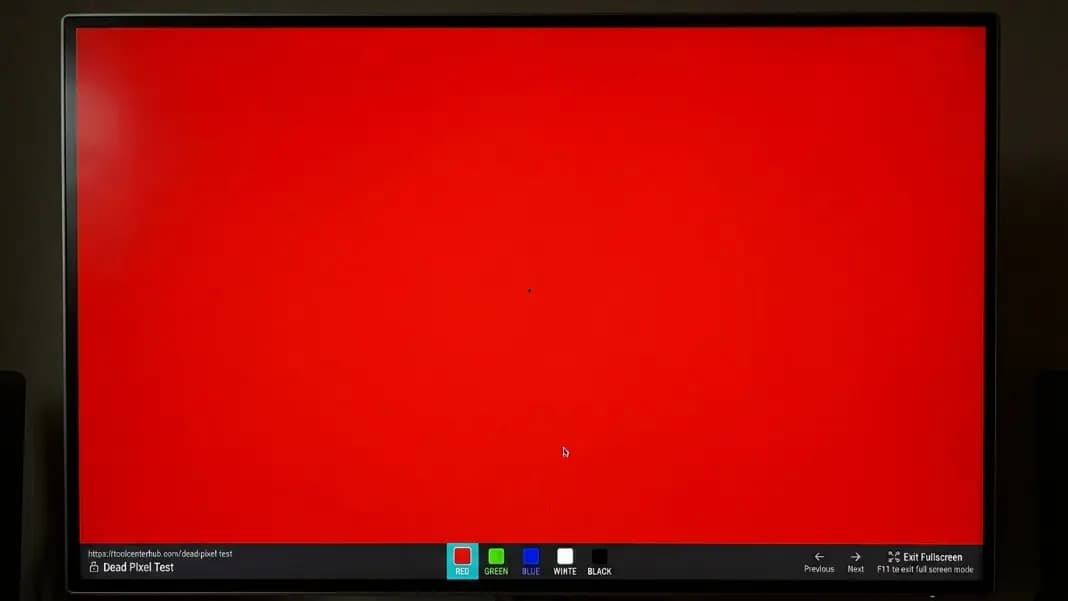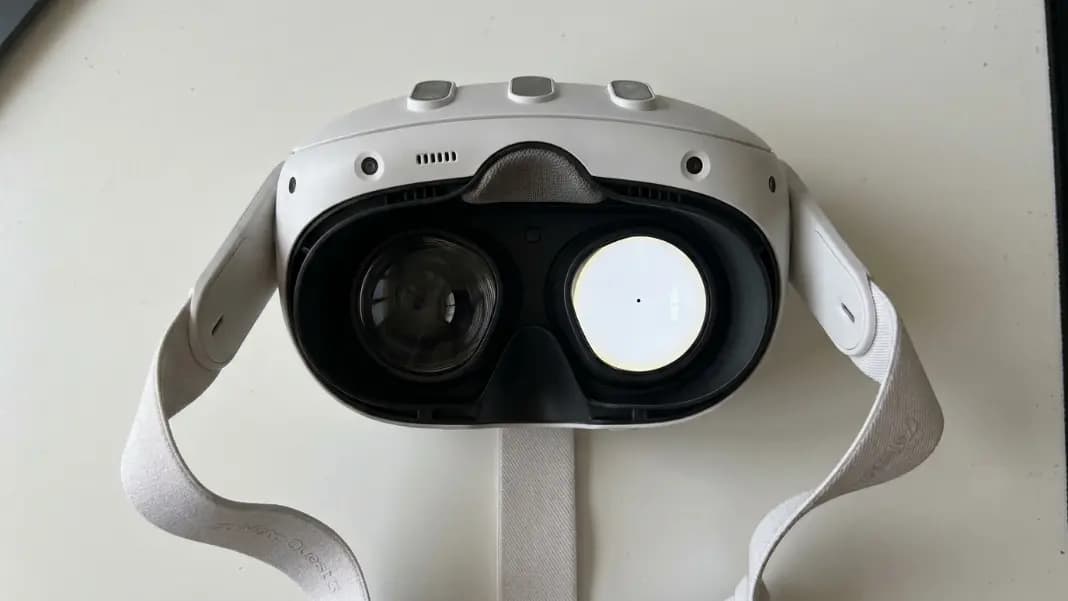
That black dot appeared when you opened a white document. You switched to a dark desktop background or a black screen to check if it was still there. It vanished. That single behavior tells you more than any other test you could run.
The way a defect appears on a white background versus a black background is the fastest dead pixel diagnostic there is. A dead pixel on white background appears as a sharp black dot. A dead pixel on a black screen is completely invisible. If your dot behaves this way, you have a dead pixel and not dust, not a scratch, not a stuck pixel. Run the dead pixel test on every solid color to confirm exactly what you are dealing with before deciding what to do next.
Getting the identification right matters. A stuck pixel sometimes responds to color cycling software and never needs a warranty claim. Dust under the glass is a different repair conversation entirely. A dead pixel goes straight to warranty or hardware repair. The two minutes it takes to run a proper test saves you a pointless repair attempt or a misdirected support call.
What a Dead Pixel Looks Like on a White Background
A dead pixel on a white background is at its highest possible contrast. White is the maximum brightness output a screen can produce. Every working pixel around the dead one is at full brightness, which makes the single dark point appear clearly against everything surrounding it.
The visual characteristics of a genuine dead pixel on white are specific:
- Perfectly sharp edges, exactly one pixel wide
- Pure black, not grayish or brownish
- Completely fixed position that does not shift when you tilt the screen
- Identical appearance from every viewing angle
That last point is one of the most useful. The edges are sharp because a dead pixel is an electronic failure at a precise point on the display grid. It cannot be half a pixel wide. It cannot have soft edges. It cannot look different from the left than from the right. If the dark spot you see has uneven or fuzzy borders, you are looking at something else. For a detailed explanation of what is happening inside the panel at a dead pixel, see what is a dead pixel.
The sharpness of the edges is the single most useful thing to look at before reaching any conclusion about what you are seeing.
Why a Dead Pixel Disappears Completely on a Black Screen
This behavior confuses almost everyone the first time they notice it. The dot is unmistakably visible on a white page, and then it completely vanishes the moment you switch to a dark background.
An LCD panel produces black by blocking its backlight. Each pixel controls how much of the backlight behind it passes through, using a liquid crystal cell that rotates between open and closed positions under voltage from a transistor. When that transistor fails, the crystal defaults to its natural closed position permanently and blocks all backlight. The pixel is always dark.
When every surrounding pixel is also in its closed position displaying black, the dead pixel looks identical to all of them. There is nothing to see because there is no visual difference between a dead pixel and a working pixel displaying black. Both produce zero light output.
This is why running the test on a black background is just as important as running it on white. A dot that is visible on white and invisible on black is confirmed as a dead pixel. A dot that is visible on both white and black is a stuck pixel with a still-functioning transistor emitting a constant color. A dot that is visible on white but behaves slightly differently on other colors may be a subpixel failure or dust.
How to Tell a Dead Pixel from Dust Under the Screen
Dust trapped between the glass layers of a screen looks almost exactly like a dead pixel at normal viewing distance: a small dark spot in a fixed position that does not respond to anything on screen. Many people run a dead pixel test specifically because of dust, and the test is exactly the right way to tell them apart.
Step one: Run your finger across the spot on the outer glass. If it moves, smears, or comes away on your finger, it is on the surface and is not a defect at all. Clean the screen and check again.
Step two: If the spot stays fixed when you wipe the surface, open the dead pixel test and view the spot on each background color. Dead pixels and dust behave differently in ways that become clear under the test.
Dead pixels have perfectly sharp one-pixel-wide edges because they are an electronic failure at a precise grid location on the display. Dust has soft, slightly irregular edges because it is a physical object with real-world dimensions and depth. At close inspection or with a phone camera zoomed in, the edge difference is visible.
Dead pixels appear identical on every background without any variation. Dust appears slightly different depending on the background color because it is a physical particle that scatters and absorbs light differently across different wavelengths. A dead pixel is pure black on white, pure black on red, pure black on blue. A dust speck may be slightly grayish on white and appear brownish or off-black on a colored background.
Viewing angle is the third test. A dead pixel looks identical whether you are looking straight at it or at an angle, because it is an electronic failure that produces no light regardless of the viewing direction. Dust sometimes appears slightly different when viewed from an angle because the physical particle is being lit differently by the surrounding pixels. Try tilting the screen ten to fifteen degrees left and right while watching the spot. A dead pixel will not change. Dust occasionally does.
How to Tell a Dead Pixel from a Surface Scratch
A fine surface scratch running along a row of pixels can look like a dead pixel line from a distance, and a short scratch can be mistaken for a single dead pixel.
The diagnostic is viewing angle. Move your head from side to side while looking at the spot in question. A dead pixel looks identical from every position because it is an electronic failure that produces no light regardless of how the display is viewed. A surface scratch changes in appearance as the angle changes because light reflects off the scratch surface differently depending on the viewing direction. At certain angles, a scratch may nearly disappear. At others, it becomes a reflective bright line.
A flashlight test confirms it. Hold a bright flashlight at a very shallow angle to the screen surface, parallel to the glass. Move the light slowly across the screen in this position. Surface scratches become visible as fine reflective lines under raking light because the scratch has physical texture that catches the light. A dead pixel does not respond to additional light because it is below the glass surface and is a hardware failure, not a physical mark.
One more difference: a dead pixel is always exactly one pixel wide and one pixel tall, perfectly aligned to the display grid. A surface scratch is a physical mark that can be any width, can cross multiple pixels at a diagonal, and has irregular edges that do not align to pixel boundaries. If what you see is clearly wider than one pixel or runs diagonally, it is surface damage rather than a pixel failure.

What Stuck Pixels Look Like on Each Background Color
Stuck pixels are a different failure from dead pixels, and they look different on every background. Knowing which you have matters because stuck pixels sometimes have a fix and dead pixels do not.
On white: a dead pixel appears pure black. A stuck pixel appears as a slightly off-color point. A pixel stuck in the red channel appears faintly pinkish or orange against white. This difference is often subtle enough that people mistake a stuck pixel for a dead pixel on a white background.
On black: this is where they separate completely. A dead pixel is invisible. A stuck pixel glows its locked color against the dark background and is the most visible point on the screen. If the dot glows any color on a black background, it is stuck, not dead.
On red, green, and blue: a dead pixel appears black against each color. A stuck pixel may look more or less obvious depending on which channel is locked. A pixel stuck in red is nearly invisible on a red background and very obvious on a blue or green background. This is why running all five backgrounds reveals things that white and black alone might miss.
If the test confirms a stuck pixel visible on the black background, color cycling is worth trying before any warranty conversation. The how to fix dead pixels on laptop guide covers the cycling method and what a realistic recovery rate looks like. Dead pixels skip the cycling step entirely and go straight to warranty or hardware repair.
What Subpixel Failures Look Like on Color Test Backgrounds
One defect type that white and black backgrounds alone do not always reveal is a dead subpixel.
Each visible pixel on an LCD screen is made up of three subpixels: one red, one green, and one blue. When all three fail, the result is a fully black dead pixel. But when only one subpixel fails, the other two continue working and the pixel displays an unexpected mixed color instead of black.
- Dead red subpixel: the pixel appears cyan (green and blue still active)
- Dead green subpixel: the pixel appears magenta (red and blue still active)
- Dead blue subpixel: the pixel appears yellow (red and green still active)
A dead subpixel is often invisible on a white background because the two working subpixels contribute enough color that the mixed output looks nearly white. The clearest background for each subpixel failure is its complementary color: a dead red subpixel is most obvious on a red background, where every surrounding pixel is red and the defective pixel appears cyan by contrast.
This is why the dead pixel test includes red, green, and blue backgrounds separately. Run all five backgrounds before concluding there is no defect. A subpixel failure may be completely invisible on white and black but immediately obvious on a single color screen.
Dead Pixels on 4K Screens: Why They Are Smaller and Harder to Find
On a 4K monitor or TV, each individual pixel is physically smaller than on a 1080p screen of the same size. A 27-inch 4K monitor has four times as many pixels as a 27-inch 1080p monitor, which means each pixel is half the width and half the height. The same is true proportionally on 4K phone or laptop screens.
This makes dead pixels on 4K screens harder to spot from a normal viewing distance. A single dead pixel on a 27-inch 4K monitor at a typical desk distance of 60 to 70 cm may require deliberate searching. The same defect on a 27-inch 1080p monitor at the same distance is clearly visible without looking for it.
When testing a 4K screen, get closer to the display than your normal working position. Testing from 30 to 40 cm, rather than 60 to 70 cm, makes small defects visible that would otherwise be missed. Use a phone camera zoomed in to photograph any suspect area, which also reveals defects that the naked eye at a distance cannot resolve.
The size difference matters for warranty claims too. A dead pixel on a 4K screen that is invisible from your normal sitting distance may still qualify for replacement under your manufacturer's policy. Most dead pixel thresholds are based on pixel count and position, not on whether the defect is visible from a specific distance. A defect near the center of the screen counts whether or not you can see it without looking for it. Check the specific brand threshold in the dead pixel test guide before deciding whether a claim is worth pursuing.
Once the test has given you a clear answer on every background, the path forward is determined entirely by what you found. Dead pixel visible on white and gone on black: warranty or repair. Stuck pixel glowing on black: try cycling first. Soft edges that look different across backgrounds: dust, and repair shop territory if the device is out of warranty. Mark that changes with viewing angle or reflects a flashlight: surface damage, not covered by standard warranty. All the tools for the test are in the developer section.