Free Dead Pixel Test Online
Free online dead pixel test and dead pixel checker for monitors, laptops, phones, and TVs. Cycles through eight solid-color full-screen panels including black, white, red, green, blue, cyan, magenta, and yellow so you can visually scan your screen for dead, stuck, or dying pixels. Click any color swatch, use the Prev/Next buttons, or press the arrow keys to step through each test. Hit Fullscreen Test to fill your entire display for the most accurate check. No data leaves your browser.
Use Fullscreen Testfor an accurate dead pixel check. Look for pixels that don't match the background color. Use arrow keys or click to cycle through colors.
Common use cases
- Identify dead or stuck pixels before the return window closes on a new monitor
- Map the exact location of screen defects to show a repair technician
- Confirm whether a dark spot is a dead pixel or just dust on the glass surface
- Run a full-color panel check before deciding to file a manufacturer warranty claim
How to use this dead pixel checker
Click Fullscreen Test to enter fullscreen mode, which fills your entire display with a solid color. This is the most reliable way to detect anomalies because there are no UI elements competing for attention. Once in fullscreen, click anywhere on the screen or press the right or left arrow keys to step through the eight test colors. Look slowly and carefully across the whole panel. Dead pixels appear as tiny black dots that do not change with the background color. Stuck pixels appear as small colored spots that remain lit regardless of what surrounds them.
Work through all eight colors systematically. White is the best background for spotting dead pixels since dark specs stand out sharply against a bright field. Black is ideal for revealing stuck pixels since bright or colored spots that should be dark become immediately obvious. Red, green, and blue let you catch pixels stuck in a primary channel. A pixel stuck on red is invisible against a red background but obvious against blue or green. Cyan, magenta, and yellow complete the coverage by testing every subpixel combination. Dim the room lights slightly and view the display straight-on at a normal working distance for best visibility.
Dead pixels on a laptop screen: causes and what to look for
Dead pixels on laptop screens are more common than on desktop monitors because laptop panels flex during daily use. Carrying a laptop in a bag with other items pressing on the closed lid is one of the leading causes of transistor stress. Dying pixels on a laptop often appear gradually near the corners or bottom edge, where the panel experiences the most flex stress. A dead pixel in a laptop screen looks like a tiny permanent black dot that does not respond to any displayed content. Broken pixels can also appear as white dots (pixels stuck on full brightness across all channels), red dots, or green speckles on the screen.
To test a laptop screen thoroughly, run this dead pixel test in fullscreen mode and work through each color on battery power with the charger disconnected, since some display driver issues only appear under specific power states. If you find dots that are not black but instead show a fixed color, they are stuck pixels rather than dead pixels and may respond to the stuck pixel fixer. Run the fixer for a few sessions before concluding the pixel is permanently dead.
Dust vs dead pixel: how to tell them apart
A common source of confusion when testing for dead pixels is dust. Surface dust sits on top of the glass and wipes away with a dry microfiber cloth. It often looks slightly fuzzy at the edges and may smear when you try to wipe it. A dead pixel is razor-sharp, exactly one pixel in size, and does not move or change when you wipe the screen. If a dot disappears after a gentle wipe, it was surface dust. If it remains, use this dead pixel checker to confirm it stays consistent across all eight test colors.
Dust trapped under the screen glass, between the display panel and the front glass layer, looks larger and slightly out of focus compared to a pixel defect. It sometimes appears to shift slightly when you press gently on the glass. This type of dust is inside the panel assembly and cannot be removed without full screen disassembly, but it is not a pixel defect and will not affect the display's performance. A dead pixel is always in precise focus at normal viewing distance, matches exactly one pixel in size, and is completely unaffected by any pressure applied to the glass surface.
Dead pixel vs stuck pixel: understanding the difference
Modern LCD and OLED displays are made up of millions of individual pixels, each controlled by a thin-film transistor (TFT). A dead pixel occurs when the transistor powering a pixel fails permanently. The pixel receives no electrical signal and stays dark at all times. Dead pixels are most visible against bright backgrounds and cannot be repaired through software. An OLED dark spot is the equivalent condition on OLED panels: a cluster of organic diodes that has burned out or degraded, appearing as a dim or dark patch that grows larger over time.
A stuck pixel is different. The transistor is still receiving power but has frozen in an open (always on) state. Stuck pixels continuously emit light in one color, usually red, green, or blue, regardless of the image being displayed. They are most noticeable against dark content. Because the transistor in a stuck pixel is still functional, electrical stimulation sometimes causes it to start switching normally again. If this dead pixel detector reveals small colored dots that do not disappear when you change colors, try the stuck pixel fixer before concluding the pixel is permanently dead. You can also check your monitor's display performance using the refresh rate test to confirm the panel is running at its rated Hz while you are doing a full display health check.
Manufacturer policies and when to request a replacement
Most display manufacturers base their dead pixel replacement policy on the ISO 13406-2 and ISO 9241-302 standards, which classify pixel defects into three types: always-off (dead) pixels, always-on (stuck) pixels, and sub-pixel defects. Each class has a threshold, typically three to five defects of the most visible type, before a panel is considered eligible for warranty exchange. Premium display lines marketed for photography, video production, or color-critical work often carry stricter guarantees, with some models offering zero dead pixel warranties.
If you discover dead pixels on a new monitor or laptop, act quickly. Many retailers limit the return or exchange window to 14 to 30 days from purchase. Take a photograph of the defect against a white background to document its position and count. Contact the manufacturer support with the photo, your purchase receipt, and the serial number. For monitors still within warranty, most major brands including Dell, LG, Samsung, BenQ, and ASUS will provide a replacement panel or a full unit swap if the defect count meets their threshold criteria.
Frequently asked questions
A dead pixel is a display pixel that no longer receives power and remains permanently dark, appearing as a tiny black dot regardless of what color the screen should be showing. Dead pixels occur when the thin-film transistor (TFT) responsible for switching the pixel on fails permanently. Unlike stuck pixels, which are frozen on a single color, dead pixels cannot be reactivated because the underlying transistor has physically failed. They are most visible against bright, light-colored backgrounds. Dead pixels in laptop screens are a common complaint, especially on older panels or devices that have been dropped.
A dead pixel is a permanently dark dot. The transistor driving it has failed and the pixel receives no power, so it stays black regardless of what the display shows. A stuck pixel is a pixel that is permanently lit in one color, most commonly red, green, or blue, because the transistor is continuously powered but cannot switch off. Stuck pixels are usually visible against dark backgrounds, while dead pixels are most obvious against bright or white content. Stuck pixels sometimes respond to electrical stimulation from a stuck pixel fixer and can occasionally be recovered. Dead pixels almost never recover.
Open this dead pixel test in your laptop browser and click Fullscreen Test. The tool fills your entire laptop display with a single solid color. Use the arrow keys or click to cycle through all eight colors: black, white, red, green, blue, cyan, magenta, and yellow. A dead pixel shows as a consistently dark dot that stays the same regardless of the background color. A stuck pixel shows as a bright colored dot. Scan every area of the screen methodically rather than glancing quickly, as dead pixels on laptop screens are small and easy to miss if you are not looking carefully.
Dust and dead pixels can look similar at first glance, but there is a reliable way to distinguish them. Dead pixels are always perfectly sharp, stationary, single-pixel sized, and do not move. Dust on the screen surface appears slightly fuzzy at the edges and can be wiped away with a microfiber cloth. Dust under the screen glass (between the panel and the bezel) often appears larger and slightly out of focus, and it may shift slightly if you apply light pressure to the glass. Dust trapped between the display layers is inside the panel and cannot be removed without disassembly. Use this dead pixel checker: if the dot disappears when you wipe the screen gently with a dry cloth, it was surface dust.
Dead pixels are caused by transistor failure at the pixel level. Common causes include physical impact or pressure on the display panel (even light pressure from carrying a laptop in a bag with items pressing on the lid), manufacturing defects in the TFT layer, extreme temperature changes that stress the panel assembly, age-related transistor degradation, and electrostatic discharge. Laptop screens are more susceptible than desktop monitors because they experience more flex stress during daily use. Dying pixels on a laptop often appear gradually near the edges where flex stress concentrates. A single dead pixel is not always preventable, but avoiding physical pressure on the closed laptop lid reduces the risk significantly.
Truly dead pixels, where the transistor has physically failed, cannot be repaired by software or electrical stimulation. However, pixels that appear dead may actually be stuck pixels frozen in the off (black) state, and those can sometimes be revived using a stuck pixel fixer tool. If the pixel is confirmed dead after running the fixer, the options are to contact the manufacturer about warranty replacement or to live with the defect. Most manufacturers have a dead pixel policy specifying a minimum number of defective pixels before they authorize a replacement.
Use all eight standard test colors: black, white, red, green, blue, cyan, magenta, and yellow. Pure black reveals stuck pixels (bright spots that should not be there). Pure white reveals dead pixels (dark spots that should be white). Red, green, and blue reveal pixels stuck in a complementary state. For example, a pixel stuck on green is invisible against a green background but obvious against a red or blue one. Cyan, magenta, and yellow complete the coverage by ensuring every pixel subcomponent (R, G, B) is tested both on and off across multiple combinations. This dead pixel test includes all eight colors.
Whether a dead pixel qualifies for a warranty replacement depends on the manufacturer policy. Most major monitor brands follow the ISO 13406-2 standard, which classifies defects into types and sets thresholds, typically three to five dead pixels before a replacement is authorized. Some premium display lines offer zero dead pixel guarantees. Document the location and count of each dead pixel with a close-up photo against a white background, then contact your manufacturer with your purchase receipt and serial number. Always test a new monitor immediately after purchase, as return windows are often only 14 to 30 days.
Related articles
Dead Pixel on Monitor: Free Screen Test and Whether Your Warranty Covers It
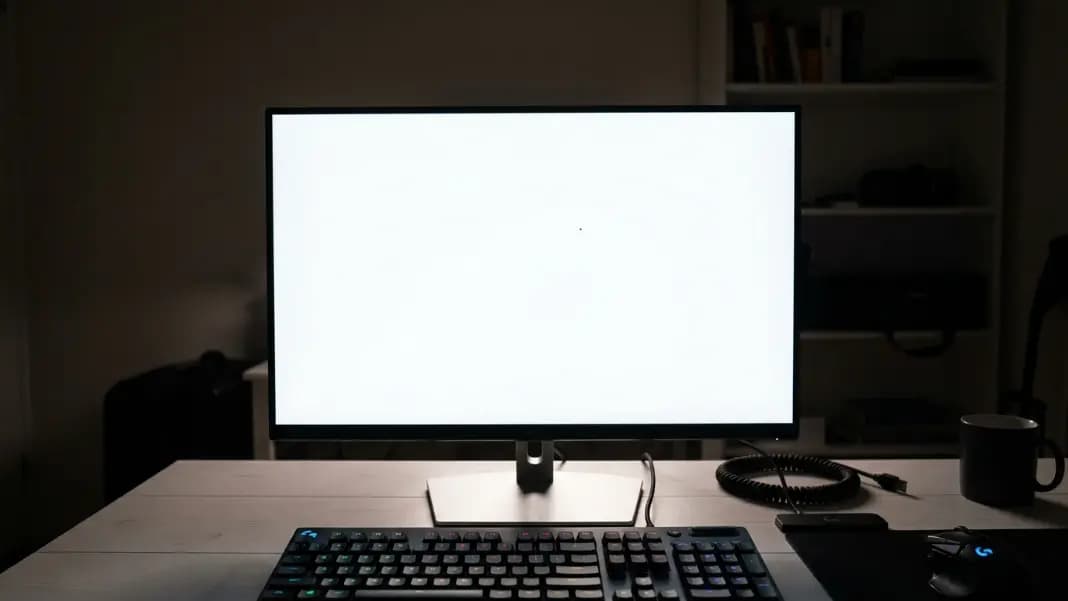
A dead pixel on your monitor shows as a fixed black dot on light backgrounds, invisible on black. Run the free test, then check whether your monitor brand's policy covers single or multiple pixel defects.
15 min read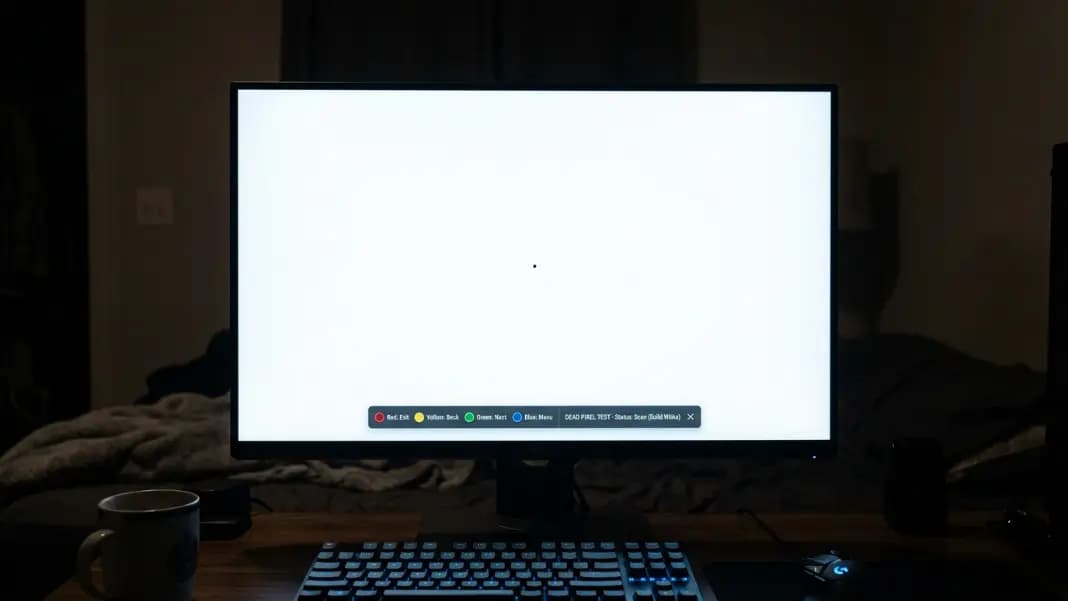
How to Test for Dead Pixels on a Monitor, TV, Phone, or Tablet
Testing for dead pixels works differently on each device type. Here is the exact process for monitors, TVs, phones, tablets, and Kindles using one free tool.
8 min read
Dead Pixel on iPhone: How to Test Your Screen and Get Apple to Cover the Repair
Dead pixels look different on OLED vs LCD iPhones. Test your screen free in 2 minutes, then learn exactly what Apple covers under warranty and what a screen replacement costs without one.
12 min read