Free Stuck Pixel Fixer Online
Free online stuck pixel fixer and dead pixel repair tool. Cycles through eight solid colors at 20 changes per second, sending alternating electrical signals to your display to coax stuck transistors back into normal operation. Works on laptop screens, desktop monitors, TVs, phones, and tablets. Choose a duration from 10 seconds to 10 minutes, hit Start Fixer, and position the flashing panel over the stuck pixel. Use Fullscreen to cover your entire screen for maximum coverage. No download or signup required.
Tip: For best results, run fullscreen for at least 1 minute. Point the flashing area at the stuck pixel by moving this browser window. Results vary: stuck pixels that respond to electrical stimulation can recover, but truly dead pixels will not.
Common use cases
- Attempt to unstick a colored pixel that remains lit on one color regardless of content
- Run a rapid color cycle session before deciding whether to file a warranty claim
- Fix stuck pixels on a phone, laptop, or external monitor without disassembly
- Confirm whether a pixel defect is stuck (fixable) or dead (permanent) before requesting repair
Stuck pixel vs dead pixel vs defective pixel: what is the difference?
Before running the fixer it is important to know which type of defective pixel you have, because the fix process differs. A stuck pixel has a transistor that is permanently open, forcing the pixel to emit a constant color regardless of what the display signal requests. It appears as a tiny bright colored dot, most often red, green, or blue, that is visible on most screen backgrounds. A dead pixel has a transistor that receives no power at all and appears permanently black. It is most visible on white or bright backgrounds. A hot pixel is the OLED equivalent of a stuck pixel: a subpixel that is always at maximum brightness.
The term defective pixel or bad pixel covers all three types. Stuck pixels are the most common type of defective pixel and the only type that pixel repair software can address. Dead pixels cannot be fixed in software because the hardware transistor itself has failed. To confirm which type you have, use the dead pixel test, which cycles through solid color screens so you can see whether the dot changes appearance against different backgrounds. If it shows as a bright colored dot on dark backgrounds, it is stuck. If it is always black, it is dead.
How to fix a stuck pixel step by step
Start by running the dead pixel test and cycling through all eight test colors. If the anomalous dot changes color or disappears against one of the backgrounds, it is a stuck pixel and this fixer can help. If it is always dark regardless of the background, it is a dead pixel and no pixel fixer program will recover it. Once you have confirmed a stuck pixel, note its approximate location on screen relative to the edges, for example upper-left quadrant, two finger-widths from the top.
Click Fullscreen, then Start Fixer. Let it run for at least 30 seconds, then exit fullscreen and check whether the pixel has changed. If it is still stuck, repeat with a 1-minute session. Many successful fixes happen within the first two minutes of stimulation. Between sessions, gently pressing a soft cloth against the stuck pixel area while the fixer is running and applying very light pressure to the panel surface (never the bezel) can sometimes help by slightly flexing the transistor layer. Do not apply pressure to an OLED panel, as these are more fragile than LCD panels.
Dead pixel repair on a laptop screen
Dead pixel repair on a laptop screen is one of the most common requests in display troubleshooting communities. The terminology is often used loosely: many people searching for "dead pixel repair laptop" or "how to remove dead pixels from laptop screen" actually have a stuck pixel rather than a truly dead one, which means software repair is possible. If your laptop shows a consistent colored dot (any color other than black), run this tool for several 1 to 5 minute sessions. Position the flashing panel directly over the stuck pixel and use fullscreen mode so the entire laptop display receives the color cycling signal. This is the same approach used by dedicated pixel repair apps, but it runs entirely in your browser.
Laptop screens are technically more prone to pixel issues than desktop monitors because the panel is bonded directly to the chassis and experiences more physical flex during transport and use. Repeated flex stress can cause a transistor to become stuck over time even without an obvious drop or impact. Dead pixel notebooks, particularly budget models with thinner panels, sometimes develop clusters of stuck pixels along the edges where flex stress is highest. If you have a laptop dead pixel that is near an edge and appeared gradually rather than suddenly, it is more likely to be a stuck pixel that will respond to the fixer than a catastrophic transistor failure.
Why rapid color cycling can unstick pixels
Every pixel on an LCD display is controlled by a thin-film transistor (TFT) that acts as an electronic switch. In normal operation, this transistor switches between an open state (pixel on, allowing the LCD liquid crystal to align and pass light) and a closed state (pixel off) many times per second according to the image signal. When a transistor becomes stuck open, it has frozen in a permanently conducting state. The liquid crystal stays aligned and the pixel emits its color continuously regardless of the display signal.
Rapid color cycling works by forcing maximum voltage transitions across the stuck transistor in quick succession. Alternating between pure black (#000000) and pure white (#ffffff) produces the largest possible voltage swing at the TFT gate electrode, which can sometimes break the transistor out of its stuck state. Adding red, green, blue, cyan, magenta, and yellow maximizes the switching patterns across all three sub-pixel channels simultaneously. At 20 cycles per second, the tool delivers 1,200 full color transitions per minute, enough electrical stimulation to affect marginally stuck transistors without producing heat or causing electrical stress beyond the panel's rated operating range. To confirm the repair worked, run the dead pixel test again after each session and compare results.
When to seek a warranty replacement instead
If three 5-minute sessions with the stuck pixel fixer produce no improvement, the transistor is likely permanently damaged and the pixel will not recover through software stimulation. At that point, your options are a manufacturer warranty claim or living with the defect. Check your monitor's manual or the manufacturer's website for their dead and stuck pixel policy. Most major brands follow a threshold model, typically 3 to 5 defective pixels before a replacement is authorized, though premium display lines sometimes offer zero-defect guarantees. Check your monitor's actual refresh rate with the refresh rate test at the same time to document your display's full health status for a warranty claim.
Document the stuck pixel with a photograph taken close-up against a black background, which makes the colored dot most visible. Note the pixel's position and the color it is stuck on. Contact manufacturer support with your proof of purchase, serial number, and photo. If the monitor is within its return window at your retailer (often 14 to 30 days), a direct return or exchange is usually faster than the manufacturer warranty process. For monitors outside warranty, professional display repair services can sometimes replace the panel backplane, but the cost rarely justifies repair for mid-range consumer displays.
Frequently asked questions
A stuck pixel is a display pixel whose thin-film transistor (TFT) has become permanently open, leaving the pixel continuously lit in a single color, most often red, green, or blue. Unlike dead pixels, which receive no power and appear black, stuck pixels are always emitting light in one channel regardless of what the display is supposed to show. Stuck pixels are most visible against dark or black backgrounds, where they appear as tiny bright colored dots. On OLED panels, a similar condition called a hot pixel can occur when a single organic diode subpixel is permanently activated.
A stuck pixel has a functioning transistor that is permanently open, causing the pixel to emit light in one color (typically red, green, or blue) at all times. It is always bright. A dead pixel has a failed transistor that receives no power at all, causing the pixel to remain dark in every situation. Stuck pixels are more common and are sometimes repairable using rapid color cycling, which can electrically stimulate the stuck transistor into switching again. Dead pixels represent a hardware failure and cannot be fixed through software. Use the dead pixel test tool to determine which type of defect you have before attempting a fix.
First confirm the pixel is stuck rather than dead. A stuck pixel shows a persistent colored dot (red, green, or blue) that is visible on most backgrounds. A truly dead pixel is always black and cannot be fixed in software. For a stuck pixel on a laptop screen, open this stuck pixel fixer in your browser, set a duration of 1 to 5 minutes, click Start Fixer, and use the Fullscreen button so the flashing colors cover the whole laptop panel. The rapid color cycling sends alternating electrical signals to the stuck transistor. Check after each session. Many laptop stuck pixel repairs succeed within 2 to 10 minutes of stimulation. If the pixel does not respond after three 5-minute sessions, contact the laptop manufacturer for a warranty replacement.
A stuck pixel fixer rapidly cycles through a sequence of pure colors including red, green, blue, white, black, yellow, cyan, and magenta at a rate of 20 or more changes per second. This rapid switching sends alternating electrical signals to the transistor controlling the stuck pixel, creating repeated on-off stimulation. The theory is that a transistor stuck in an open state can sometimes be jarred back into normal switching behavior by the electrical stress of rapid toggling. While not guaranteed, this technique is well-documented in display repair communities and succeeds often enough that it is worth trying before seeking a warranty replacement.
Start with a 30-second run and check whether the stuck pixel has changed. If the pixel is still stuck, run the fixer for 1 minute, then 5 minutes. Many reports of successful pixel fixes happen within the first 1 to 2 minutes. Continuing beyond 10 minutes rarely provides additional benefit. For the best chance of success, enter fullscreen mode so the flashing colors fill the entire display and position the panel directly over the stuck pixel before starting. If the pixel does not respond after two or three 5-minute sessions, it is unlikely to recover through this method.
Use the dead pixel test tool on this site to run a stuck pixel check. The tool cycles through solid color screens including red, green, blue, white, and black. A stuck pixel will be visible as a contrasting colored dot on most backgrounds. For example, a red stuck pixel is easy to see on a green or blue screen but blends in on red. A dead pixel appears as a black dot and is most visible on white or bright colored screens. Testing for dead pixels across all colors helps you identify both the type of defect and its exact location before attempting a repair.
No, stuck pixel fixing is not guaranteed. Success depends on whether the transistor is genuinely stuck (temporarily frozen in an open state) or permanently failed. Pixels that are mildly stuck, perhaps due to a brief voltage spike or manufacturing variance, are more likely to respond to rapid color cycling. Pixels that have been stuck for months or were caused by physical damage are less likely to recover. Industry estimates suggest rapid color cycling resolves stuck pixels in roughly 50 to 60 percent of cases where the pixel has been stuck for less than a few weeks. If the fixer does not work, contact the manufacturer about a warranty replacement.
No, running the stuck pixel fixer will not damage a healthy LCD or OLED monitor. The colors cycle at 20 frames per second, which is well within the normal operating range of any display. Monitors routinely render video content at 24 to 144 fps without harm. The electrical signals involved are exactly those produced during normal display operation. Short sessions of 1 to 10 minutes represent a negligible fraction of a monitor's rated lifespan, which is typically measured in tens of thousands of hours. The only caveat is that prolonged high-brightness content on OLED panels over days or weeks can contribute to organic diode degradation, but the short sessions used here carry no meaningful risk.
Truly dead pixels, where the transistor has completely failed and the pixel is permanently black, cannot be removed or repaired by software. No pixel fixer program, pixel repair software, or pixel repair app can revive a transistor that is electrically dead. What software tools can address are stuck pixels, which are pixels frozen in an active color state rather than a dark state. If you have a pixel that shows a consistent color rather than black, run this stuck pixel fixer for several sessions. If the pixel is confirmed dead (always black on every screen color), your options are a warranty claim, professional screen replacement, or accepting the defect.
Related articles
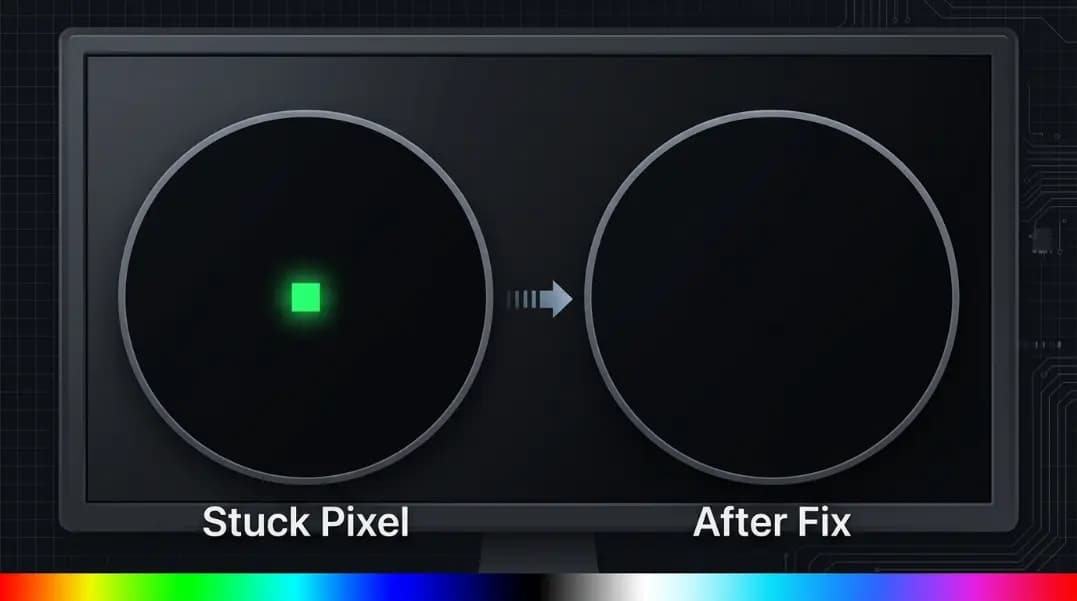
How to Fix Stuck Pixels: Methods That Work and Methods That Don't
Stuck pixels can often be recovered by rapid color cycling. What the fixer actually does, how long to run it, the pressure technique, and why OLED is different.
10 min read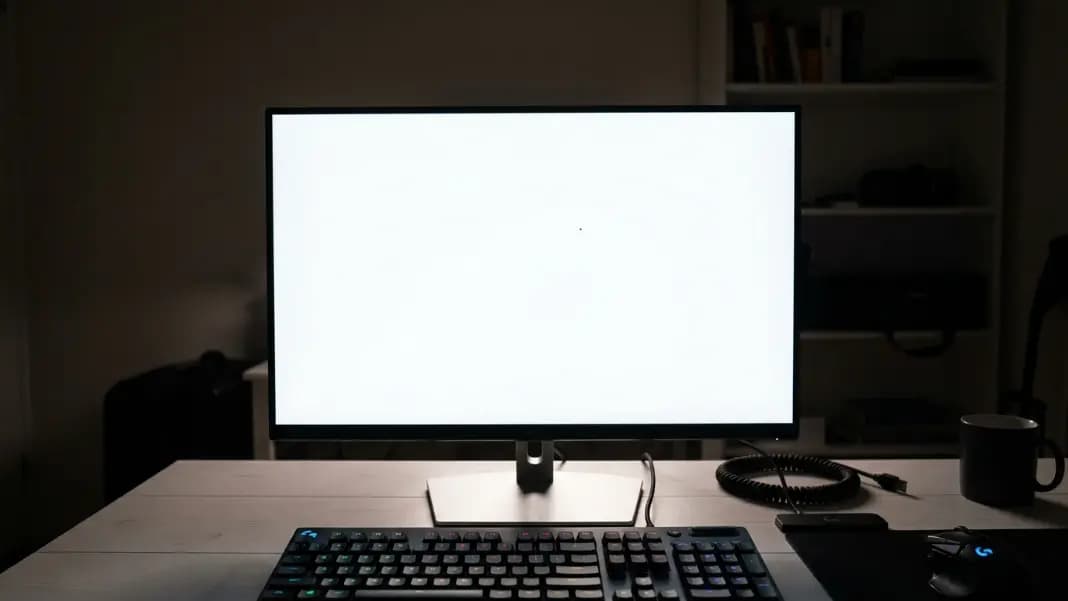
Dead Pixel on Monitor: Free Screen Test and Whether Your Warranty Covers It
A dead pixel on your monitor shows as a fixed black dot on light backgrounds, invisible on black. Run the free test, then check whether your monitor brand's policy covers single or multiple pixel defects.
15 min read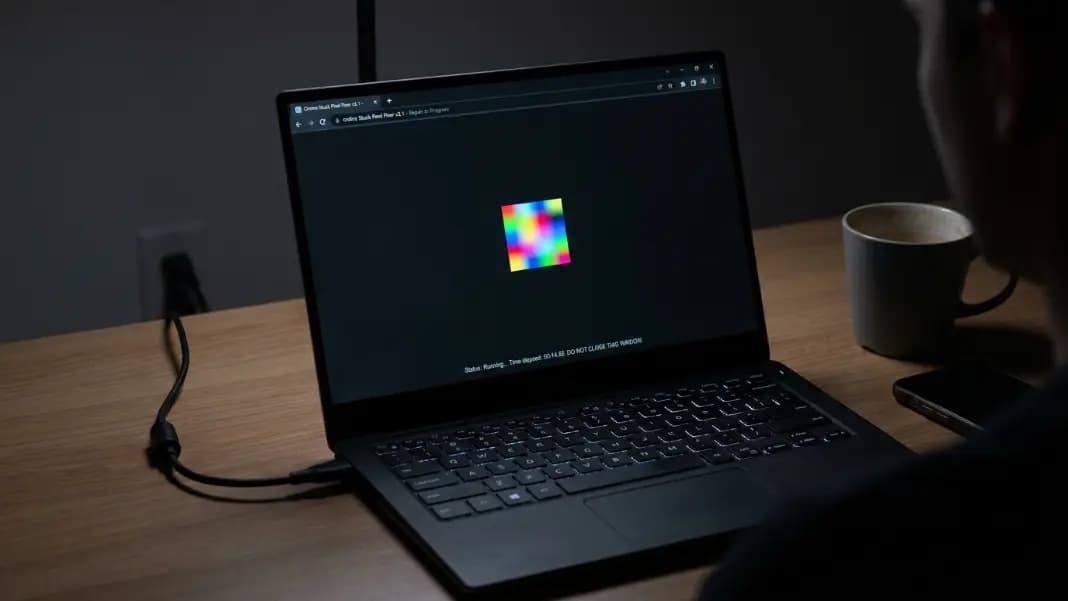
How to Fix Dead Pixels on a Laptop: Free Stuck Pixel Fix and When to Claim Warranty
True dead pixels cannot be fixed, but stuck pixels often recover with rapid color cycling. Test free to find out which you have, then follow the repair steps before paying for a screen replacement.
12 min read