Free QR Code Generator Online
This free QR code generator creates QR codes for URLs, plain text, email addresses, phone numbers, WiFi credentials, and SMS. Generate a QR code instantly, download it as PNG with no watermark, and use it anywhere. No account, no signup, no rate limit. The QR code creator runs entirely in your browser so nothing is uploaded to any server.
#000000#FFFFFFHigher correction survives more damage and logo overlays
How to create a QR code in 3 steps
- Select the content type from the dropdown: URL, text, email, phone, WiFi, or SMS.
- Enter your content. The QR code generates automatically as you type.
- Scan the preview with your phone to verify it, then click Download PNG to save.
The QR code maker produces a clean black-and-white code with no watermark, logo, or branding. The downloaded PNG is suitable for both digital use and print. Always scan the code with a second device before using it in any published or printed material to confirm it encodes the correct content.
Create QR code from URL: links, landing pages, and websites
The most common use case is creating a QR code from a URL. Select URL from the content type dropdown, paste the full web address including the https:// prefix, and the QR code appears immediately. Any web URL works: product pages, booking forms, Google Maps locations, YouTube videos, social media profiles, app store links, and PDF downloads. The QR code for website workflow takes under 30 seconds from paste to downloaded PNG.
When linking to URLs with query parameters (such as UTM tracking codes or filter parameters), all special characters in the URL must be properly encoded before you generate the code. Characters like spaces, ampersands, and equals signs in parameter values need to be percent-encoded so the QR code carries the correct URL string. Use the URL encoder to encode query parameter values before pasting the full URL into this QR code generator.
QR code for business card: sharing contact details
A business card QR code lets anyone scan and save your contact details instantly without typing. There are two common approaches. The first is a URL QR code linking to your LinkedIn profile, personal website, or a digital business card service. When scanned, the phone opens your online profile directly. The second is a plain text QR code using vCard format, which encodes your name, phone, email, and company directly in the code. Many Android and iOS devices can import vCard text from a QR scan directly into the contacts app.
For print on business cards, size the QR code at minimum 2.5 x 2.5 cm. Place it on the back of the card in a corner position with adequate white space (quiet zone) around all four edges. The quiet zone should be at least 4 modules wide. Without sufficient quiet zone, some scanners fail to detect the code boundary. Always order a proof print and test scan before a full run. If you need realistic test contact data for mockups, the fake identity generator produces sample names, phone numbers, and email addresses for design purposes.
QR code generator for WiFi: share network access without revealing the password
A WiFi QR code lets guests join your network by scanning instead of typing a password. Select WiFi from the content type dropdown, enter the network SSID (name), password, and security type (WPA2 for most home and office routers), and the QR code encodes the credentials in the standard WIFI:T:WPA;S:[SSID];P:[password];; format. Android 10+ and iOS 11+ camera apps parse this format and offer a one-tap join prompt.
Print the WiFi QR code and place it near the router, in a reception area, or on a menu card. The password itself is not displayed to guests and is stored inside the QR pattern rather than shown as text. For the underlying network, use a strong random password rather than a memorable one, since the QR code removes the need to type it. The password generator creates strong random WiFi passwords that you can paste directly into the WiFi QR code input.
Static vs dynamic QR code generator
A static QR code encodes the destination content directly inside the code. The data is fixed at generation time and cannot be changed afterward. If the target URL changes, you need to generate and reprint a new code. A dynamic QR code encodes a short redirect URL that points to a third-party server. The actual destination can be updated through a dashboard without printing a new code, and scan analytics (count, location, device type) are available.
This is a free static QR code generator. Static codes never expire, require no subscription, have no scan limits, and depend on no third-party service staying online. They are the right choice for permanent content: a website homepage, a fixed contact page, a stable product URL, or WiFi credentials that do not change. Dynamic QR codes are better when the destination needs to change after print, or when scan analytics are required for a campaign.
What is a QR code and how does it work?
A QR code (Quick Response code) is a two-dimensional barcode that stores data as a pattern of black and white squares arranged on a grid. It was developed in 1994 by Denso Wave in Japan for tracking automotive components and later adopted globally for general data encoding. Unlike a traditional one-dimensional barcode that stores data in one direction, a QR code stores data both horizontally and vertically, allowing it to hold significantly more information in a compact space.
When a smartphone camera scans a QR code, it detects the three square alignment markers in the corners, determines the code boundary and orientation, reads the grid of modules, applies the error correction algorithm to recover any damaged data, and decodes the binary payload into its encoded text. The entire process takes under one second on any modern device. QR codes include built-in error correction (at levels L, M, Q, or H, recovering 7 to 30 percent of damaged data), which is why a partially obscured or lightly damaged code still scans correctly.
QR code maker online: download, size, and print guidelines
The online QR code maker renders the code as a vector-accurate image and exports it as PNG. For digital use on websites, presentations, and emails, the standard download resolution is sufficient. For print, use the largest available export size and avoid scaling the PNG up in image editors, as this blurs the module edges. If possible, export as SVG for print, as vector formats scale to any size with perfect sharpness.
Print size guidelines: 2 x 2 cm minimum for hand-held materials, 2.5 x 2.5 cm for business cards, 4 x 4 cm for flyers and brochures, and 10 x 10 cm or larger for outdoor signage. All four sides of the QR code need a white quiet zone at least as wide as 4 modules of the code. Printing a QR code on a colored or dark background requires high contrast between the code modules and the background. Black on white is always the most reliable combination for maximum scanner compatibility across all devices and lighting conditions.
Frequently asked questions
Select the content type from the dropdown (URL, text, email, phone, WiFi, or SMS), enter your content in the input field, and the QR code generates instantly in the preview. Click Download PNG to save the image. The entire process takes under 10 seconds. No account, no signup, no watermark, and no rate limit. All QR code generation runs in your browser with nothing sent to any server.
Select URL as the content type, paste your full web address including the https:// prefix into the input field, and the QR code appears immediately. Scan it with your phone camera to confirm it opens the correct page, then download the PNG. Any web URL works: standard pages, landing pages, product pages, social media profiles, Google Maps links, and shortened URLs. If your URL contains query parameters with special characters, make sure they are properly encoded before generating.
For a business card QR code, choose between two approaches. The first is a URL QR code that links to your LinkedIn profile, personal website, or digital business card page. The second is a vCard QR code encoded as plain text in the standard vCard format, which adds your contact directly to the scanner's phone. Print the QR code at minimum 2.5 x 2.5 cm on the business card. Always test scan before ordering a large print run. A QR code on a business card replaces manual contact entry and ensures the information saved is accurate.
A QR code (Quick Response code) is a two-dimensional barcode that stores data as a pattern of black and white squares on a grid. It was invented in 1994 by Denso Wave for tracking automotive parts and later adopted globally for general data encoding. Any smartphone camera can decode a QR code in under a second, making it the standard way to bridge physical materials to digital content. A QR code can store URLs, plain text, contact information, WiFi credentials, geographic coordinates, and any other text-based data up to approximately 4,000 characters.
Yes. Select WiFi as the content type, enter the network name (SSID), password, and security type (WPA2 is standard for home and office networks), then generate. The QR code encodes the credentials in the WIFI: format. When scanned by an Android or iOS camera app, the device shows a prompt to join the network without typing the password. This is useful for guest networks, cafes, offices, and events where you want to share WiFi access without sharing the password as text.
The minimum recommended print size is 2 x 2 centimeters for materials held at normal reading distance. Business cards use 2.5 x 2.5 cm. Flyers and brochures work well at 3 to 5 cm. Posters and signage viewed from further away need larger codes: approximately 10 cm minimum for materials viewed from 1 meter or more. Always test scan the printed result before mass production. Download the PNG at the highest available resolution to avoid pixelation when scaling up for print.
A static QR code encodes the destination content directly in the code itself. Once generated, the data inside cannot be changed. If you update the URL, you need a new QR code. A dynamic QR code encodes a short redirect URL that points to a service's server. The destination can be changed later through the service's dashboard without printing a new code. Dynamic QR codes also track scan counts and locations. This tool generates static QR codes. They never expire, have no scan limits, and require no paid subscription, but the content is fixed at generation time.
No. Static QR codes generated by this tool never expire. The content is encoded directly in the pattern of the code. There is no redirect, no third-party server, and no dependency on any subscription service. As long as the URL you encoded remains active, the QR code continues to work. If the linked page goes offline or the URL changes, the QR code will point to a broken destination, but the code itself remains valid indefinitely.
Related articles
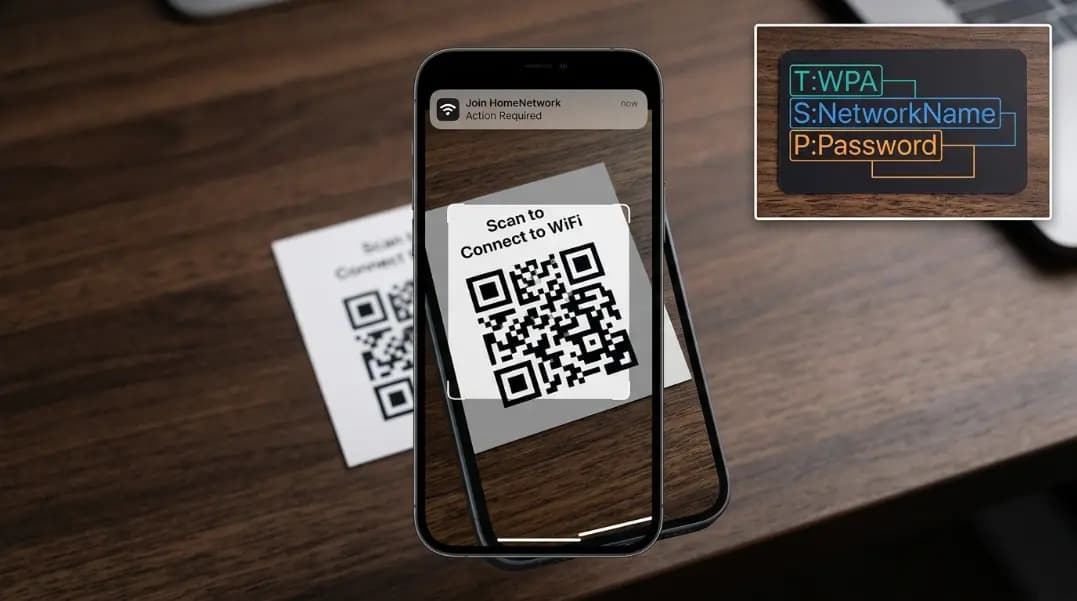
QR Code for WiFi: Share Your Network Without Typing a Password
How to create a WiFi QR code, the WIFI encoding format, why it breaks when you change your password, iPhone vs Android scanning, and where to display it.
7 min read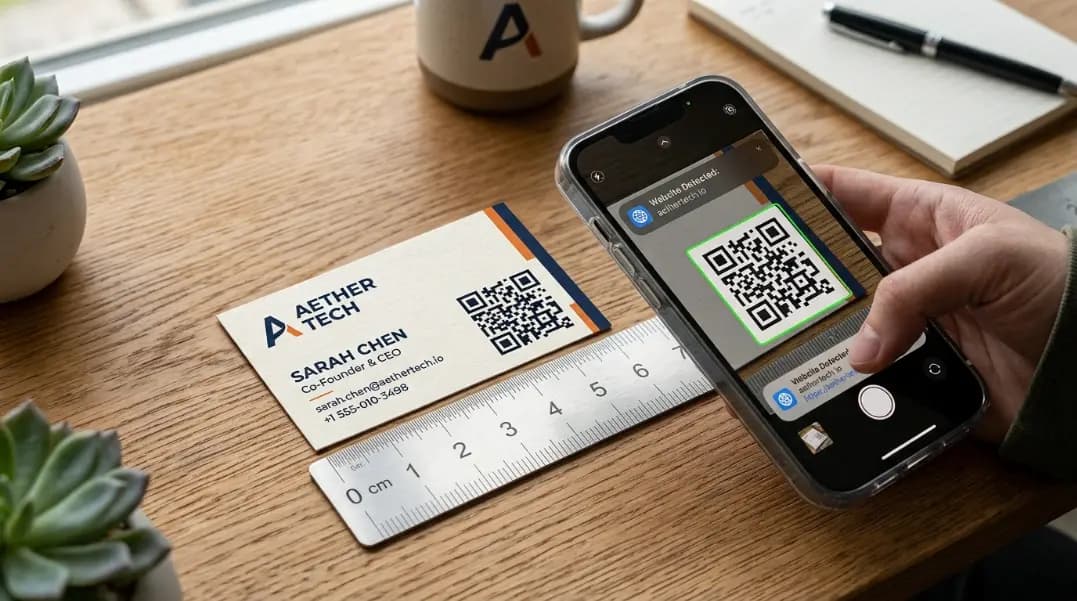
QR Code Business Cards: Size, Design, and What to Link To
Dynamic QR codes let you change the URL after printing. Minimum size, error correction level, color contrast, and testing steps for business card QR codes.
11 min read
QR Codes in Print: Resolution, File Format, and Scanning Distance Rules
300 DPI minimum, SVG over PNG, CMYK black conversion, and the 10x distance rule. What causes print QR codes to fail and how to test before the full run.
12 min read