The green-on-black terminal look predates The Matrix by at least sixteen years. WarGames (1983) used the same aesthetic for the same reason Hollywood still does: green phosphor CRT monitors were what programmers and early hackers actually worked on, and the dark screen with bright green text read immediately as "someone who knows computers" to any viewer who had never seen a real terminal. The visual shorthand has never needed updating because the association it created in that first generation of hacking films proved permanent.
Recreating it takes about ten seconds with the hacker typer tool. This guide covers how the green screen effect works, how to get it running in fullscreen, and what you can do with it for pranks, video content, or screen recordings.
What the Green Typer Screen Actually Is
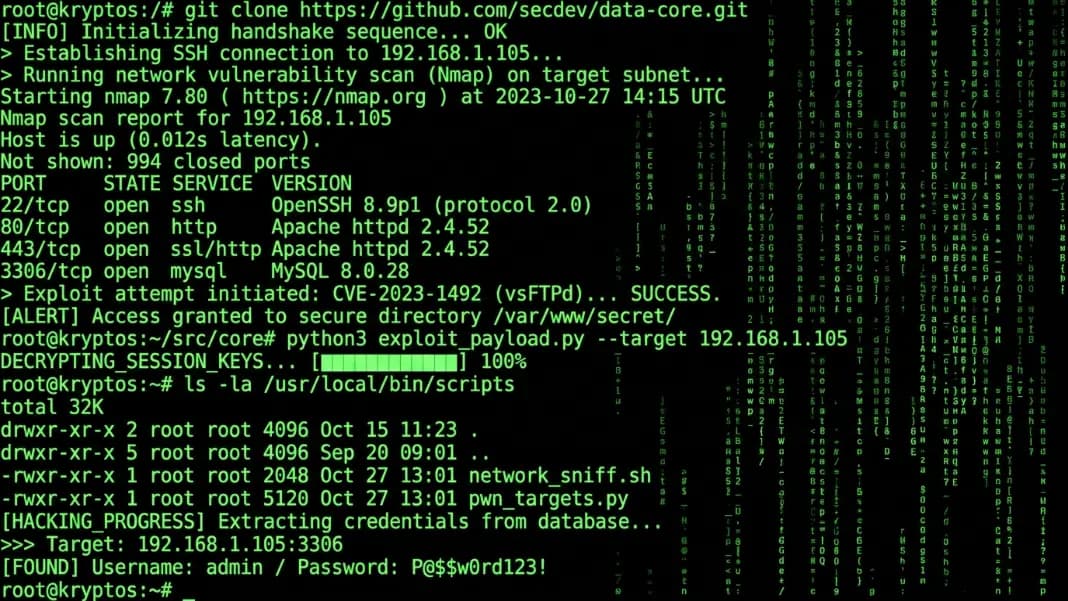
The green hacker typer is a browser tool that displays scrolling green code on a dark background whenever you press a key. Every keystroke adds the next chunk of pre-written code to the screen in green text, creating the effect of a terminal filling with output in real time.
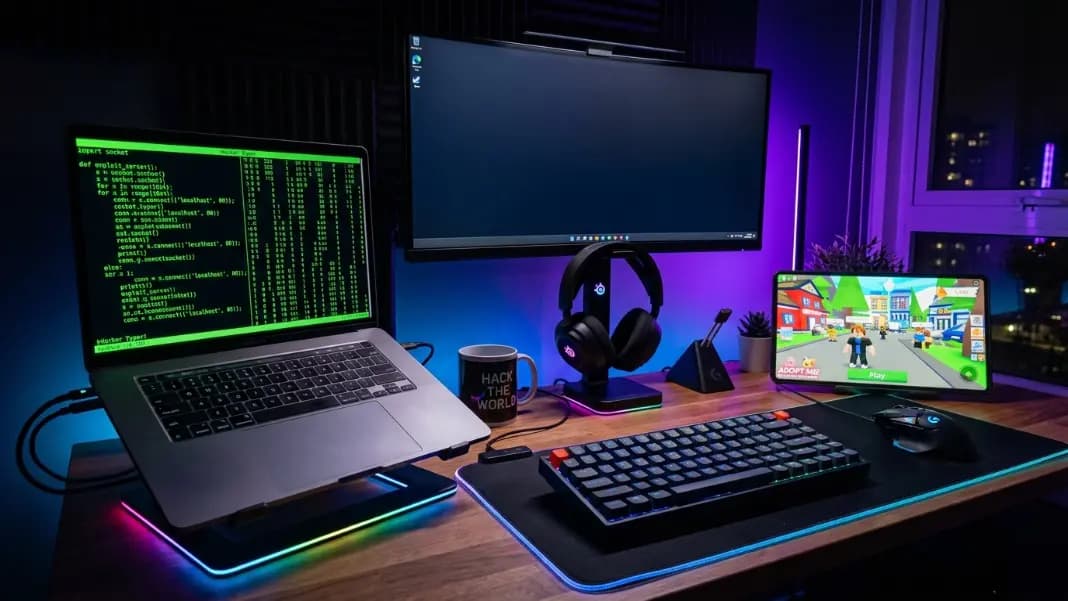
The effect has three components working together: the dark background, the green monospace font, and the auto-scroll that keeps pulling the view down as new text appears. Each of these mimics how a real 1970s and 80s terminal looked in actual use.
The tool is not doing any real computing. It is displaying pre-stored text in response to keypresses. But visually, it produces the exact same output you see in hacking scenes in films, music videos, and tech presentations.
The color is the most important part of the effect. Green text on black reads as "hacker screen" to most people instantly, in the same way that a white lab coat reads as "scientist" even in a cartoon. The association is that strong.
How to Get the Green Screen Running
Getting the green hacker typer screen running takes less than 30 seconds.
Open the hacker typer tool in any browser on any device. The default interface loads with a dark terminal and is already set to display green code output. Start pressing any key on your keyboard and the green code begins appearing immediately.
You do not need to configure anything for the basic green effect. It is the default.
For a more convincing full-screen version:
On a Windows computer, press F11 first to put your browser in fullscreen, then open the tool and start typing. The green code fills the entire screen with no browser tabs or address bar visible.
On a Mac, press Command + Control + F to go fullscreen, or use the View menu and select Enter Full Screen.
On a phone, open the tool in Chrome or Safari and use the browser's fullscreen option from the menu. The keyboard appears at the bottom, which slightly reduces the immersion, but the code output looks the same.
The typing speed affects how fast the code appears. The default speed shows a moderate amount of code per keystroke. If you want the screen to fill faster for a more dramatic effect, look for the speed setting and increase it. For a slower, more deliberate build-up, reduce the speed. Both are convincing in different contexts.
Why Hacking Is Always Shown With Green Code
The green-on-black look comes directly from green-phosphor cathode ray tube monitors used in the 1970s and 80s: the screens that programmers and early hackers actually worked on. Hollywood borrowed the look, The Matrix (1999) cemented it permanently, and it has been the visual shorthand for hacking ever since. The hacker aesthetic guide covers the full history, including why amber terminals from the same era never got the same cultural association.
Using the Green Hacker Typer for Pranks
The green screen is the version people most often use for the classic hacker typer prank because it is the most immediately recognizable as "hacker stuff" to most audiences.
The setup is simple. Open the hacker typer in fullscreen, position your screen so your target can see it without getting close enough to notice there is no address bar or window controls, and start typing. The combination of the green color, the scrolling speed, and the legitimate-looking code is enough to convince most people for at least a few minutes.
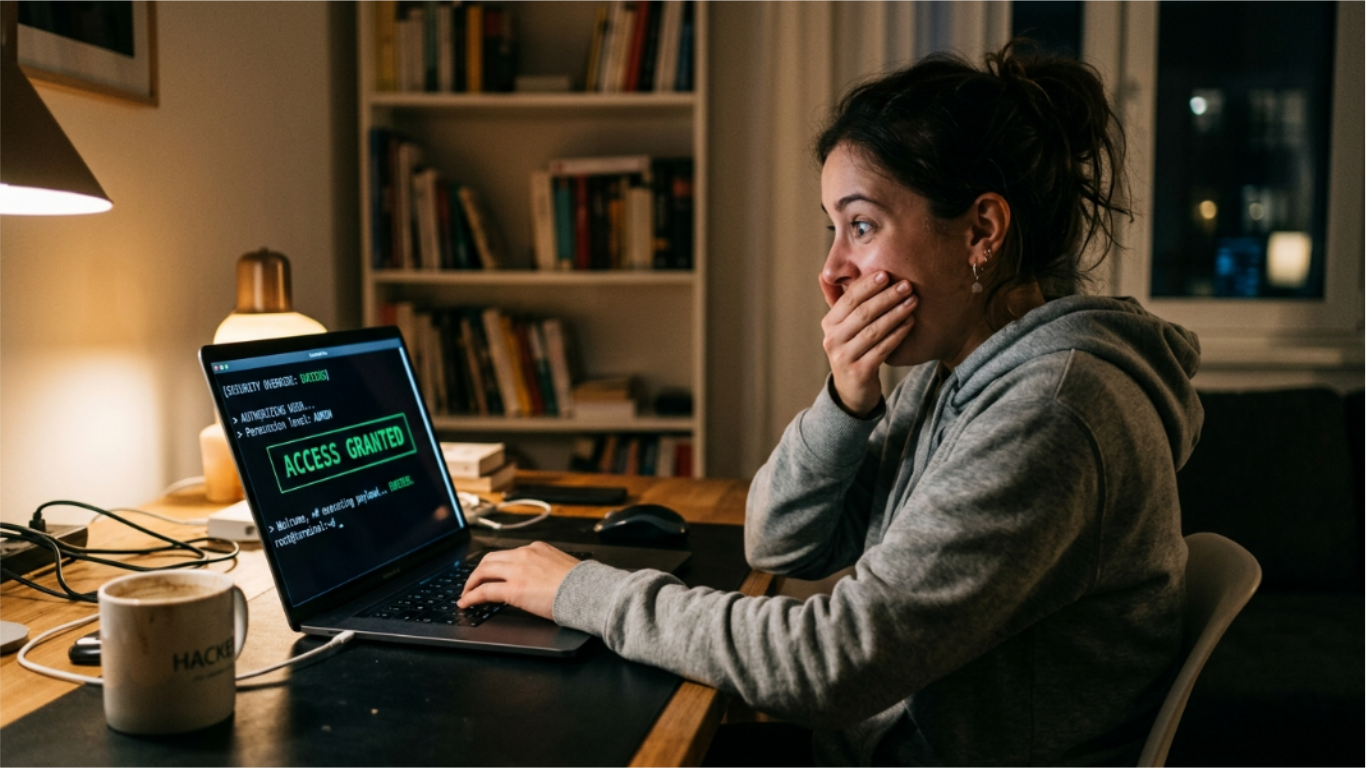
The access granted Easter egg works well in this context. Press Shift three times quickly and the green screen shows an "ACCESS GRANTED" overlay in large text. Most audiences read this as confirmation that something real just happened. The hacker typer access granted guide has every keyboard shortcut, the full list of Easter eggs, and timing tips for making the prank land well.
One practical tip: the green theme is the most convincing in a darkened room or when the person watching is not right next to the screen. In bright daylight with someone reading directly over your shoulder, the effect breaks down faster because they can see the browser interface. The hacker screen prank guide covers setup details for different scenarios.
Using Green Hacker Typer for Video Content
The green terminal screen is a strong visual for video content because it reads immediately in a thumbnail even at small sizes, it is high contrast and visible in both light and dark video contexts, and it signals a technical subject without needing any text overlay to explain it.
For YouTube videos: open the tool, go fullscreen, start recording with any screen recorder, and type while recording. The output clips well because it is consistently high-contrast. If you want a specific section of code to appear during a timed moment in your video, the speed setting lets you control how quickly the screen fills.
For thumbnails: a screenshot of the green terminal screen on a dark background is immediately recognizable. You can overlay text on top of the dark areas around the code without obscuring the green effect.

For short clips on social media: the scrolling green code works well as a looping background. Record 10 to 15 seconds of active typing with the speed set to moderate, and the clip loops cleanly because the code output repeats in a predictable pattern.
For streaming or screen sharing: the green terminal makes a strong overlay or background during loading screens or transitions. It reads well at reduced resolution in a streaming context better than many text-heavy visuals.
Different Ways to Adjust the Green Effect
The basic green-on-black is the default and the most recognizable. But a few adjustments change how the screen reads in different contexts.
Speed: Faster speed creates a more dramatic effect where the screen fills rapidly. This works well for a brief prank reveal or a video clip. Slower speed looks more like someone working methodically, which can feel more realistic in a long-form demo context.
Code type: Some versions of the hacker typer let you choose which type of code appears. Assembly language looks the most cryptic and technical to a non-programmer. Python looks recognizable to more people. The default mix is usually assembly with some C, which is the right choice for the most convincing hacker screen look.
Browser zoom: Reducing your browser zoom level makes the text smaller and more compact, filling the screen with more lines of code. This increases the visual density and makes the screen look more complex. Increasing zoom makes individual lines more readable, which is better for close-up screenshots.
Ambient environment: The green screen looks most dramatic in a dim room. Bright overhead lighting washes out the contrast. If you are recording video of the screen, a dark room with the screen as the primary light source produces the most cinematic version of the effect.
Text blur for authentic period footage: Original green phosphor monitors used the P1 phosphor compound, which had medium-to-long persistence, meaning the glow lingered slightly after the electron beam moved past. This was intentional: the persistence reduced flicker at the low refresh rates early monitors ran at. The side effect was that text had a soft, slightly blurred appearance rather than the sharp pixel-crisp look of modern displays. For video or screen recordings meant to simulate an authentic 1970s or 80s terminal rather than a modern hacker screen, adding a slight Gaussian blur to the text layer is historically accurate, not a visual error.
All developer tools, including the hacker typer, are in the developer tools section. For the complete list of keyboard shortcuts, Easter eggs, and prank-specific setup tips, the hacker typer access granted guide has everything you need. If you want to compare the hacker typer to other similar tools, the best hacking simulator tools guide covers the alternatives and how each one differs.