You want to run the hacker typer prank from your phone and every result you find tells you to download an app. There is no app. The searches for "hacker typer app download" and "hacker typer android" exist because people assume a tool this useful must have a native version. It does not need one.
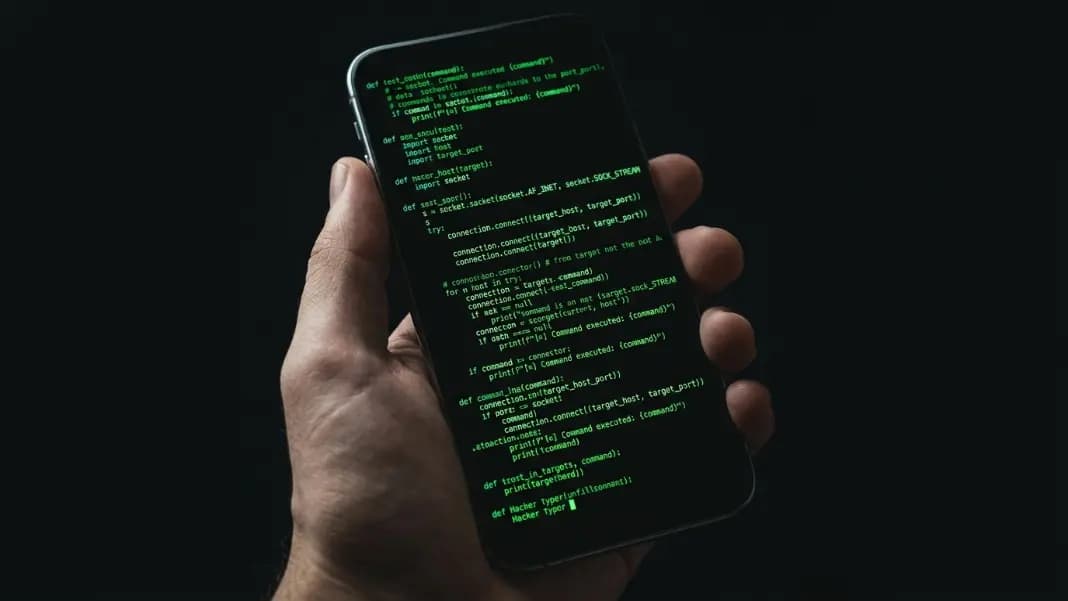
The hacker typer runs in any mobile browser and handles the keyboard input problem that causes most similar tools to fail on phones. Open Chrome or Safari, navigate to the tool, tap the terminal, and the keyboard appears. Type and the code fills your screen. The experience on mobile is the same as desktop, with a few platform-specific differences worth knowing before your first session.
This guide covers the step-by-step setup for Android and iOS, how fullscreen mode works differently on each platform, how to trigger the ACCESS GRANTED easter egg from a touchscreen keyboard, and which prank delivery formats work best from a phone.
Why There Is No Hacker Typer App and Why That Is Fine
Third-party "hacker typer app" listings appear in app stores, and most of them are worth avoiding. They use random character sequences or low-quality text instead of real source code, carry advertising, or request unnecessary permissions. None of them use the Linux kernel C, Python networking code, or x86-64 Assembly that the ToolCenterHub version does.
The browser version has no installation step, no permissions to grant, and no storage used on your device. It loads in a few seconds on any mobile browser. If the tool updates, you automatically get the latest version on your next visit without downloading anything.
There is also a practical reliability argument. Native apps get removed from stores, stop receiving updates, or require OS upgrades before they work again. A browser-based tool is available as long as the website runs. Bookmarking the tool in Safari or Chrome means it is one tap away from your home screen without any of the app lifecycle overhead.
For content creation, presentations, or repeated prank sessions where you need the tool to work reliably every time, the browser version is more dependable than any third-party app alternative.
How to Use Hacker Typer on Android
Open Chrome on Android and navigate to the hacker typer tool. You will see the terminal output area, which on mobile shows two lines of placeholder text: "Start typing to hack the mainframe..." and below it, "Tap here, then type on your keyboard."
Below the terminal, the settings panel appears. One button in this panel is labelled "Tap to Type." This is the primary mobile keyboard trigger. Tapping it focuses a hidden input element, which brings up the Android keyboard. The button label changes to "Keyboard Active" while the keyboard is open, confirming the focus is working.
Once the keyboard is up, type anything. Every keystroke adds code to the terminal output. The code comes from the selected snippet (Linux Kernel, Python, or Assembly) and advances character by character with each key you press. Speed controls how many characters appear per keystroke.
The keyboard occupies roughly half the screen in portrait orientation. The terminal area above it scrolls to keep the latest output visible. For a prank setup, the workflow is: tap "Tap to Type," fill the terminal with output, then dismiss the keyboard before showing the screen. On Android, dismissing the keyboard is done by pressing the back button once or tapping the keyboard collapse icon.
The code output stays on screen after the keyboard is dismissed. The terminal does not require active keyboard focus to display what is already there. Dismiss the keyboard, enter fullscreen, and the terminal shows a clean full-screen view of the accumulated output.
Adjusting settings on Android: the Code, Theme, and Speed selectors are below the terminal and are fully tappable on mobile. Select your preferences before you start typing so you are not switching settings mid-session.
How to Use Hacker Typer on iOS and iPhone
iOS follows the same basic flow as Android. Open Safari, navigate to the tool, and tap the terminal area or the "Tap to Type" button below it. The iOS keyboard appears and typing advances the output.
One iOS-specific detail matters for stability: the hidden input that captures mobile keyboard events has a font size of 16 pixels. This is intentional. iOS Safari automatically zooms in when a text input with a font size smaller than 16 pixels receives focus, which would disrupt the terminal view. The 16px size prevents the auto-zoom, keeping the terminal display stable when the keyboard opens.
On iPhone in portrait orientation, the default keyboard height leaves roughly the top half of the screen for the terminal. On iPhone in landscape orientation, the keyboard takes up a larger proportion of the remaining space. Portrait mode is the better setup for prank use because more terminal area is visible when the keyboard is dismissed.
Safari's browser toolbar appears at the bottom of the screen on modern iPhones. In standard browsing, this toolbar is always visible. Scrolling down on the page collapses the toolbar temporarily, giving a few extra pixels of terminal space. For the fullscreen approach, the next section covers how iOS handles this.
A note on browser choice on iOS: all browsers on iPhone and iPad use the WebKit rendering engine, which is Safari's engine, regardless of their branding. Chrome on iOS is essentially Safari with a different interface. The hacker typer runs identically across all of them on iOS.
Fullscreen Mode on Mobile: Android vs iOS
Fullscreen is the critical setting for any prank where someone will see the phone screen. With browser chrome visible, any viewer can see the URL bar and identify the website immediately.
On Android, the fullscreen button in the terminal chrome bar triggers the native Fullscreen API. Chrome on Android expands the terminal to fill the entire screen, collapsing the address bar and navigation buttons. What remains is the terminal output with the thin chrome bar at the top showing the three dots and session label. This is the same API behavior as desktop Chrome, and on Android it works cleanly.
On iOS, Safari does not expose the Fullscreen API to web content. The hacker typer handles this with a CSS overlay: when you tap the fullscreen button, the terminal element is repositioned to position: fixed with inset: 0 at a high z-index, covering the full viewport. The Safari toolbar technically remains active underneath, but the terminal visually covers it entirely.
From a viewer's perspective looking at your phone screen, both approaches produce the same result: a screen filled edge to edge with terminal output. For a prank show where someone is looking at your phone from across a table, the iOS CSS fullscreen is indistinguishable from native fullscreen.
To exit fullscreen on iOS, tap the exit icon in the terminal chrome bar. This removes the CSS overlay. Unlike native fullscreen on Android, there is no swipe or hardware gesture that exits it.
On both platforms, the fullscreen view includes a control bar at the bottom of the terminal. This bar shows Speed options (Slow, Normal, Fast), Clear, and Copy. The "Shift x3 for ACCESS GRANTED" hint also appears in this bar, which is worth knowing if you need the shortcut reminder during a live session.
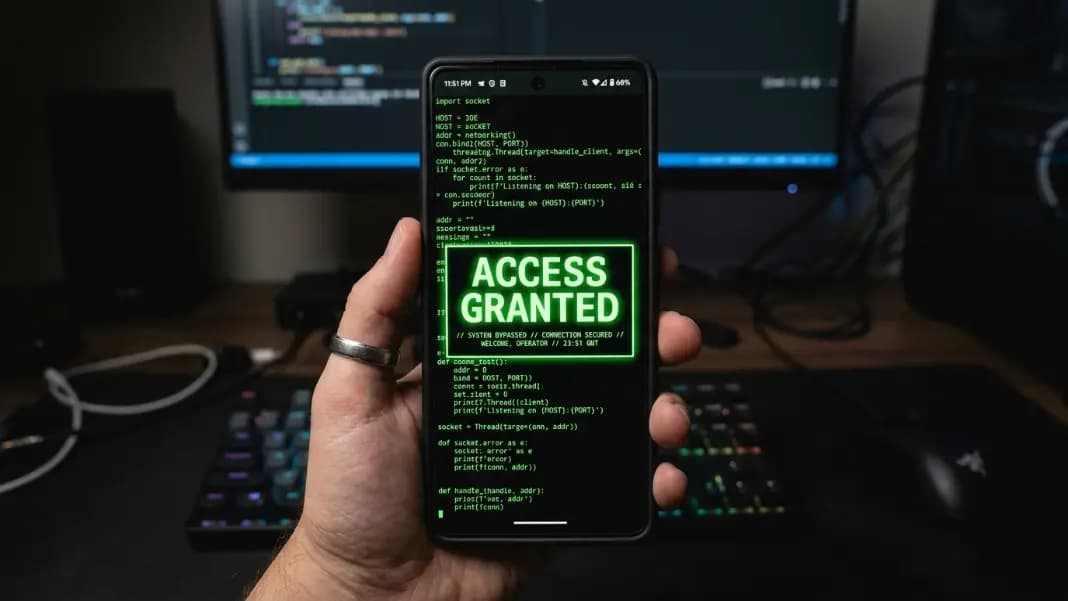
Triggering Access Granted on a Mobile Keyboard
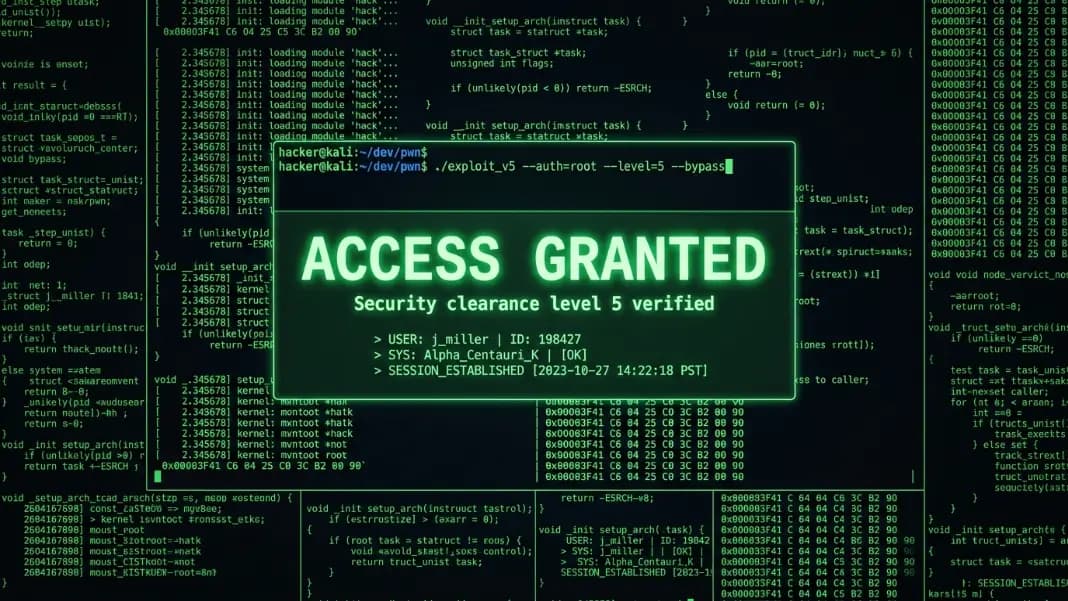
The ACCESS GRANTED easter egg works on mobile the same way as desktop: press Shift three times within about 500 milliseconds total. The overlay appears for three seconds showing large glowing text and the subtitle "Security clearance level 5 verified," then clears automatically.
On Android Gboard, Shift is in the lower-left corner of the main letter layout. It is a single tap away without switching keyboard views or long-pressing anything. On iOS's default keyboard, Shift is also lower-left. Both require three taps in under a second, which is faster than most people expect on their first attempt.
The touch feedback on a phone screen is different from a physical key. Physical keyboards give tactile confirmation that a press registered. Touchscreens give haptic feedback if enabled, which some people find less reliable for rapid tapping. If your triple-Shift attempts are inconsistent, practice the motion a few times on a different screen before the prank. Three clean taps in quick succession is the muscle memory you want established.
Third-party keyboards on Android vary. Some popular alternatives like SwiftKey or Fleksy have Shift accessible on the main layout. Others might use a different layout that requires checking. The safest setup for a prank session is to use Gboard on Android or the default iOS keyboard, both of which keep Shift consistently in the lower-left position.
For the full shortcut breakdown including timing details and what each setting does before you trigger it, the hacker typer access granted guide covers everything.
Best Settings for a Mobile Prank
Smaller screens change which settings perform best. A desktop with a large monitor can fill with output in 30 seconds at Normal speed. A phone screen reaches the same coverage in under 10 seconds at Fast speed because there are fewer pixels of terminal area to fill.
Speed: Fast is the right default for mobile. It fills the visible terminal area quickly, which matters more on a small screen where every second of empty-looking terminal works against the prank. If you are running a longer narrative prank where you want the buildup to feel gradual, Normal works but requires more typing time.
Code type: Python produces the most readable output on a small screen. The function names and Python syntax remain legible at phone screen size and at reasonable viewing distances. Linux Kernel C and Assembly use denser character sequences that become harder to parse on small displays, which weakens the impression that something meaningful is running. Python's near-English readability actually strengthens the prank on mobile by making the output look active and purposeful.
Theme: Green provides the strongest visual contrast and reads clearly in most lighting conditions. Outdoor or bright indoor environments can wash out Blue and Amber themes on some screens. Green holds up better under variable lighting, which matters when showing a phone to someone in an unpredictable environment.
Keyboard dismissal: Always dismiss the keyboard before entering fullscreen or showing the screen. The keyboard visible in the frame is the most reliable giveaway that this is a touchscreen app rather than a terminal environment.
Physical Phone Shows vs Mobile Screen Sharing
Mobile pranks split into two delivery methods with different strengths and constraints.
A physical phone show is the most immediate format. You hold the phone and tilt it toward the audience at conversation distance. The constraint is maintaining control of the device. If the phone passes to another person's hands, the address bar becomes accessible, the URL becomes visible, and the setup falls apart. Holding it yourself and showing the screen at a slight distance removes that vulnerability.
In fullscreen mode on both Android and iOS, the address bar is hidden and the screen shows terminal output to the edges. Tilt the phone at 30 to 45 degrees toward the viewer rather than handing it over flat. This angle shows the screen clearly while keeping the top chrome area out of easy reading distance.
Mobile screen sharing through Discord, FaceTime, or similar apps lets one phone screen reach multiple viewers simultaneously. On Discord mobile, start a screen share from the voice channel, then switch to the browser with hacker typer open. The screen share captures your full phone display. In fullscreen mode, the terminal covers the captured area.
The keyboard issue affects screen sharing more than physical shows. When the keyboard is visible during a screen share, viewers see the touchscreen keyboard on screen, which makes the terminal obviously a web app on a phone. Pre-fill the terminal with output before starting the screen share. Type, dismiss the keyboard, then start sharing. The viewers see only the terminal output and never see the keyboard at all.
For gaming community pranks that involve Discord screen sharing alongside a game session, the hacker typer gaming guide covers mobile setups for Roblox, Free Fire, and Discord specifically.
Setting Up for a Seamless Mobile Session
The biggest mobile-specific friction is the sequence of steps required before the prank starts. On desktop, you open the browser, type, and it works. On mobile, there are more setup steps that need to become automatic before a live prank.
The reliable pre-prank sequence for mobile: open the tool, select code type and theme from the settings panel, tap "Tap to Type," fill roughly half the terminal with output, dismiss the keyboard, tap fullscreen. From this point, the phone is in presentation mode. The ACCESS GRANTED shortcut is ready when you need it.
Doing this sequence before the target audience is watching removes all the awkward setup steps from the live moment. The prank begins from a terminal that is already running and full, not from an empty screen that needs setup while someone watches.
The hacker screen prank guide covers the narrative and timing elements that make the prank land on any device, including mobile.