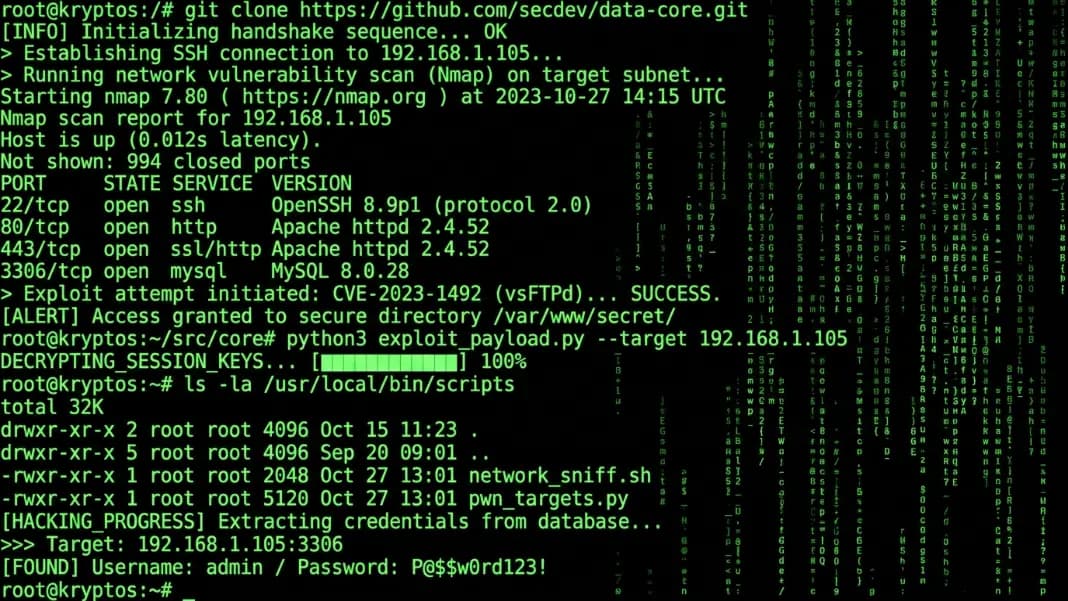
You have seen it in movies a hundred times. Someone sits down at a keyboard, fingers fly, and the screen fills with scrolling green text, network addresses, and cryptic system output. It looks impressive. It looks like the person controls everything.
The good news is you can recreate that exact look on your own computer right now, with no software to install and no technical background required. If you want the effect instantly in your browser without any setup, the Hacker Typer tool fills your screen with real Linux kernel code as you type. This guide covers the real terminal commands behind the effect, what they actually do, and how to combine them into a convincing hacker screen setup.
What "looking like a hacker" actually means
The hacker screen look that most people picture comes from a specific visual language: dark terminal background, scrolling text output, technical-sounding data, and the sense that something important is happening beneath the surface.
This aesthetic comes partly from real hacking tools and partly from Hollywood taking those tools and making them look more dramatic. Real security researchers do use terminals constantly. They do run commands that produce long scrolling output. The difference is context and intent, not appearance.
When you run the right commands, your screen produces genuine system data that looks exactly like what you see in films, because it is real output from real system functions. You are not faking anything, you are just choosing which real tools to run.
The fastest way to get a hacker screen going
Before touching any commands, change your terminal appearance. On Windows, open Command Prompt, right-click the title bar, go to Properties, and change the background color to black and the text color to green. This single change transforms the look completely.
On Mac, open Terminal, go to Preferences, and select the "Homebrew" profile, which gives you green text on a black background by default.
On Linux, most terminals support this through the preferences or profile settings.
Once you have the visual set up, the commands below will fill it with convincing output.
If you want to skip all setup and get the effect immediately in your browser, the Hacker Typer tool generates realistic Linux kernel code output with every keypress, no configuration needed.
What CMD Commands Make Your Screen Look Like a Hacker?
These are genuine Windows commands that produce dramatic, technical-looking output. Run them in Command Prompt or PowerShell.
| Command | What it does | Why it looks like hacking |
|---|---|---|
color 0a | Sets terminal to green on black | Instant Matrix-style terminal |
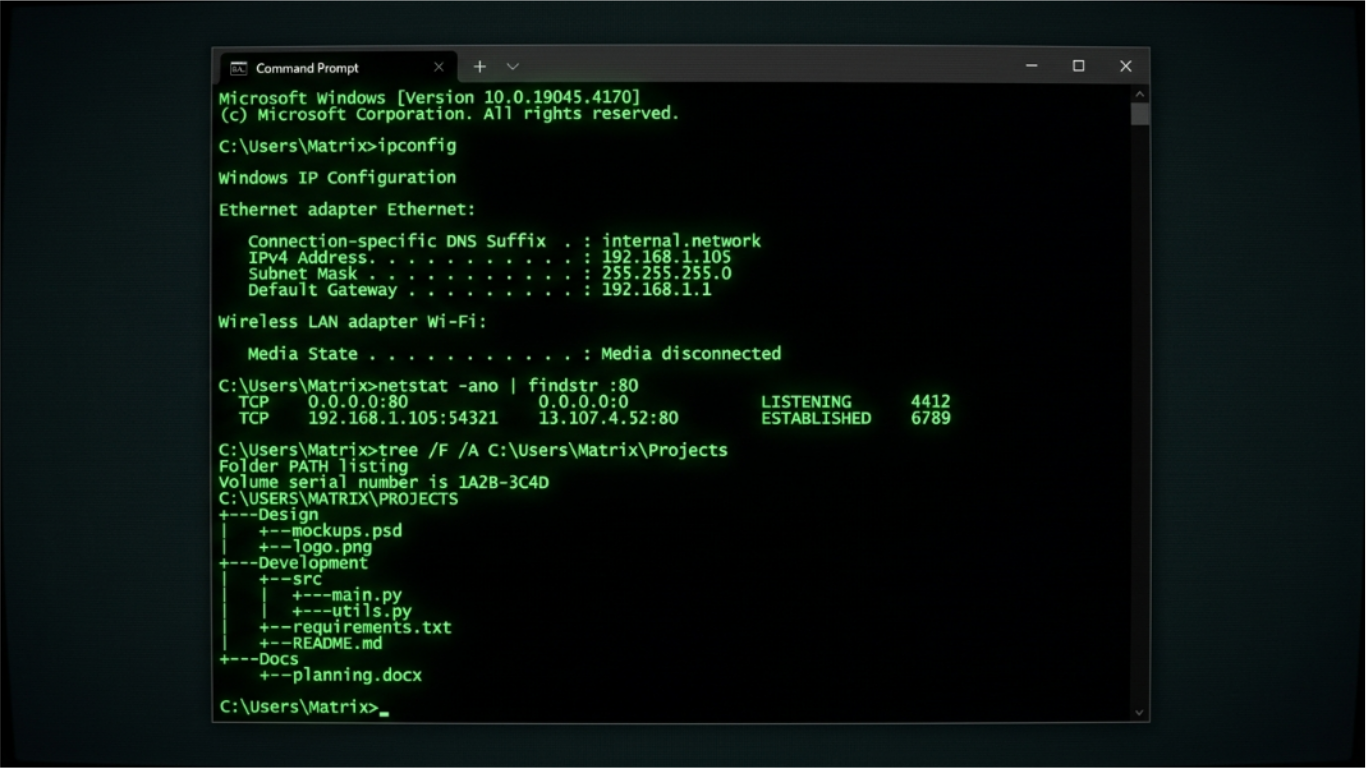
tree /f /a | Shows all files in a directory tree | Fills screen with file system paths |
netstat -ano | Lists all active network connections | Shows IP addresses, ports, and process IDs |
tasklist /v | Shows every running process with details | Long scrolling list of system processes |
systeminfo | Displays full system hardware and OS data | Pages of technical system information |
ipconfig /all | Full network adapter details | MAC addresses, DNS servers, IP config |
ping -t 8.8.8.8 | Continuously pings Google's DNS server | Steady stream of network response data |
arp -a | Shows the ARP table for your network | IP-to-MAC address mappings |
route print | Displays the IP routing table | Network routing configuration |
wmic cpu get name,maxclockspeed | Queries CPU information via WMI | Technical hardware data output |
The combination that works best:
Open Command Prompt, type color 0a first to set the green theme, then run netstat -ano. This shows every active network connection on your machine with foreign IP addresses, port numbers, and process identifiers. To someone walking past your screen, it looks exactly like a network intrusion tool output.
Follow that with tasklist /v to scroll through every process running on your system with memory usage and window titles. It is genuinely your running processes, which makes it all the more convincing.
PowerShell Commands That Look More Convincing Than CMD
PowerShell produces more technical-looking output than standard Command Prompt because its commands return structured objects, not just text strings. The output often includes column headers, property names, and formatted tables that look like a real monitoring dashboard.
Run these in PowerShell (search "PowerShell" in the Start menu):
Get-NetTCPConnection | Sort-Object State shows all active TCP connections sorted by state, with columns for local address, remote address, state, and owning process. It is more readable and more dramatic than the CMD version of netstat.
Get-Process | Sort-Object CPU -Descending lists every running process sorted by CPU usage with exact decimal percentages. The output is wide and dense and fills the screen quickly.
Get-EventLog -LogName System -Newest 50 pulls the last 50 system log entries. Each line shows an event ID, a timestamp, a source name, and a message. It scrolls fast and looks like a security audit tool monitoring for incidents.
while ($true) { Get-Date; Get-NetTCPConnection | Measure-Object; Start-Sleep 2 } creates a loop that prints the timestamp and connection count every 2 seconds. A continuously updating timestamp with live network counts is one of the most convincing effects available on Windows.
The key advantage of PowerShell over CMD: the output looks like it was designed to be read by tools, not humans. That quality is exactly what makes fictional hacker screens look technical.
Terminal commands on Mac and Linux
Mac and Linux terminals run the same underlying Unix commands, and several of them produce output that looks dramatic without needing any additional tools.
Top commands for the effect:
top or htop opens a live-updating display of running processes with CPU and memory usage. It fills the terminal with constantly changing numbers and process names.
watch -n 1 netstat -tuln refreshes the network connection list every second, creating the impression of a continuously monitoring system.
lsof -i lists every file and network connection open on your system. The output is dense and scrolls for a long time on an active machine.
ifconfig -a or ip a dumps all network interface information including MAC addresses and IPv6 addresses, which looks extremely technical.
df -h && free -h shows disk space usage and memory statistics, giving you a clean snapshot of system resources that looks like a system monitoring script.
find / -name "*.log" 2>/dev/null searches the entire filesystem for log files and streams the results. This one takes time, which actually helps the effect because the screen keeps filling as you sit there apparently doing something important.
How Do You Set Up Multiple Windows for Maximum Hacker Effect?
The single terminal approach works, but multiple windows arranged on screen dramatically increases the impact.
Open three terminal windows side by side. In the first, run a continuous command like ping -t 8.8.8.8. In the second, run top. In the third, run netstat -ano and let it scroll or keep running repeated commands.
This creates the multi-panel hacker workstation look common in films and TV shows. Each window appears to be monitoring a different aspect of a system simultaneously.
On Windows, you can also use Windows Terminal (available free from the Microsoft Store), which supports tabs and split panes natively. On Mac, iTerm2 supports split panes. On Linux, tmux gives you full control over terminal layout.
Adding color and style to make it more convincing
Plain white text on black looks good, but adding color makes the output look more like a real security tool.
In bash on Mac or Linux, you can add color codes to your terminal output using ANSI escape sequences. A simple script that prints colored output:
echo -e "\033[32m[+] Connection established: 192.168.1.100\033[0m"
echo -e "\033[31m[-] Warning: Intrusion detected\033[0m"
echo -e "\033[33m[*] Scanning ports...\033[0m"
Green text suggests success, red suggests warnings or errors, yellow suggests in-progress operations. This mirrors how real security tools like nmap color their output.
For the browser-based version with no setup required, the Hacker Typer tool handles all the color and formatting automatically. Every key you press outputs three to five characters of real Linux kernel source code in a convincing terminal style.
Common mistakes that break the illusion
A few things immediately give away that the screen is staged rather than genuine.
Typing too slowly makes it obvious. Real terminal users type quickly and confidently. If you hunt and peck, the effect falls apart. Practice your commands in advance so you can type them without looking.
Choosing commands that produce nothing or a brief one-line output wastes the opportunity. Stick to commands that generate substantial scrolling output like the ones in the table above.
Leaving a normal desktop background visible behind a single terminal window breaks the immersion. Either go full-screen or set your desktop to a dark minimal wallpaper before people see your setup.
Using obviously wrong terminology while talking about what you are doing is another common mistake. If you say "I am accessing the mainframe" while a Windows file explorer is visible in the background, nobody will believe it. Keep the conversation vague or let the screen do the talking.
Combine tools for the full effect
For the most convincing setup, combine real terminal commands with a browser-based hacker screen tool.
Run netstat -ano in a terminal window on one side of your screen. Open Hacker Typer in a browser on the other side. Start typing anything and the browser window fills with Linux kernel C code while your terminal shows real network data.
The combination is genuinely striking because both outputs are real. The network connections in your terminal are actual live connections from your machine. The code in Hacker Typer is actual Linux kernel source.
You can also explore other developer tools to add more technical layers, such as showing the IP address lookup result on screen, running the hash generator and displaying SHA-256 hashes as if they are encryption keys, or displaying a UUID generator output as if it is generating cryptographic credentials.
What this teaches you about real security work
Going through these commands is actually a useful introduction to system administration concepts. netstat is a real network diagnostic tool. tasklist helps you understand what processes are running. systeminfo gives you hardware and OS details that matter for troubleshooting.
Real cybersecurity work involves these same commands, used with specific goals in mind. Security researchers run netstat to check for unexpected outbound connections. System administrators run tasklist to identify resource-hungry processes. ipconfig and ifconfig are foundational network troubleshooting tools.
So while the goal here is the visual effect, the commands themselves are worth understanding. Run them on your own machine, look up what the output means, and you will have learned something about how your system works.
The commands draw on a visual language with roots in 1970s hardware that explains why the terminal look reads as powerful and technical to almost anyone who sees it.
Quick reference card
Here is a summary you can refer back to when setting up your hacker screen:
Step 1: Change terminal background to black, text to green
Step 2: Run color 0a on Windows to apply the theme
Step 3: Start a long-running command: netstat -ano, ping -t 8.8.8.8, or top
Step 4: Open Hacker Typer in a second window for typed code output
Step 5: Arrange windows side by side or in a grid
Step 6: Type confidently and let the screens fill
The whole setup takes under two minutes to configure. Once it is running, the effect sustains itself as long as the commands keep producing output, which most of them do indefinitely.