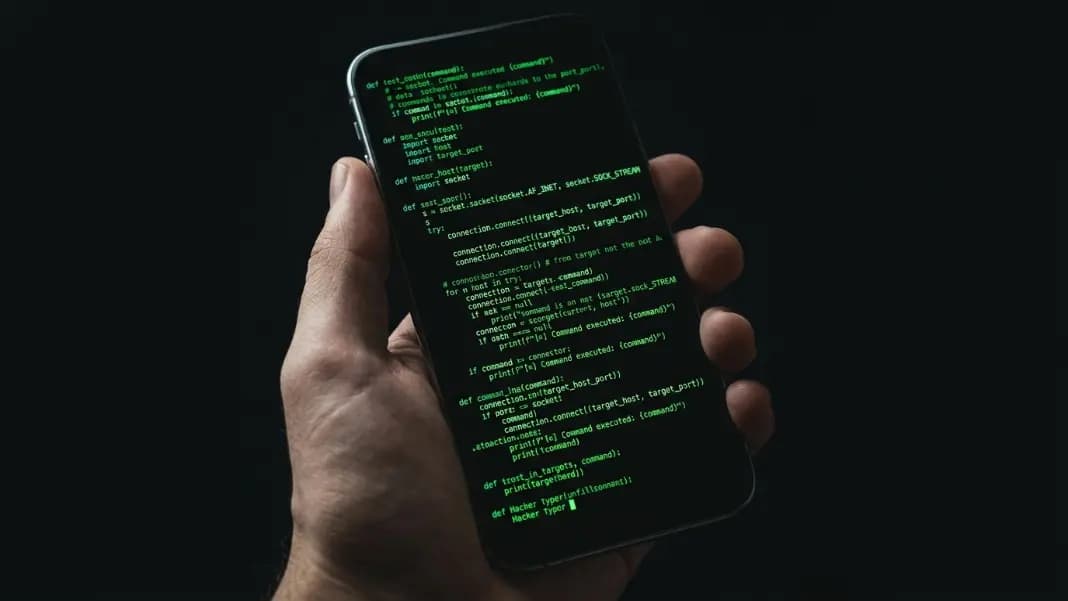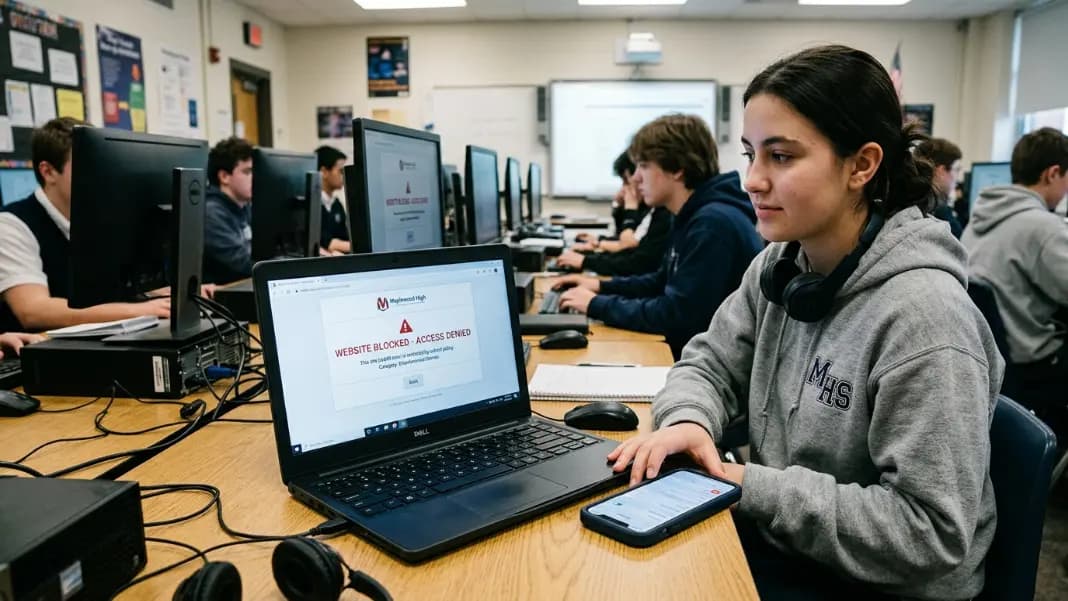
You open the hacker typer at school and the browser returns a block page. The filter says something about restricted content or policy violation. The site is completely functional, does nothing to any network, and is blocked entirely because of its name.
This is one of the more frustrating outcomes of blunt content filtering: a harmless browser-based display tool that produces scrolling code gets blocked by the same rules that catch actual malicious sites, simply because the word "hacker" appears in its name. The filter reads the URL, sees a flagged keyword, and blocks without examining what the site does.
This guide explains exactly why the block happens, what content filtering actually does, and the practical ways to access hacker typer unblocked at school or work without installing anything or violating system policies.
How School and Work Content Filters Work
Content filters on school and workplace networks operate at the network level, not the device level. When a device on the network requests a URL, the request passes through a filter before reaching the internet. The filter checks the requested URL against several criteria: known category lists (entertainment, gaming, social media), keyword databases, and occasionally real-time content analysis of page content.
Most school networks use a commercial filtering service rather than a custom system. Common filtering providers include Cisco Umbrella, Fortinet, Barracuda, and similar enterprise-grade tools. These services maintain vast category databases where millions of URLs are pre-classified. When a URL arrives that is not in the database, the filter falls back to keyword matching against the URL string.
The important thing to understand about this process is that it happens before any content on the page loads. The filter never sees what the site actually displays. It classifies the URL and blocks or allows based on that classification alone. A site can be completely harmless and get blocked because its name or domain contains a flagged word.
This is why context-free blocks are so common. The filter does not know that hacker typer is a novelty display tool. It knows that the URL contains the word "hacker," which sits in the database alongside actual hacking tool and cybersecurity exploit resources. Both get the same treatment.
Why Hacker Typer Specifically Gets Flagged
The blocking of hacker typer follows a predictable path. The URL contains "hacker," which appears in filtering databases under categories like "hacking," "security threats," or "technology abuse." Pre-classified databases from filtering vendors include the domain because it uses that term in its name, regardless of what the domain actually serves.
Hacker Typer is a browser-based tool that generates scrolling code output when you press keys. It makes no network requests beyond loading the page itself. It executes no code on any system. It does nothing remotely related to what the word "hacker" suggests in a threat context. None of that matters to a filter that classifies by name.
This classification problem affects many legitimate tools. Security research resources get blocked alongside actual threat sites. Networking diagnostic tools get flagged alongside port scanners. The filtering categories are broad, and the word "hacker" reliably falls into them.
At work networks, the filtering rationale is usually different. Work filters focus on productivity rather than safety. A site with "hacker" in the name may be blocked under a productivity category (games or entertainment) rather than a security category, on the assumption that typing a fake hacking screen is not a work-related activity. Both rationales produce the same block page, just for different declared reasons.
Mobile Data: The Simplest Path to Hacker Typer Unblocked
The cleanest way to access hacker typer unblocked at school or work is to use your phone's mobile data connection instead of the building's WiFi.
Mobile data does not go through the school or workplace network. It goes directly through your carrier's infrastructure. No school content filter sits between your phone and the internet when you are on mobile data. The URL is requested from your carrier's network, which applies no school-specific filtering.
To switch to mobile data: open your phone's settings, go to WiFi, and disconnect from the school or work network. Your phone will automatically fall back to mobile data (assuming you have a data plan and signal). Navigate to the hacker typer tool in your mobile browser and it loads without any block.
This works because you are not using the school's network at all. You are using a completely separate internet connection that the school has no control over on your personal device. There is no policy workaround involved, no circumvention of any system, and no interaction with school infrastructure.
The mobile version of the tool works fully for this use case. The hacker typer mobile guide covers the complete setup for Android and iOS, including how to get fullscreen mode, trigger the ACCESS GRANTED overlay from a mobile keyboard, and which settings work best on a phone screen.
Personal Hotspot Tethering for Laptop Access
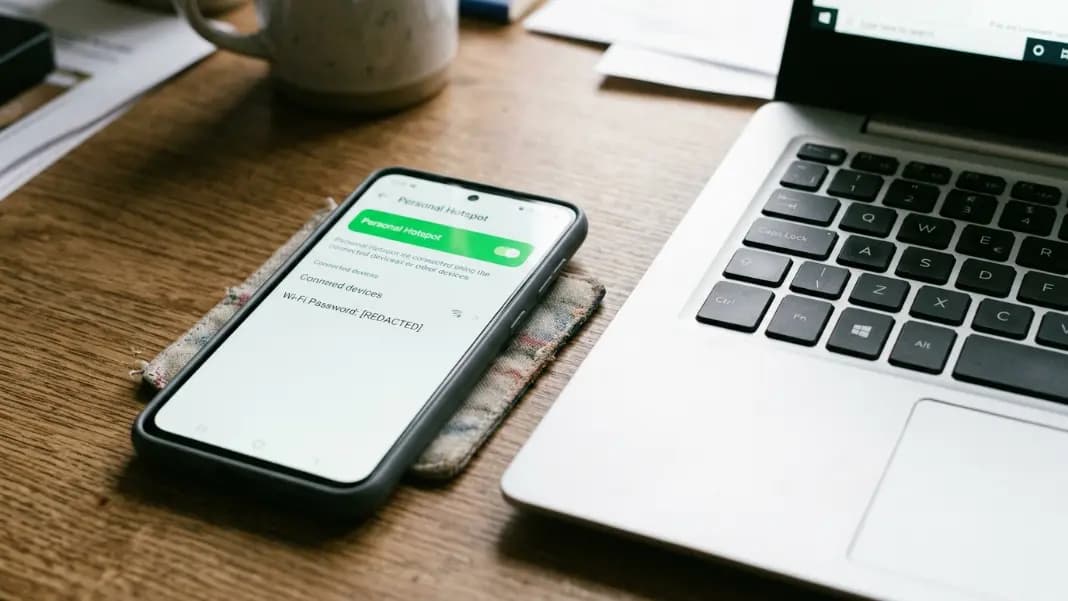
If you need the tool on a laptop rather than your phone, tethering is the straightforward approach. Enable the personal hotspot on your phone (this uses your mobile data connection and broadcasts it as a WiFi access point), then connect your laptop to that hotspot instead of the school WiFi.
When your laptop connects to your phone's hotspot, all internet traffic from the laptop goes through your phone's mobile data connection. The school's network filter is completely bypassed because your laptop is not on the school network.
On iPhone: Settings, Personal Hotspot, Allow Others to Join. On Android: Settings, Network, Hotspot and Tethering. Both create a WiFi network your laptop can connect to. The hotspot name and password are shown in those same settings screens.
One consideration: hotspot usage draws from your mobile data plan. For most uses of hacker typer (a few minutes of typing, loading a single page), the data consumption is minimal. The page loads once and the tool runs locally in your browser from that point. No ongoing data is transmitted while you use the tool.
Tethering is a standard feature on all current smartphones and does not require any additional apps or special configurations. It is how many people connect laptops to internet when building WiFi is unavailable or blocked.
When to Ask IT for Access
The IT exemption request is underused because people assume it will be denied automatically. In practice, IT departments grant site access requests regularly when they have a legitimate reason to log. The key is providing a specific, documentable reason rather than a general request to unblock a site.
Legitimate reasons IT departments accept for unblocking sites:
Classroom demonstration: A teacher or student preparing a lesson on cybersecurity, computing aesthetics, or media production can request access for a specific lab session or period. IT logs the exemption with the reason and it applies for the specified time.
Student film or media project: Schools with media production programs regularly need access to visual tools that content filters catch. A teacher sponsor or department head request carries more weight than a student request alone.
Computing or IT education: Introducing students to what terminal interfaces look like, or demonstrating how hacking is portrayed in media versus how it actually works, is a documented educational use that many IT policies accommodate.
The request process is usually an email or an online form submitted to the school's IT help desk. Include the URL, the reason, the date range you need access, and if possible have a teacher or staff member co-sign. Most requests submitted with this level of detail get a response within a day.
IT departments are not automatically adversarial about these requests. Their job is to enforce policies, not to block everything forever. When a request comes with context, they have a basis for granting it without creating a policy exception they cannot justify.
Preparing Your Session Before You Arrive
If you know you need hacker typer at school or work but are uncertain whether the access will be available, preparing the session in advance removes the dependency on in-location network access.
Modern browsers cache web resources locally after the first load. Opening hacker typer on your home network or mobile data before arriving, then keeping the browser tab open, means the tool remains usable even if the school network would block it on a fresh load. The tab stays loaded in memory as long as you do not close it.
This approach has limits. If the browser refreshes the page (due to memory pressure, restarting the browser, or the tab being inactive for extended periods), the tool reloads and would be blocked on the school network. It works best for same-session use where you open the tab before you leave home and keep it open through your commute.
A more reliable preparation method: use your phone on mobile data to open the tool, fill the terminal with output, and screenshot the result. A screenshot of the terminal mid-session looks identical to a live session to most audiences. For prank scenarios where you need to show a convincing terminal screen without being able to interact with it live, a screenshot shown on your phone requires no network access at all.
For purposes that require the live tool rather than a screenshot, mobile data access described earlier is the clean solution. If the tool remains inaccessible and you need a similar visual effect with no network access at all, the how to look like a hacker guide covers terminal commands built into Windows, Mac, and Linux that run entirely offline. For browser-based alternatives with different domain names that may not trigger the same filters, the best hacking simulator tools guide covers the options.