Most Hacker Typer sessions get exposed by two problems: a visible URL bar that anyone in the room can read, and not knowing how to trigger the ACCESS GRANTED overlay when the audience expects a payoff. This guide covers both.
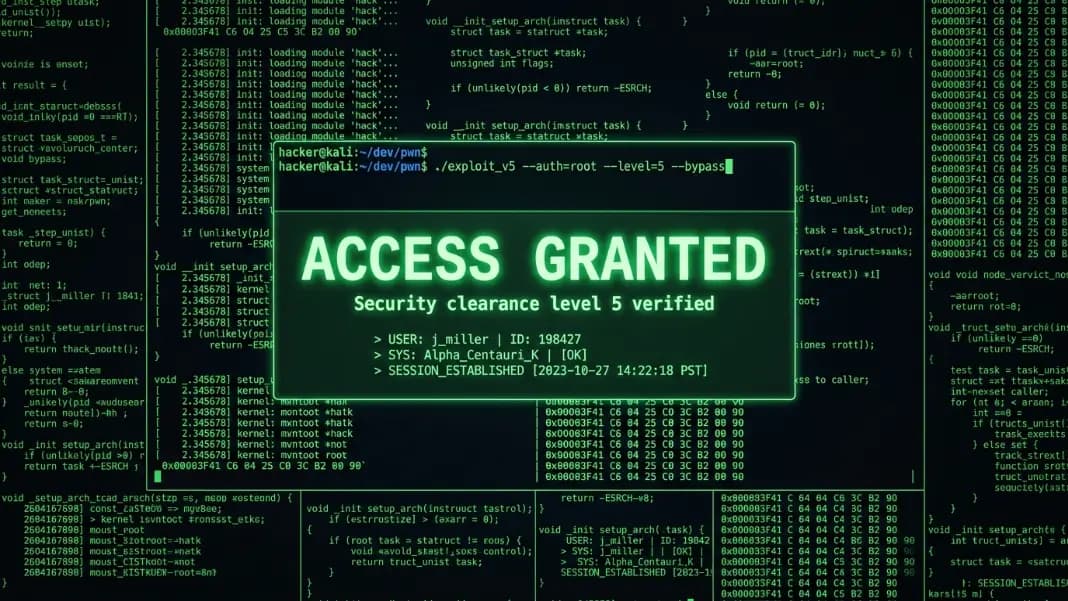
The hacker typer has a built-in Easter egg that most users miss entirely on their first session. Press Shift three times quickly and the terminal goes dark, the words "ACCESS GRANTED" appear in large glowing text at the center, and a subtitle reads "Security clearance level 5 verified." The overlay holds for three seconds, then clears. No other key combination does anything special outside of advancing the code output.
Knowing this shortcut is useful, but knowing every other setting in the tool is what separates a prank that holds up under two minutes of attention from one that falls apart the moment someone looks for a second. This guide covers the exact shortcut mechanics, the code type and theme options, fullscreen setup, and how to use the access granted moment at the right point in a prank.
What the Access Granted Screen Is and Why It Exists
The ACCESS GRANTED screen is a visual overlay built into Hacker Typer as a hidden feature. When triggered, it places a semi-transparent dark backdrop over the terminal and displays "ACCESS GRANTED" in large bold letters at the center of the screen, colored to match whichever theme you have active. Below the main text, a subtitle reads "Security clearance level 5 verified."
The overlay appears instantly without any loading or animation delay. It holds for exactly three seconds, then disappears automatically. You cannot extend the duration or close it early. After it clears, the terminal returns to exactly the state it was in before the overlay appeared, with all the code output intact.
The text color inside the overlay matches the active theme. On green theme, the text glows in matrix green. On blue theme, it appears in the same bright blue as the terminal output. On amber theme, it shows in gold. This visual consistency makes the overlay feel like part of the same system rather than an afterthought.
The Exact Shortcut That Triggers Access Granted
The access granted screen on Hacker Typer is triggered by pressing the Shift key three times in rapid succession. Each press must happen within approximately 500 milliseconds of the previous one. The tool tracks a running count of Shift presses and resets that count after 500ms of no Shift input.
What this means in practice: tap Shift three times with a rhythm closer to triple-clicking a mouse than to normal typing. The three presses need to land in under one second total. Going too slowly, even slightly, resets the count and you have to start over from one.
The practical technique is to put your finger on Shift and use short, controlled taps rather than full key depressions. Once you have practiced it a few times, it becomes consistent. If you are finding it difficult on a laptop keyboard where Shift is more sensitive, try a lighter touch with faster intervals.
A few important details about how the shortcut behaves:
Pressing Shift does not advance the code. Shift key presses contribute to the Easter egg counter and nothing else. The code output on screen is not affected by pressing Shift, whether you press it once or three times.
You can type normally before triggering the overlay. Press Shift three times for the overlay. After the three seconds pass and it clears, continue typing and the code output picks up exactly where it left off. Nothing about the code state is reset by the overlay.
The shortcut functions identically in both normal and fullscreen mode. In fullscreen, a small hint bar at the bottom of the screen displays "Shift x3 for ACCESS GRANTED" as a visible reminder. In normal mode, the hint below the terminal reads "Press any key to start · Shift x3 for surprise." Both hint texts reveal the shortcut to anyone who reads them, which is worth knowing if you need to avoid tipping off your audience before the prank moment.
After the 3-second overlay disappears, the counter resets completely. You can trigger the ACCESS GRANTED screen multiple times in a single session. There is no cooldown period beyond the time the overlay takes to clear.
Every Setting You Can Control in Hacker Typer
The tool has five controls outside the Easter egg: code type, theme, speed, fullscreen, and clear.
Code type is the most significant choice for how the prank reads. The three options are Linux Kernel (C), Network Tool (Python), and x86-64 Assembly. Each produces completely different output that will land differently depending on who is watching.
Theme controls the text and background color combination. Green, Blue, and Amber are the three options. The change applies immediately without clearing the output.
Speed has three positions: Slow, Normal, and Fast. This setting determines how many characters appear with each keypress. At Slow, each key adds a small number of characters. At Fast, each keypress generates noticeably more output, filling the screen quickly.
Fullscreen expands the terminal to cover the entire browser window, hiding all browser chrome. This is the most important setting for a convincing prank display.
Clear resets the visible output to empty without changing the code snippet position. The next keypress after clearing continues adding code from where the position was before clearing.
Copy saves the current output to the clipboard. This is not useful for prank scenarios but useful if you want to preserve a specific output for documentation or sharing.
Choosing the Right Code Type for Your Audience
The three code options are authentic, real-world code, not fabricated characters or random text. This matters because technically knowledgeable viewers will look more closely at the content if they notice it feels off.
Linux Kernel C draws from actual Linux kernel source code. The output includes struct definitions, memory management functions like groups_alloc and groups_free, network socket connection functions like tcp_v4_connect, and kernel-specific macros. For an audience that includes programmers, especially anyone who works in systems or embedded development, this code passes scrutiny at a glance and holds up for several minutes of reading.
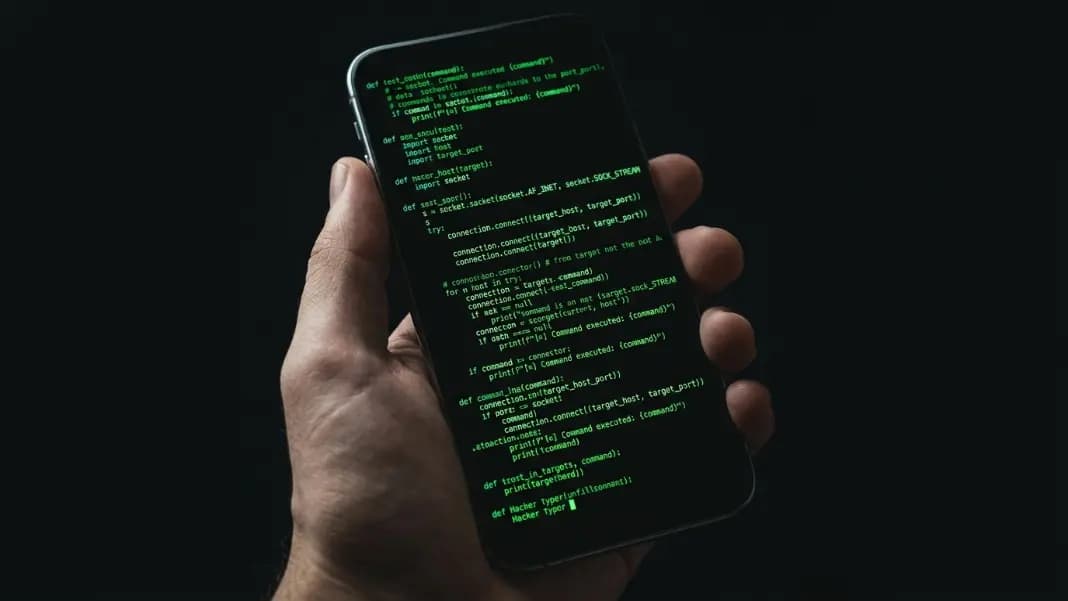
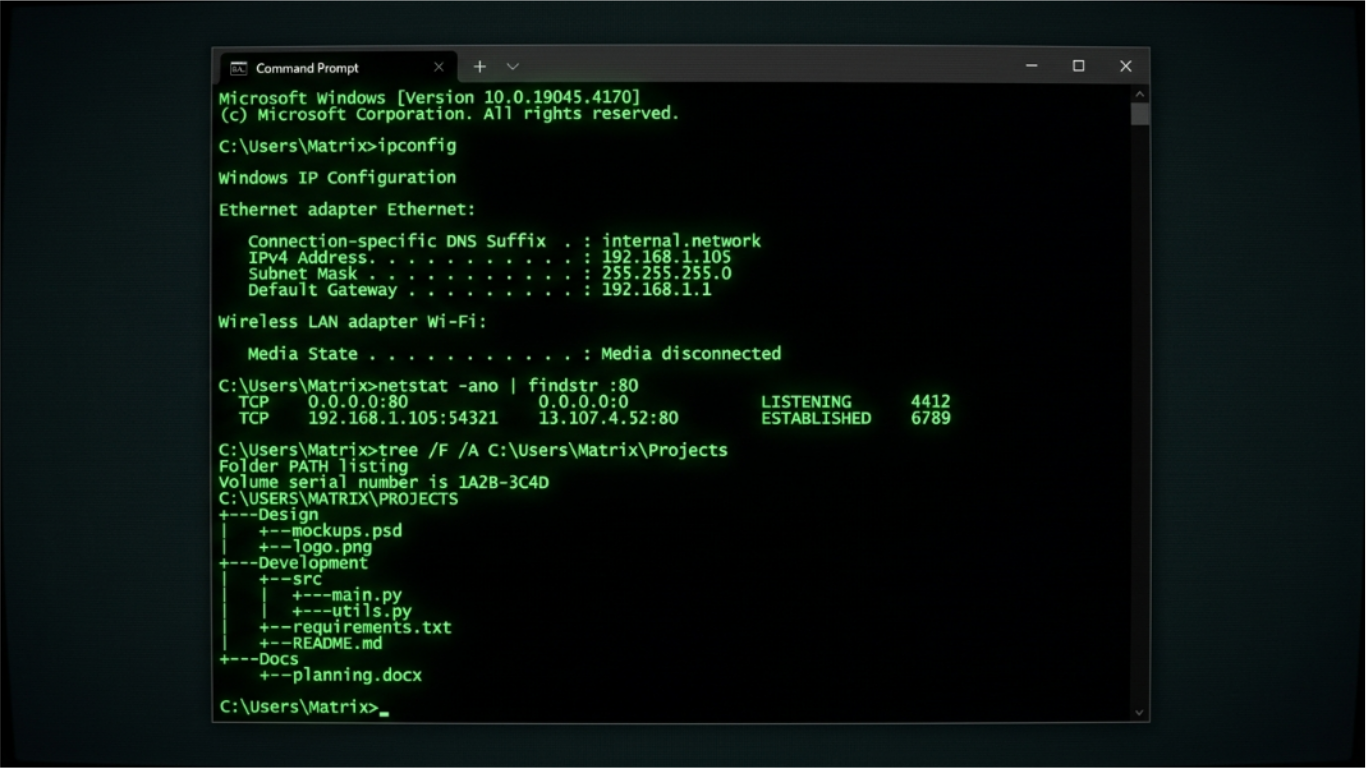
Network Tool Python shows a Python script with AES encryption through the cryptography library, socket tunnel setup, packet framing functions, and a multi-threaded port scanner. Python reads closer to natural language than C or Assembly, which makes this the right choice for a general audience. Someone who has never written code will recognize words like encrypt_stream, socket, connect, and threading, and the combination suggests active network operations, which is exactly the impression you want for a hacking prank.
x86-64 Assembly shows NASM assembly source code including a shellcode loader, mmap syscall setup, a XOR encoder, and a syscall reference table. Assembly is opaque to nearly everyone, including most developers. The register operations, section directives, and syscall numbers read as machine-level operations that look completely impenetrable. For an audience that knows enough to be skeptical about Python or C, Assembly is the harder-to-dismiss option.
The hacker aesthetic guide explains why the green terminal aesthetic became culturally associated with hacking, which is useful context for understanding why the visual choices in this tool produce the reactions they do.
How Speed and Theme Affect the Prank
Speed is the most immediately impactful setting for prank setup, and most people leave it at Normal without considering what Fast actually changes.
At Normal speed, filling the visible terminal area takes roughly 30 to 45 seconds of continuous typing. This works well for a prank where you have two to three minutes to build up the scene before triggering the ACCESS GRANTED overlay. The gradual fill looks natural because it matches how quickly a person actually types.
At Fast speed, the same area fills in under 15 seconds. Fast is the right setting for a prank where you have limited time, such as a game lobby countdown or a moment where someone just walked over and you need to establish the scene quickly. Fast speed also works well when your audience is already paying attention, because there is less waiting before the terminal looks convincingly active.
At Slow speed, each keypress adds very little code. This setting creates the impression that something complex is running and the machine is working hard to produce output. If your prank narrative involves describing a long-running process, Slow speed supports that framing by keeping the pace deliberate.
Theme choice affects the tone of the prank. Green is the most immediately recognizable as a "hacking terminal" because it matches the aesthetic from decades of film and TV. Blue reads as cleaner and more clinical. Amber is less common and stands out differently, which can be an advantage if you want the setup to look less like a generic hacker screen and more like a specific system with its own color scheme.
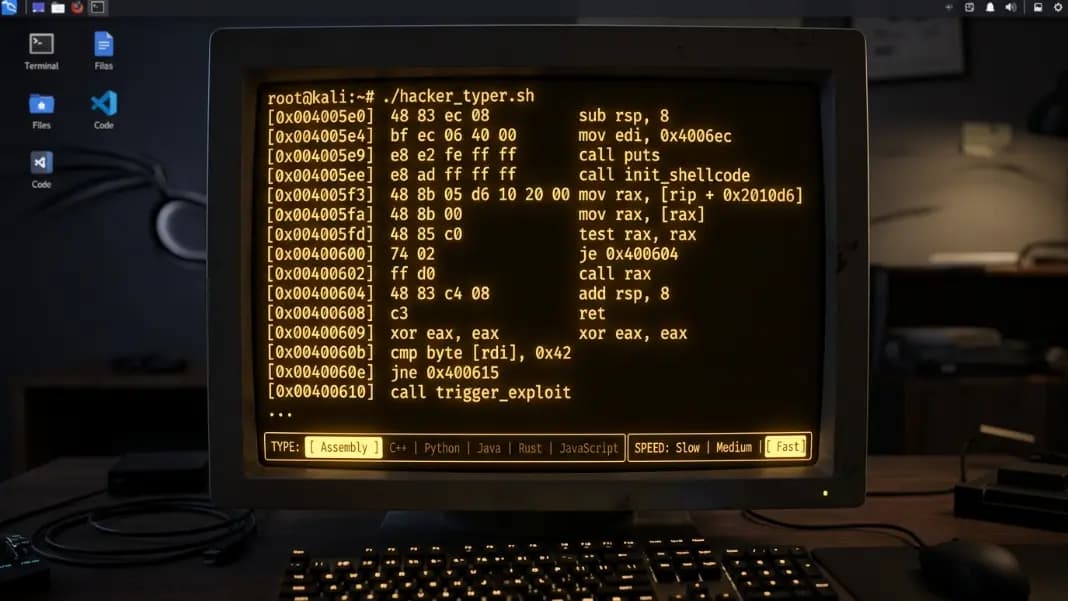
Setting Up Fullscreen Before the Prank Starts
The fullscreen button sits in the top right corner of the terminal chrome bar, the narrow strip at the top of the terminal that shows three colored dots on the left and the session label "bash root@mainframe" in the center.
Clicking the fullscreen icon expands the terminal to fill the entire browser window. Browser tabs, the address bar, bookmarks, and any visible OS taskbar that the browser overlaps all disappear from view. What remains is the terminal output, the blinking cursor, and the thin chrome bar at the top.
In fullscreen mode, a control bar appears at the bottom of the terminal. This bar shows the Speed selector (Slow, Normal, Fast), the Clear button, the Copy button, and the "Shift x3 for ACCESS GRANTED" hint. This control bar is the only interface visible in fullscreen, which is an important detail for anyone running the prank: your audience can read that hint if they look at the bottom of the screen. If keeping the shortcut secret before using it matters for your prank, cover the bottom of the screen with your hand or keep the audience focused on the code in the center.
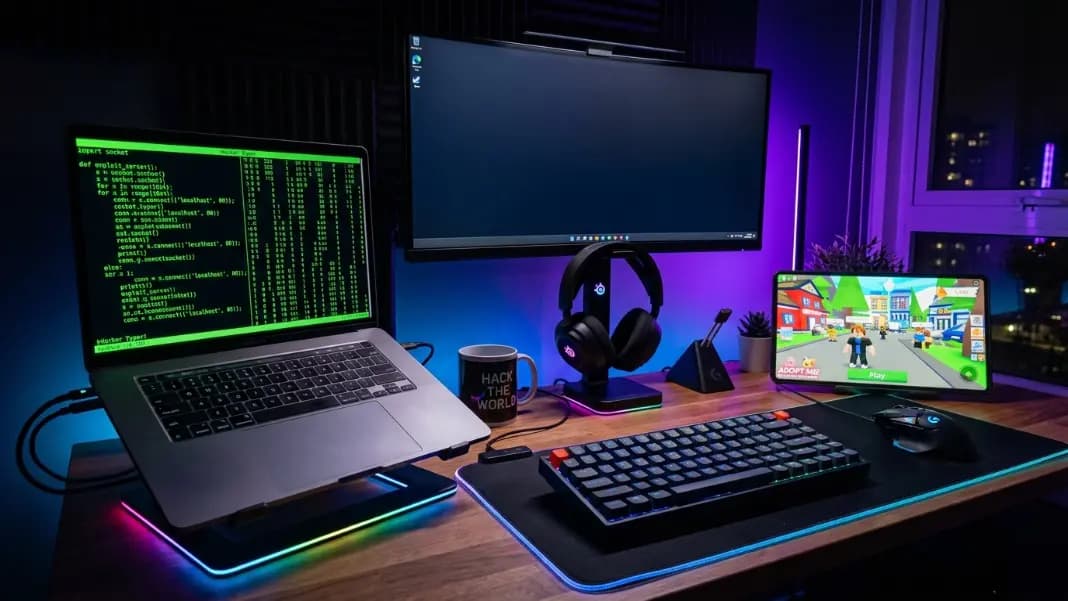
For a prank setup, fullscreen is the correct mode. Any visible browser chrome breaks the illusion immediately. A URL bar or visible browser tab is the single most common way hacker typer pranks get spotted. Enter fullscreen before showing the screen to anyone.
The practical setup sequence: select your code type, theme, and speed in normal mode before switching to fullscreen. Then click fullscreen. Start typing only after you are in fullscreen. This avoids any awkward screen state changes visible to the audience.
Timing the Access Granted Screen for Maximum Effect
The three-second overlay window is short, which makes timing the critical variable. Three seconds is long enough for everyone in the room to register what appeared on screen, but not long enough for any reaction to fully develop before it disappears.
The overlay lands best after a visible buildup of code that occupies most of the terminal. An ACCESS GRANTED screen appearing over a nearly empty terminal does not carry the same weight as one appearing over a full screen of dense output. The full screen of code makes the "success" feel earned.
A reliable structure for a live prank: type until the screen is well-covered, roughly 30 to 60 seconds at Normal speed or 15 to 30 seconds at Fast. Then pause typing for a brief moment as if waiting for something. Then triple-press Shift. The pause between the last keypress and the overlay adds a beat of anticipation that makes the overlay's appearance feel like the result of something finishing rather than a random event.
The least effective timing is triggering ACCESS GRANTED mid-typing with minimal code visible and no narrative buildup. This removes the cause-and-effect structure that makes the prank work.
After the overlay disappears, do not linger on the terminal. Exit the browser window, switch tabs, or close fullscreen. A rapid exit after ACCESS GRANTED reinforces the impression that something happened and was immediately closed before anyone could investigate. Staying on the screen after the overlay clears shifts attention to the code itself, which will not hold up indefinitely.
What to Do After Triggering Access Granted
Once the overlay clears, the terminal returns to its pre-overlay state. The code output is unchanged. Typing resumes where it left off. The Shift counter resets, so you can trigger ACCESS GRANTED again if the situation calls for a repeat.
For pranks that need multiple rounds, the same triple-Shift shortcut works each time. There is no limit on how many times you can trigger it in a session.
If you switch code types, the output clears and the code position resets to the beginning of the new snippet. Theme changes apply without clearing anything. These two behaviors are worth knowing before a live session so you do not accidentally clear the screen by switching code types when you intended to switch themes.
The code loops when it reaches the end of the selected snippet. At Normal speed with continuous typing, you can expect the Linux Kernel and Python snippets to loop after several minutes. For most prank scenarios, this is not a problem because the prank ends well before the loop is visible. If the prank continues for an extended period and the same function names start reappearing at the top of the screen, switching code types resets the position without the audience noticing a transition.
The full set of developer tools for building convincing technical displays is in the developer section. For the broader prank strategy beyond the access granted moment, the hacker screen prank guide covers positioning, audience management, and how to exit convincingly once the prank has landed. The how to look like a hacker guide covers the surrounding setup, including display configuration and environment details that support the terminal display.