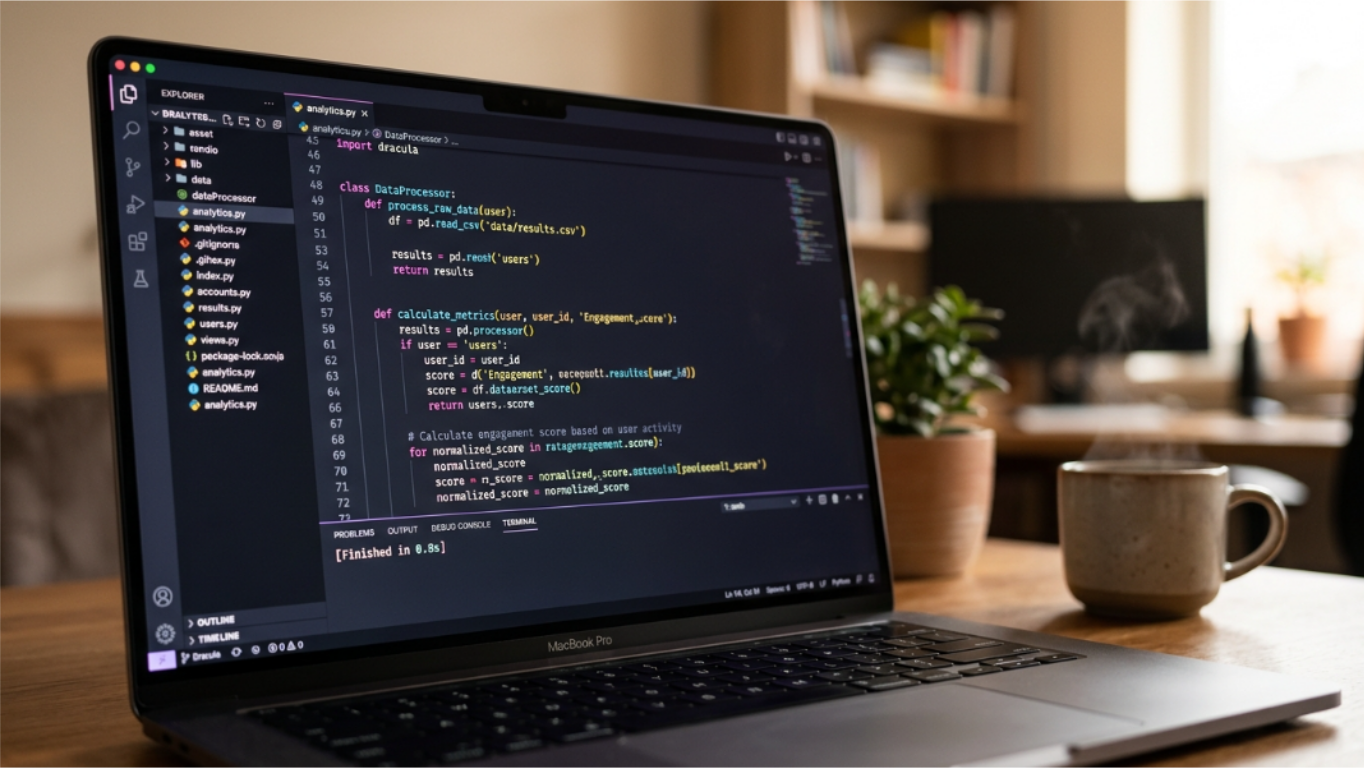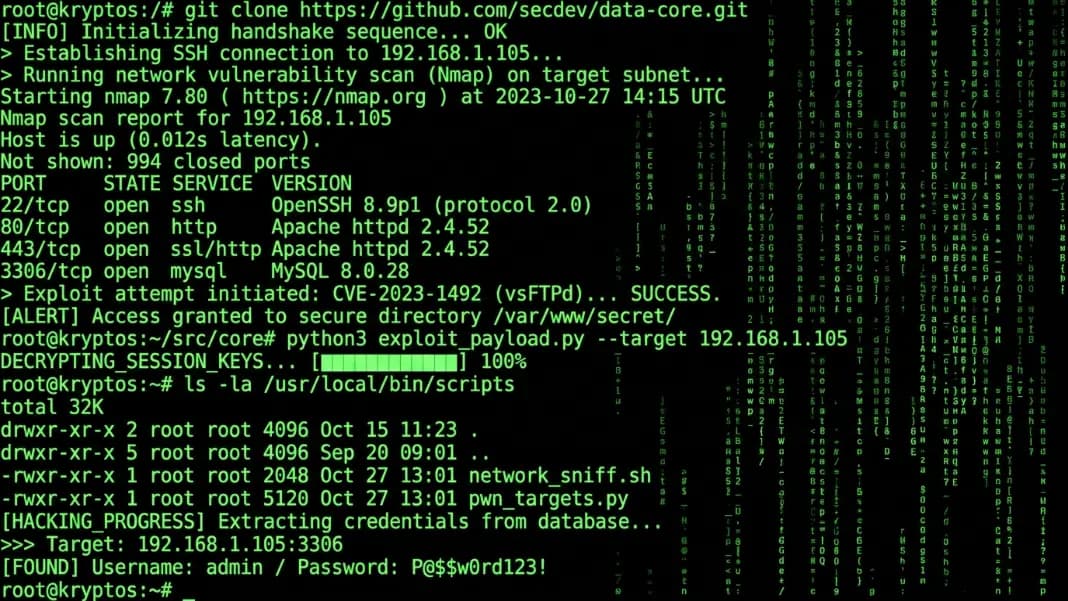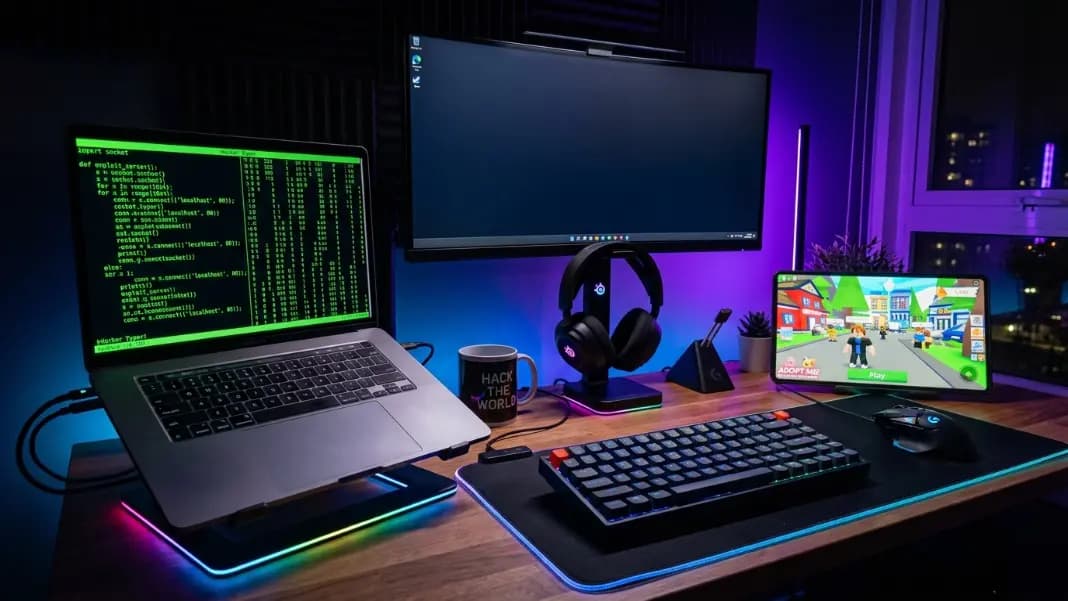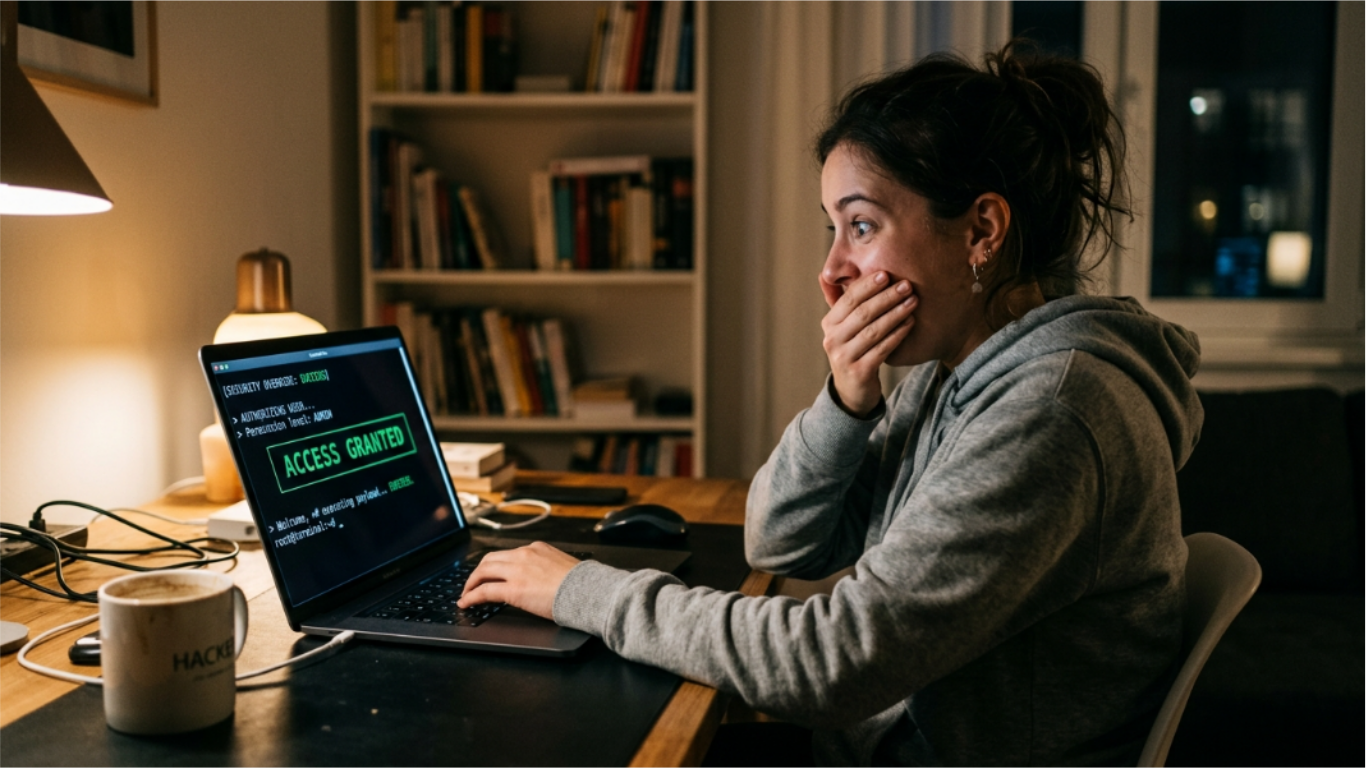
Open a browser. Navigate to Hacker Typer. Click fullscreen. Type anything. The screen fills with scrolling green code and a blinking cursor. Someone walks by, glances at your laptop, and does a double-take. That moment is the entire point.
The fake hacker screen prank has worked for twenty years because the visual it produces is immediately recognizable and impossible to distinguish from a real terminal for most viewers. The tool does the visual work. What determines whether the prank lands or fizzles is everything around the screen: distance, timing, behavior, and how you handle the moment someone asks a question.
Most guides stop at "open the tool and start typing." This one covers the delivery mechanics. The setup takes 30 seconds. Getting the reaction you want takes a bit more thought.
Why the Prank Works (and Why It Fails)
The hacker screen prank exploits two conditions simultaneously. First, most people have a strong cultural association between dark terminals and serious technical activity, trained by decades of films and TV where scrolling code signals expertise and access. Second, most people have no baseline for what real terminal output looks like, so they cannot evaluate whether what they see is genuine.
Both conditions together mean the viewer fills in the gaps themselves. They see scrolling code, their brain retrieves the hacking template from films, and that template becomes their working explanation for what is on screen. You do not need to say anything. The visual does the work on its own.
The prank fails when something breaks the viewer's internal framing before that template can settle. A visible browser URL bar. The on-screen keyboard visible in the frame. Looking at the person you are pranking instead of the screen. A notification banner appearing from a chat app. Any of these signals that this is an ordinary browser session, and once that signal lands, the effect collapses.
The setup is not about the screen being perfect. It is about removing the signals that contradict the framing before anyone can notice them.
The Distance Rule Most People Miss
Most people focus on getting the screen right and forget about physical distance. Where the viewer stands relative to the screen is one of the largest factors in whether the prank works.
At arm's length, one to two feet, a viewer can read the code. When they do, they notice that the cursor never moves backward, that no text is ever deleted, and that the output advances in one direction only. These behaviors are the opposite of actual coding. Anyone who has typed more than a few paragraphs in any context knows that people edit, delete, and reposition. A terminal that only adds output with no backward movement registers as wrong to anyone paying close attention.
At three to five feet, the text is visible but not easily readable. The viewer sees motion, color, and density. They register "technical output" without having enough resolution to scrutinize individual behaviors. This is the range where most prank setups produce the strongest reactions. Close enough to see the screen clearly. Far enough that the viewer cannot read individual function names or notice the unidirectional movement pattern.
Beyond six or seven feet, the screen reads as "a laptop with something on it" rather than "a serious technical operation." The visual is too small to be impressive.
Position your audience accordingly. A glancing stranger in a coffee shop naturally stays at the right distance. In a closer setting like an office or classroom, hold the screen at an angle toward the viewer rather than inviting them to lean in close.
The Hint Bar Blindspot
The fullscreen view in Hacker Typer includes a control bar at the bottom of the terminal. This bar shows speed controls, copy and clear buttons, and a hint that reads "Shift x3 for ACCESS GRANTED."
That hint is the most common way this prank gets spotted. A viewer who reads the bottom of the screen immediately understands what they are looking at. The control bar is clearly a browser UI element, not a terminal prompt.
There are two ways to handle this. First, position yourself so the viewer's angle does not include the bottom of the screen. Sitting at a table with the laptop in front of you and the viewer across or to the side means they see the top two-thirds of the screen at their natural viewing angle. The control bar falls below their line of sight.
Second, if the viewer is approaching from behind or from a position where they will see the full screen, rest your forearm along the bottom edge of the screen. This is a natural posture for someone leaning toward their screen slightly, and it physically blocks the hint bar without making the gesture look deliberate.
Knowing the hint bar exists and planning for it ahead of time removes the most common single point of failure.
How Your Behavior Carries the Prank
The screen does the visual work. Your behavior determines whether the viewer commits to believing it or starts questioning.
The single largest tell is looking at the person you are pranking. When you glance at someone to check whether they are reacting, you break the frame. Looking at the person signals that you are waiting for a reaction, which signals that this is a performance rather than actual work.
Keep your eyes on the screen. Look at the output as if you are monitoring something. If you need to type, type at a steady, deliberate pace rather than in frantic bursts. Intermittent controlled typing looks like managing a process. Rapid theatrical typing looks like a show.
If someone walks up and you are not sure whether to acknowledge them, act like the situation is ordinary. If you were actually running a diagnostic tool at work, you would not immediately close the window when a coworker walked by. You would continue working and acknowledge them without urgency. That same unhurried behavior extends the prank because it removes the signal that you are hiding something.
What to Say When Someone Asks
When a viewer asks what you are doing, you have one sentence to shape their next minute of thinking. The answer needs three properties: real technical vocabulary, vague enough to avoid claims that can be challenged, and short enough to avoid the over-explanation pattern that signals discomfort.
"Running a diagnostics check." "Monitoring connections." "Just checking something on the network." These work because each one is defensible, implies ongoing attention, and uses phrasing that fits a work context.
The temptation is to add detail. Adding detail almost always weakens the answer. "Running a diagnostics check on the server connections to see if there are unusual packets" invites the follow-up question "what server?" An answer that raises no follow-up questions is a better answer.
After the one-line response, look back at the screen. This single behavior signals that the screen requires your continued attention, which implies the activity is real and consequential. Staying in conversation after the one-liner signals that the screen does not require attention, which contradicts exactly the impression you built.
Group Dynamics: Why Two to Four People Works Best
The most reliable audience size for this prank is two to four people. The dynamics at this scale have a specific mechanic that larger and smaller groups lack.
Once one person in a group expresses a reaction, "wait, is that real?" for example, the remaining people immediately look to that person's reaction as data. They use it to calibrate their own response. One person's genuine uncertainty becomes shared uncertainty across the group. This validation loop means the prank becomes self-reinforcing once the first reaction lands.
This is the opposite of how the prank plays out with a single person. With one viewer, there is no external validation. The prank lives or dies entirely on that individual's evaluation. A skeptical viewer alone can dismiss it before the framing settles. A skeptical viewer in a group gets their skepticism moderated by the reactions of others.
Very large groups, more than six or seven people, work against the prank because attention disperses. Most of the group cannot get close enough or stay focused long enough for the effect to register. The energy of the room fragments instead of concentrating.
Two to four people gives you the best combination of validation dynamics and sustained attention on the screen.
Timing the ACCESS GRANTED Overlay
The ACCESS GRANTED overlay is the high point of the prank and timing it correctly is the difference between a strong payoff and an anticlimactic popup.
Pressing Shift three times quickly triggers the overlay. It holds for three seconds, which is exactly the right amount of time for everyone in the room to register it before it disappears automatically. Three seconds creates urgency without giving the viewer time to examine the overlay closely.
The overlay does not work as an introduction. Triggering it on an empty or mostly empty terminal produces no impression because there is nothing to resolve. The terminal needs to be mostly full of code before the overlay appears so the viewer experiences it as a confirmation that something finished, rather than an unexplained event on a blank screen.
The best timing sequence: fill the terminal until it is well-covered, roughly 30 to 45 seconds at Normal speed. Pause briefly. Trigger ACCESS GRANTED. The pause before the overlay creates a short beat of apparent waiting, which makes the overlay feel like a result rather than something you triggered manually.
After the overlay clears, do not linger on the terminal. Exit the browser, switch tabs, or close the screen. A rapid exit after ACCESS GRANTED reinforces the impression that something happened and was immediately shut down. Staying on the screen after the overlay clears invites closer inspection of the code, which reveals the unidirectional movement pattern to anyone paying attention.
Cold-Open vs. Warm-Setup Delivery
Two different approaches produce two different reactions, and each works better in specific contexts.
A cold-open is when someone sees the screen without any prompt from you. You are sitting with the prank setup running and they walk by or glance over on their own. This produces the most unscripted reactions because the viewer is processing the scene without any framing from you. The downside is less control over the moment and no guarantee of when the viewer will look.
A warm-setup is when you invite someone to look. "Come here, I want to show you something." You control exactly when the viewer engages and can prepare the fullscreen and code fill in advance. The downside is that the viewer arrives with some awareness that they are being shown something, which reduces the default believability slightly.
For strangers, cold-open is the only option and usually produces the strongest reactions because the viewer arrives with no context at all. For friends who would catch on quickly if directly invited, cold-open also works well because they approach the screen on their own initiative and encounter it without your direction.
When the Prank Gets Spotted
When a viewer figures out what is on screen, the sequence is predictable. They register the tool name or URL, say something that reveals they know, then look at you.
The cleanest response is direct acknowledgment. "You got it." For a friendly audience, show them the fullscreen control bar and let them see how the prank works. This turns the reveal into a demonstration of the tool itself, which often produces a second positive response from people who find the technology genuinely interesting.
Do not try to extend a prank that has been called. Doubling down once someone has correctly identified what they are looking at is the part that makes pranks unpleasant rather than funny. Once the frame is broken, a clean exit is the right move.
Keeping It Calibrated to Your Audience
The prank works best when the viewer can laugh about it once the reveal happens. If you are uncertain whether someone would find it funny, that uncertainty is a reason to skip it.
Do not frame the prank around accessing someone's personal accounts, specific data, or a system they care about. The visual effect of a hacking screen is one category of thing. Claiming specifically that you have accessed someone's email or their employer's servers is a different category, even framed as a joke.
The Hacker Typer tool is display-only. It does not access any network, execute any code, or touch any external system. Using it within those boundaries keeps the prank in the category of visual trick. That is exactly what it is and the only framing that keeps it reliably harmless.
For how the three code types compare and which works best for specific audiences, the hacking simulator guide covers each option in detail. For running the prank from a phone including iOS and Android fullscreen differences, the Hacker Typer mobile guide covers platform-specific steps. The full set of developer utilities is in the developer tools section.