Free Refresh Rate Test Online
This refresh rate test shows your monitor's exact Hz in under 2 seconds. Click Start and the tool measures how many times your screen refreshes per second using the browser's requestAnimationFrame API. Most displays run at 60 Hz, 120 Hz, 144 Hz, or 240 Hz. If the result is lower than your monitor's advertised rate, a cable limitation or OS setting is usually the cause. The bouncing ball gives a simultaneous visual smoothness check so you can feel the difference, not just read a number. No software, no signup.
Common use cases
- Confirm a monitor is running at its advertised refresh rate after a driver update
- Check whether a game or video is actually rendering at 60, 120, or 144 Hz
- Verify refresh rate before and after changing display settings in Windows or macOS
- Diagnose whether a monitor is capped at 60 Hz despite being set to a higher rate
What is refresh rate and what does Hz mean?
Refresh rate is the number of times per second your monitor updates its image, measured in hertz (Hz). One hertz equals one cycle per second, so a 60 Hz display redraws 60 times per second and a 144 Hz display redraws 144 times. The higher the Hz, the smoother motion appears. This is because each frame is on screen for a shorter time before the next one replaces it. At 60 Hz, each frame is displayed for about 16.7 milliseconds. At 144 Hz, that drops to about 6.9 milliseconds, which produces noticeably crisper motion during fast movement.
Refresh rate is a fixed hardware specification of the panel. It does not fluctuate the way frame rate (FPS) does. When people ask "what is Hz" on a monitor, they are asking about this screen refresh property. A 60 Hz monitor is the standard for general use and TV viewing. A 120 Hz monitor is the current midpoint between standard and gaming. A 144 Hz monitor is the gaming standard for competitive play. A 240 Hz monitor targets professional esports players who need every millisecond of latency advantage they can get.
FPS vs Hz: understanding the difference
Refresh rate (Hz) and frame rate (FPS) are related but independent values. Refresh rate is a fixed hardware property of your monitor: the maximum number of times per second the display can redraw its panel. Frame rate is a variable output from your GPU and CPU: how many rendered frames are produced and sent to the display each second. These two figures interact, but they are not the same thing. A 240 Hz monitor running a game that only outputs 60 FPS will not appear smoother than a 60 Hz monitor running the same game.
To get the full benefit of a high refresh rate monitor, your system needs to produce a matching frame rate. This is why gaming PC builds pair high-Hz monitors with powerful GPUs. The fps test above shows the rate at which the browser receives frames from the display driver, not the rate at which a GPU renders game frames. For in-game FPS measurement, use your game's built-in counter or a tool like MSI Afterburner. Adaptive sync technologies such as AMD FreeSync and NVIDIA G-Sync let the monitor's refresh rate fluctuate dynamically to match GPU output, eliminating both tearing and stutter.
How to check your monitor refresh rate
The fastest way to check your monitor refresh rate is to use this tool: click Start and read the Hz value after 2 seconds. It measures the actual rate the browser receives from the display driver, which is a reliable independent reading. If you want to check or change the refresh rate in your operating system settings, here is how to do it on each platform.
On Windows 10 and 11, right-click the desktop and select Display Settings. Scroll down and click Advanced Display Settings, then choose your monitor from the dropdown at the top. The current Hz is shown under Refresh Rate and you can select a higher rate if your cable and resolution support it. On macOS, open System Settings, click Displays, then hold the Option key while clicking the resolution picker to reveal all refresh rate options. On Android, go to Settings, then Display, then look for Smooth Display, Motion Smoothness, or Screen Refresh Rate depending on the manufacturer. On iPhone 13 Pro and later, the ProMotion display adjusts automatically between 1 Hz and 120 Hz. You can lock it to 60 Hz under Settings, Accessibility, Motion, Limit Frame Rate.
How this refresh rate tester works
The browser's requestAnimationFrame API fires a callback once per display refresh, synchronized with the hardware vsync signal the operating system exposes for that monitor. By counting how many of those callbacks arrive in a fixed time window and dividing by elapsed time, the tool calculates the actual screen refresh rate. This approach bypasses the operating system's reported value, so it reflects what the browser is actually receiving from the display driver, including any refresh rate scaling that may be occurring without your knowledge.
The bouncing ball in the test panel is driven purely by frame callbacks with no CSS animation or fixed timer. Every frame it advances by a fixed number of percentage points. On a 60 Hz monitor the ball makes roughly 60 steps per second. On a 144 Hz monitor it makes 144. This means the visual speed of the ball changes noticeably between refresh rates, making the difference immediately perceptible even before the Hz reading updates. If the ball looks jerky or stutters, that is evidence of inconsistent frame delivery even if the reported Hz looks correct. After confirming your refresh rate, use the dead pixel test to check the display panel itself, or the touch screen test if you are on a touchscreen monitor or tablet.
TV refresh rate: 60 Hz vs 120 Hz explained
TV refresh rate works the same as monitor refresh rate: it is the number of times per second the panel redraws its image. Most TVs sold before 2018 are native 60 Hz, though manufacturers label them with inflated effective refresh rates (120 Hz effective, 240 Hz effective) to describe motion interpolation processing, not native panel speed. True native 120 Hz TVs are now common in mid-range and premium sets from Samsung, LG, Sony, and TCL. For watching regular broadcast or streaming content at 24 FPS or 30 FPS, the difference between 60 Hz and 120 Hz is subtle and mainly affects motion smoothing settings.
For gaming on a TV, native 120 Hz matters more. PlayStation 5 and Xbox Series X output up to 120 FPS on supported titles, and a 60 Hz TV will cap the experience at 60 FPS regardless of console settings. HDMI 2.1 is required for 4K at 120 Hz. If your TV shows 60 Hz in this hz test when connected via HDMI 2.0 at 4K, that is expected. Switch to HDMI 2.1 or drop to 1080p to enable 120 Hz. Motion smoothing (sometimes called soap opera effect) artificially inserts generated frames to raise perceived fluency. Many viewers turn this off for film content because it makes movies look like cheap video. For sports and gaming, some viewers prefer it on. You can control the setting in your TV's picture mode menu.
Why your monitor might not be running at its advertised Hz
A common scenario: a 144 Hz monitor reads as 60 Hz in this frame rate test. The causes are nearly always one of three things. First, the cable: HDMI 1.4 limits 1080p to 144 Hz and 1440p to 75 Hz. For higher rates at 1440p or 4K you need DisplayPort 1.2 or HDMI 2.0 at minimum. Second, the operating system setting: Windows does not automatically select the highest available refresh rate. Go to Settings, then System, then Display, then Advanced Display Settings, and manually choose the correct Hz from the dropdown. Third, some monitors require a specific mode to be enabled in their on-screen display (OSD) menu. Look for options labeled 144 Hz Mode, High Refresh Rate, or similar.
On macOS, the refresh rate is set in System Settings under Displays. On Linux with X11, use xrandr --output HDMI-1 --mode 1920x1080 --rate 144. On Wayland, the compositor controls the rate and most modern desktop environments expose it in display settings. If this hertz test still shows a rate lower than expected after checking all of the above, the panel may require a firmware update, or the cable may be faulty. Generic DisplayPort cables that fail at higher bandwidths are a known issue. Try a certified cable rated for the bandwidth your resolution and Hz require. For a complete monitor health check, combine this hz tester with the stuck pixel fixer to address any discolored pixels you notice during testing.
Frequently asked questions
Refresh rate is the number of times per second your monitor redraws its image, measured in hertz (Hz). A 60 Hz monitor updates 60 times every second, a 144 Hz monitor updates 144 times, and so on. Higher refresh rates produce smoother motion because each new frame is displayed more quickly after the last. The refresh rate is a hardware property of the display panel. It represents the maximum speed at which the screen can physically update, regardless of what the connected device sends.
Hz stands for hertz, the unit of frequency equal to one cycle per second. For a monitor, Hz describes how many times the screen redraws its image in one second. A 60 Hz display redraws 60 times per second. A 144 Hz display redraws 144 times. The higher the Hz value, the smoother motion appears on screen. Hz is a fixed hardware specification of the panel. It does not fluctuate like frame rate (FPS) does. When people ask "what is Hz" in the context of monitors, they are asking about refresh rate, which this tool measures directly.
Refresh rate (Hz) is a monitor hardware specification: how many times per second the screen can redraw. Frame rate (FPS, frames per second) is a software output: how many frames your GPU or CPU is actually rendering and sending to the display. To see the full benefit of a 144 Hz monitor, your system also needs to produce at least 144 FPS in that application. If your GPU only renders 60 FPS, a 144 Hz monitor will not appear smoother than a 60 Hz one for that content. Technologies like G-Sync and FreeSync synchronize the two figures dynamically to eliminate tearing.
On Windows 10 and 11, right-click the desktop and select Display Settings. Scroll down and click Advanced Display Settings. At the top, choose the monitor you want to check if you have more than one. The current refresh rate is shown under Refresh Rate. Click the dropdown to see all rates the current cable and resolution support. Alternatively, you can use this online refresh rate test, which reads the actual Hz the browser receives from the display driver rather than the OS setting, making it a reliable independent check.
Many users report less eye strain and fatigue on higher refresh rate displays, particularly when doing prolonged reading or desktop work. The smoother motion reduces the micro-judder that the eye must constantly compensate for at lower rates. That said, the research is not conclusive for all users. Other factors such as screen brightness, blue light output, ambient lighting, and resolution also contribute significantly to eye strain. Upgrading from 60 Hz to 120 Hz or higher is broadly considered beneficial for comfort during long sessions.
60 Hz is the minimum acceptable for most single-player and casual gaming. 144 Hz is the current sweet spot for competitive gaming. The improvement in motion clarity from 60 to 144 Hz is dramatic and immediately noticeable. 240 Hz and above is used by professional esports players where even tiny response latency advantages matter. For console gaming, 60 Hz is standard, though PlayStation 5 and Xbox Series X support 120 Hz output on supported games and monitors. For VR, a minimum of 90 Hz is required to avoid motion sickness.
The most common cause is that the display is connected via HDMI rather than DisplayPort, or is using an older HDMI version that does not support the higher bandwidth needed for 144 Hz at your resolution. HDMI 1.4 caps at 144 Hz only at 1080p. At 1440p and 144 Hz you need HDMI 2.0 or DisplayPort 1.2 at minimum. Another common cause is that the operating system has not had the refresh rate manually set. On Windows, go to Display Settings, then Advanced Display Settings, then choose the correct Hz from the dropdown. Some monitors also require enabling a high refresh rate mode in their own on-screen menu.
TV refresh rate works the same as monitor refresh rate: it is the number of times per second the TV panel redraws its image. Most TVs are 60 Hz natively, though many manufacturers label them as 120 Hz effective refresh rate using motion interpolation. True native 120 Hz TVs are common in mid-range and high-end sets from 2020 onward. For gaming on a TV, native 120 Hz matters: PlayStation 5 and Xbox Series X can output 120 FPS on supported titles, and a 60 Hz TV will cap the experience at 60 FPS regardless. For regular viewing, 60 Hz is sufficient. Motion interpolation, often called motion smoothing, can make 24 FPS film content look artificially smooth.
This tool measures the actual frame delivery rate by counting how many requestAnimationFrame callbacks fire over a 2-second window, then computing frames per second. The browser fires requestAnimationFrame in sync with the display's vsync signal, so the measurement reflects the true hardware refresh rate the operating system is using for that display. Results are typically accurate to plus or minus 1 Hz. One caveat: if your browser is throttled (for example, the tab is in the background or battery-saver mode is active), results may be lower than the true hardware rate. Run the test with the tab in full focus for the most accurate reading.
Related articles
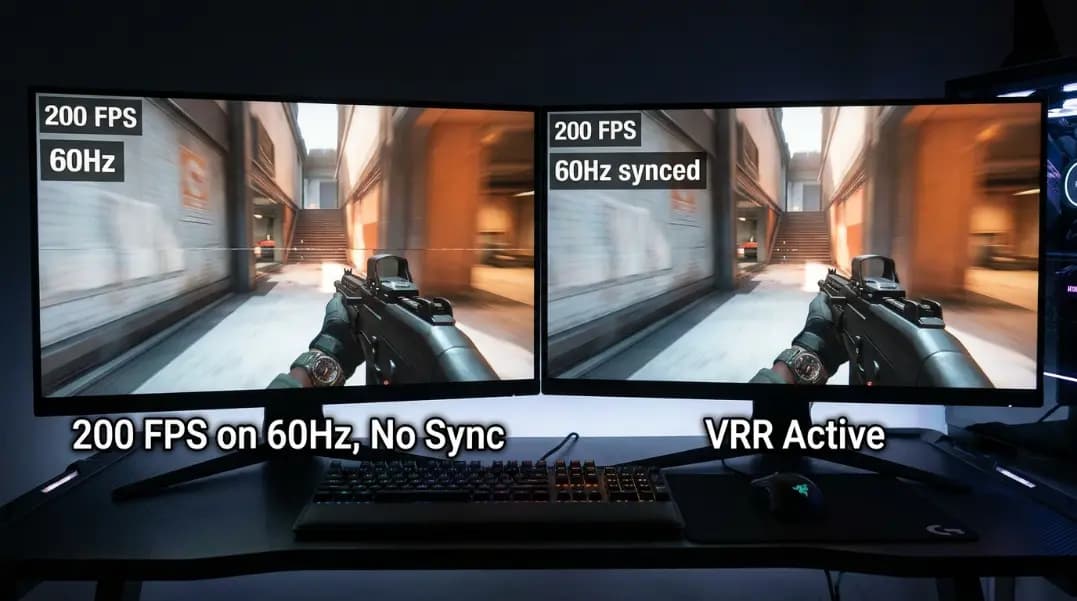
Refresh Rate vs FPS: Why They Are Not the Same Thing
Hz is what your monitor can display; FPS is what your GPU renders. Learn how refresh rate and FPS differ, what causes screen tearing, and how sync fixes it.
10 min read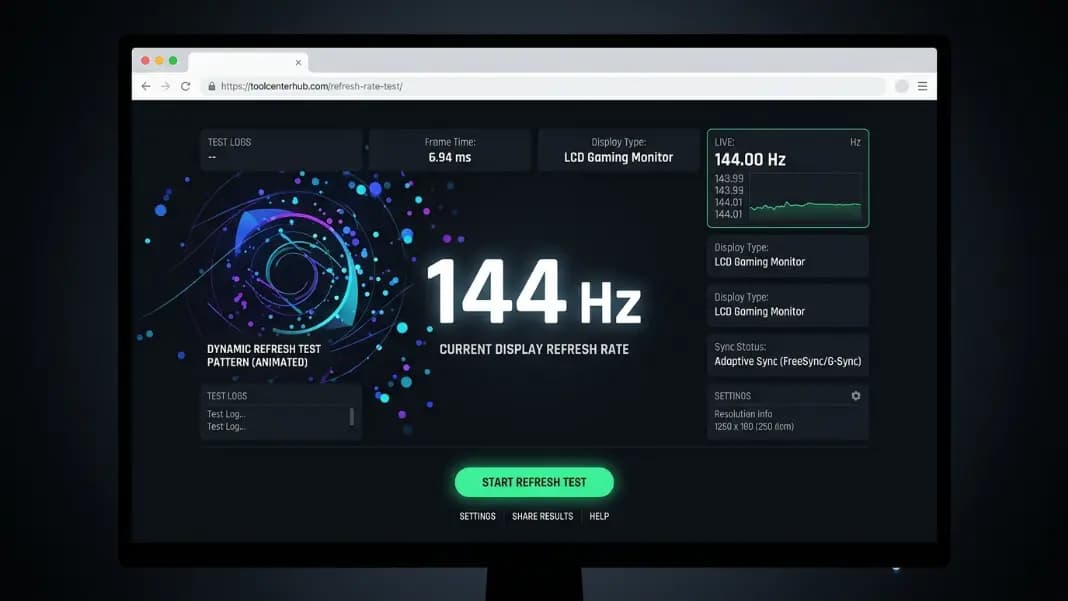
How to Check Monitor Refresh Rate: Windows, Mac, and 144Hz Fix
Check your monitor refresh rate on Windows and Mac. Fix 144Hz running at 60Hz with the right cable, display settings, and driver update. Verify with a free test.
8 min read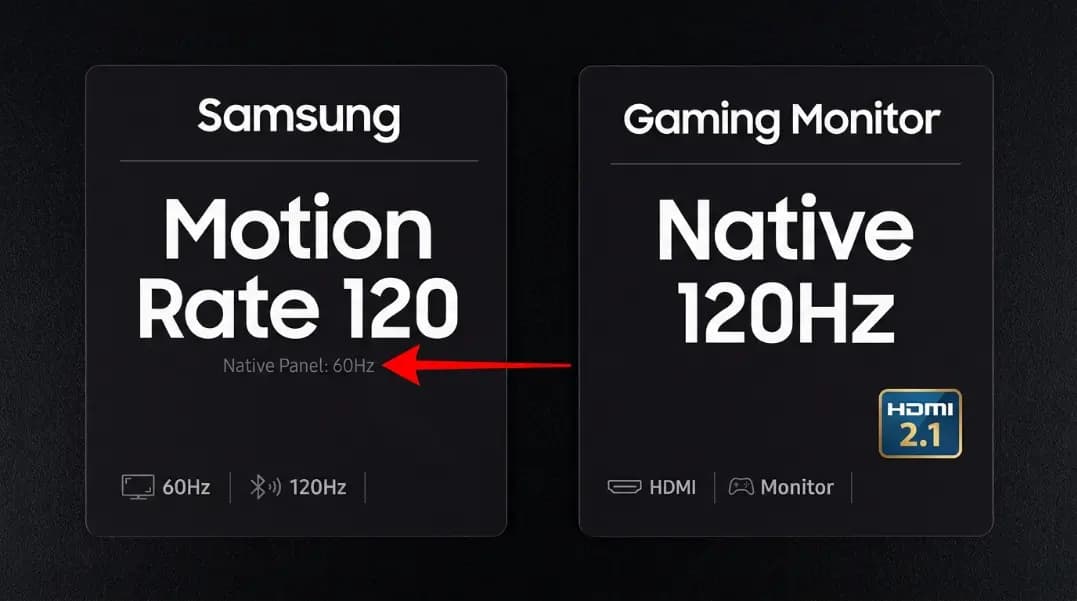
TV Refresh Rate vs Motion Rate: The Number That Is Not Real
Samsung Motion Rate 120 is not a 120Hz panel. Learn the difference between native refresh rate and motion processing on TVs, and why it matters for gaming.
10 min read