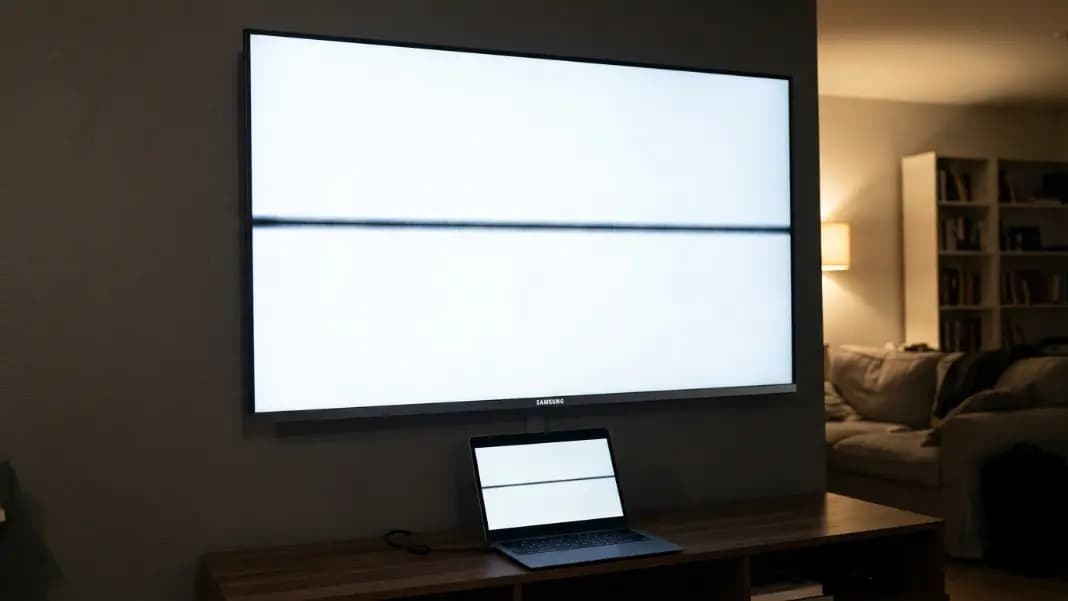
Your screen looks fine until you open a white document, and then you see it: a tiny black dot that does not belong. It stays in the same position in every application. It is there in the photo viewer, the browser, the spreadsheet. It does not move, does not blur, does not respond to anything you do on screen. That dot is almost certainly a dead pixel.
Dead pixels are one of the most common screen complaints because they are easy to miss until you notice them and impossible to ignore after. Understanding what a dead pixel actually is tells you whether yours is fixable, what caused it, and how to confirm you are looking at an actual hardware failure rather than dust, a scratch, or something fixable entirely. The dead pixel test gives you the background colors you need to verify it.
What Is Happening Inside a Dead Pixel
A dead pixel is a pixel on your screen where the transistor that controls its liquid crystal cell has permanently failed.
Every LCD screen is built from millions of pixels, and each pixel contains three subpixels: one red, one green, and one blue. Each subpixel is a liquid crystal cell sandwiched between the screen's glass layers. A liquid crystal can be rotated by applying electrical voltage. When the crystal is rotated open, backlight passes through and the color produced by that subpixel's filter is visible. When the crystal is rotated closed, backlight is blocked and that point goes dark.
The component that controls each pixel's liquid crystal is called a thin-film transistor, or TFT. Each pixel has its own TFT. When a TFT fails, it can no longer deliver voltage to its liquid crystal cell. The crystal has no signal, so it defaults to its natural closed state and stays there permanently. The backlight cannot pass through a closed crystal, so that pixel appears dark on every background that is not already black.
This is why dead pixels are permanent. The crystal may be physically undamaged. But without a working transistor to drive it, the pixel cannot function. It is an electrical failure, not a mechanical one, which is also why software cannot fix it. There is no frozen crystal to unfreeze. The transistor itself is gone.
What a Dead Pixel Looks Like on Different Screen Backgrounds
A dead pixel does not look identical on every background, which is exactly why a thorough test uses multiple solid colors rather than just a white screen.
On a white background, a dead pixel is at its most visible. It appears as a sharp, clean black dot against the bright white surface. The contrast between the dead pixel and its surroundings is as high as possible here. This is why most people first notice dead pixels when looking at a blank webpage, a white document, or a brightness test.
On a black background, a dead pixel is completely invisible. A pixel that produces no light is indistinguishable from a background that also produces no light. People who only check dark content may have dead pixels they have never seen. Running the test on a white background is necessary, not optional.
On a red, green, or blue background, a dead pixel appears as a black dot against the color. It is clearly visible but slightly less striking than on white. These colored backgrounds exist in the test because certain subpixel failures only become apparent on specific colors, which the next section explains.
A dead pixel appears black on every light background and disappears on pure black. If the dot you see is visible on the black test background, showing a color or a bright point, you are not looking at a dead pixel. You are looking at a stuck pixel, which is a different failure with different options.
Dead Pixels vs Dead Subpixels: Why Some Look Partially Colored
A dead pixel and a dead subpixel produce different results, and understanding the difference changes what you see on the test backgrounds.
A full dead pixel means the TFT that drives all three subpixels has failed, or all three subpixels themselves have died. The result is pure black: no red, no green, no blue output.
A dead subpixel means only one of the three subpixels has stopped working. The other two continue functioning. Because two out of three subpixels are still active, the pixel does not appear black. It shows the combined color of the two working subpixels:
- Dead red subpixel: the pixel appears cyan (green and blue still active)
- Dead green subpixel: the pixel appears magenta (red and blue still active)
- Dead blue subpixel: the pixel appears yellow (red and green still active)
A dead subpixel is harder to notice than a full dead pixel because it is not black. At normal viewing distance, a single cyan or magenta dot is easy to miss during normal use. It becomes most obvious on backgrounds that contrast with the color the defective pixel is showing. A dead red subpixel producing cyan is hardest to see on white or cyan content, and most obvious on a red test background where every surrounding pixel is red while the defective pixel shows cyan instead.
This is one reason the test runs separately on red, green, and blue backgrounds. A dead subpixel that is invisible on white or black may show clearly on one of the color screens.
What a Dead Pixel Cluster Looks Like
A single dead pixel is one isolated black dot. A dead pixel cluster is two or more adjacent dead pixels grouped in a small area.
From normal viewing distance, a cluster of three or four dead pixels looks like a small dark smudge or a spot slightly larger than a single dot. It does not have the clean, straight edge of a dead pixel line. The shape of a cluster is irregular because the cells failed independently rather than through a shared circuit path. A straight line means a circuit failure; an irregular cluster means cell failures in close proximity.
Up close, the individual dots within a cluster are visible. A cluster of five dead pixels shows as five distinct black points grouped together, each separated by or touching its neighbors. The surrounding pixels are normal.
Dead pixel clusters form through three common causes. Localized physical pressure on the panel, even light pressure from something caught under a laptop lid when it closes, can kill several adjacent cells at once. A manufacturing defect affecting a small area of the glass during production creates a cluster that is present from day one. An impact that did not visibly crack the screen can still damage several adjacent cells internally.
A cluster that has been stable for months is not growing and is not a sign that more pixels will fail. A cluster that is gaining new dead pixels at its edges over weeks points to ongoing pressure or a propagating defect, which is worth documenting and reporting to the manufacturer.

How to Tell a Dead Pixel from Dust Under the Screen
Dust trapped between the glass layers is one of the most common reasons people open a dead pixel test when no actual defect exists. Both appear as a dark speck on a light background from a normal viewing distance.
The fastest first check: run your finger across the spot on the screen. If it moves, smears, or comes off on your finger, it is on the surface of the glass and is not a defect at all. Wipe the screen and check again.
If the spot stays fixed when you clean the surface, open the dead pixel test and look at the spot on each background color. Dead pixels and dust behave differently under the test.
Dead pixels have perfectly sharp, single-pixel-wide edges because they are a precise electronic failure at one point in the display grid. Dust has slightly soft or uneven edges because it is a physical object with real-world dimensions and depth. At close inspection, dust can span multiple pixels or have irregular borders rather than clean pixel-defined edges.
Dust also appears slightly different across background colors. Because dust is a physical obstruction that partially scatters or absorbs light rather than a pixel producing zero output, it can look brownish, grayish, or slightly translucent on different colored backgrounds. A dead pixel appears pure black on every light background without variation.
Viewing angle is another useful tool. Look at the speck from directly ahead, then from a slight angle. Dust sometimes changes appearance when viewed at an angle because the physical particle is being lit differently. A dead pixel looks identical from every viewing angle because it is an electronic failure that produces no light regardless of the viewing direction.
Dead Pixel vs Stuck Pixel: The One That Might Be Fixable
The distinction between a dead pixel and a stuck pixel matters because one sometimes has a fix and one does not.
A dead pixel receives no power. The transistor has failed. The pixel is always black. Software cannot fix it because there is nothing to fix with software.
A stuck pixel receives power but its liquid crystal is frozen in one position. The transistor is working, but the crystal is not responding correctly to the signal. A stuck pixel shows a constant color: red, green, blue, white, or some combination. That color does not change regardless of what is displayed on screen around it.
The single clearest way to tell them apart: look at the dot on the black test background. A dead pixel disappears on black because it produces no light. A stuck pixel remains fully visible on black because it is actively emitting a color even when every surrounding pixel is off.
Stuck pixels can sometimes be fixed using rapid color cycling software, which switches the pixel through many states quickly to try to shake the frozen crystal loose. Dead pixels cannot be recovered by software. The dead pixel test guide covers the stuck pixel fix method and what to realistically expect from it.
How to Confirm What You Are Looking At Is a Dead Pixel
Open the dead pixel test in fullscreen and cycle through each background. A genuine dead pixel behaves like this:
- Black background: completely invisible
- White background: clear black dot
- Red background: black dot visible against red
- Green background: black dot visible against green
- Blue background: black dot visible against blue
If the dot is visible on the black background as a colored or bright point, it is a stuck pixel. If the dot shows an unexpected color on a specific background, cyan on red or magenta on green, it is a dead subpixel. If the dot disappears when you clean the surface or looks slightly different from different angles, it is dust.
Once you have confirmed a dead pixel, the realistic options are limited. Dead pixels cannot be fixed by software, and most manufacturers require a minimum number of defects before replacing a screen under warranty. The exact count varies by brand. If you are dealing with a line of pixels rather than a single dot, the cause and repair path are completely different and covered in the dead pixel line guide.
All display testing tools are in the developer section.