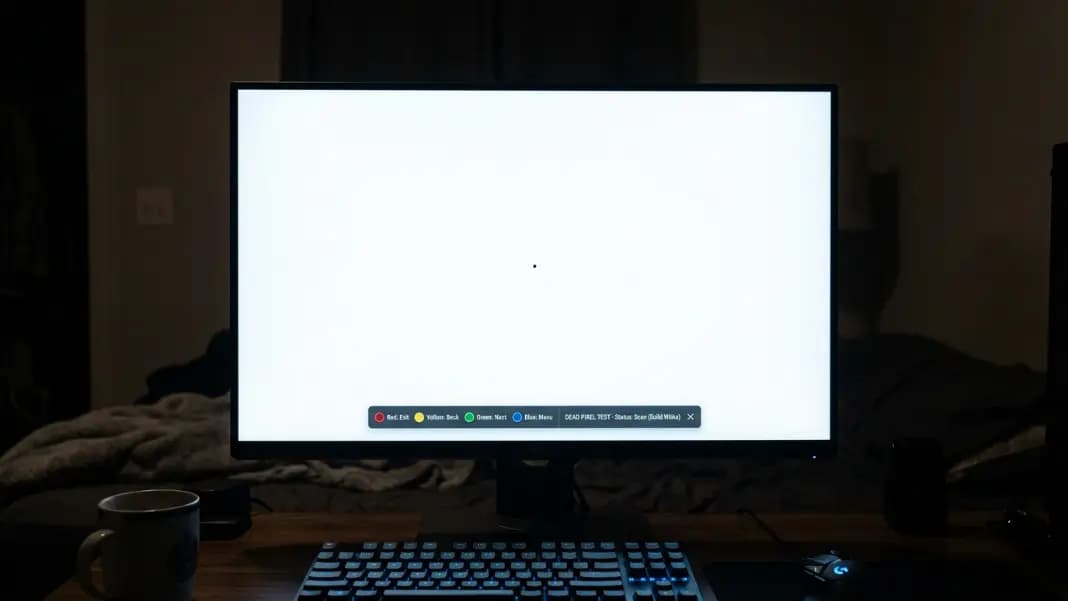
The smudge on your Kindle screen does not clean off. You wiped the surface, the display refreshed, you turned the device off and back on. The dark spot is still there in exactly the same position, sitting in the middle of whatever paragraph you are trying to read. That is a Kindle Paperwhite dead pixel.
Dead pixels on a Kindle look and behave differently from dead pixels on a laptop or phone screen. E-ink displays work on completely different physics than LCD panels, which means the failure modes look different, the test method is different, and the fix options are even more limited. Run through the dead pixel test first on a connected monitor or laptop to understand what a dead pixel looks like on an LCD, then compare that to what you are seeing on the Kindle. The two types of failure are related but not identical.
The good news is that Amazon's replacement policy for Kindle defects is more straightforward than most laptop or TV manufacturer policies. A clearly visible manufacturing defect on a Kindle within the warranty period almost always results in a replacement device rather than a repair.
How E-Ink Dead Pixels Differ from LCD Dead Pixels
Understanding what is happening inside an e-ink screen explains why a Kindle dead pixel does not look like the ones you see described for laptop or monitor screens.
An LCD dead pixel occurs when the thin-film transistor controlling a liquid crystal cell fails. The crystal defaults to a closed opaque state, blocking the backlight. The result is a sharp, clean black dot with pixel-defined edges.
An e-ink display does not have a backlight. Instead, it uses millions of tiny microcapsules filled with black and white charged particles. Applying an electrical field pushes the particles to the top or bottom of the capsule, making each cell appear white or black. A page refresh sends electrical signals to every cell, rearranging the particles to form new text or images.
When an e-ink cell fails, the particles inside it are permanently fixed in one position. They cannot move regardless of the electrical signal sent. Depending on where the particles are stuck, the dead cell appears as a gray smear, a faint dark spot, or a lighter area that never fully darkens during a page refresh. Because e-ink cells are larger than LCD pixels and the failure is physical rather than purely electrical, a dead e-ink cell often looks less sharply defined than an LCD dead pixel.
The practical implication: a dead pixel on a Kindle may be harder to notice during casual reading but becomes obvious when you are reading on a white page with the front light on full brightness.
How to Test a Kindle Paperwhite for Dead Pixels
The dead pixel test works differently on a Kindle than on a monitor or laptop. The Kindle does not have a dedicated fullscreen color cycling app, so you use a different approach.
The most effective method is to open the Kindle's experimental browser and navigate to a page that shows a plain white background. If you have sideloaded documents or books, open a blank document or a page with no text. Turn the front light to its maximum setting. Scan the entire screen slowly and methodically for any spot that does not belong.
A dark or gray spot that stays in the exact same position on every page you open is a dead pixel. A spot that moves, changes, or disappears on different pages is not a pixel defect. It could be a ghosting artifact from a previous page that did not fully clear on refresh. E-ink ghosting is common and not a hardware defect. To distinguish ghosting from a dead pixel, perform a full screen refresh by going to Settings, then pressing the Menu button to trigger a full refresh. Ghosting clears. A dead pixel does not.
Also view the screen with the front light completely off in a well-lit room. A dead e-ink cell may look slightly different under ambient light versus front light, which helps confirm it is a physical cell failure rather than a lighting artifact.
For iPad testing, the dead pixel test works in fullscreen in Safari. Press the expand icon after opening the tool to go fullscreen, then cycle through each color as you would on a computer. iPad dead pixels follow standard LCD behavior: black on every light background, invisible on black.
What the Failure Looks Like in Practice
A single dead pixel on a Kindle Paperwhite shows up as a small dark smudge or spot that is visible on text pages and white backgrounds. At the default reading font size, it sits between characters and letters, appearing as an artifact that looks like a printing imperfection rather than the clean sharp dot you would see on an LCD screen.
Kindle dead pixels do not spread under normal use. A stable defect in one corner of the screen will stay in that corner. The main exception is physical damage: dropping a Kindle or applying pressure to the screen can create new dead cells in the damaged area.
Dead pixel clusters on e-ink screens are relatively rare compared to LCD panels. When they appear, they are almost always the result of physical impact or pressure. A cluster of dark spots after the Kindle was dropped is impact damage. A single isolated dark spot that appeared without any physical event is a manufacturing defect.
One defect type unique to e-ink screens is burn-in or image retention. This appears as a faint ghost of a previous page visible on the current content. It is not a dead pixel. True e-ink burn-in from severe image retention looks like a ghost. A dead pixel looks like a solid permanent spot. The distinction is worth confirming before contacting Amazon, because the warranty coverage and replacement conversation is different for each.
Amazon's Warranty for Kindle Dead Pixels
Amazon covers manufacturing defects on Kindle devices under a one-year limited warranty from the date of purchase. Dead pixels from transistor or cell failure are covered. Physical damage from dropping or water exposure is not.
Amazon's process for Kindle defects is more customer-friendly than the process at most laptop or TV manufacturers. Rather than a repair or a minimum pixel count threshold, Amazon typically offers a replacement Kindle for clearly documented manufacturing defects. A single dead pixel near the center of the reading area is usually sufficient to qualify.
Contact Amazon customer support through your account's device registration page. Describe the defect, explain when it appeared, and send photos. The photos should show the Kindle displaying a white or very light background with the front light on full brightness, with the dead pixel clearly visible. Amazon may ask you to perform a factory reset before approving a replacement, which you should do only after documenting the defect thoroughly.
If the Kindle is outside the one-year warranty period, Amazon sometimes offers a discounted replacement rather than a free one, depending on the device age and defect type. This is not a guaranteed policy but it is common enough that it is worth asking.

iPad Dead Pixels: Apple's Policy and What to Do
iPad dead pixels follow standard LCD behavior because iPads use LCD or OLED panels, not e-ink displays. A dead pixel on an iPad appears as a sharp black dot visible on every light background and invisible on a black background.
Apple's dead pixel policy for iPad is stricter than the ISO 13406-2 standard that most manufacturers use. Apple does not publish a minimum pixel count before replacement. In practice, a single dead pixel near the center of an iPad display that is clearly a manufacturing defect and not caused by physical damage typically qualifies for replacement under the standard one-year warranty or under AppleCare.
To test your iPad, open the dead pixel test in Safari and tap the fullscreen button. Cycle through each background color. Document the defect with photos on at least the white and black backgrounds. Take the iPad to an Apple Store and request a Genius Bar assessment rather than contacting support remotely. Apple technicians can confirm the defect on the device and initiate replacement directly from the store when the defect qualifies.
Physical damage on an iPad complicates the warranty claim significantly. A dead pixel that appeared after the iPad was dropped or after something pressed hard against the screen will be evaluated for physical damage indicators. Impact damage is not covered under the standard warranty, though it may be covered under AppleCare Plus's accidental damage provision.
Kindle Paperwhite vs iPad: Which Dead Pixel Is More Disruptive
On a Kindle Paperwhite, a dead pixel in the corner of the screen is genuinely ignorable during normal reading. The high-contrast black text on white background of most books draws your eye to the content, and a small gray smudge at the screen edge disappears into the reading experience after a few pages. A dead pixel centered between lines of text is more disruptive, as the eye returns to it naturally during reading.
On an iPad, a dead pixel is less tolerable because the display is used for a wider range of content: video, photos, web browsing, and apps with varied backgrounds. A black dot that is invisible on a black video background becomes visible the moment a white email or document opens.
For either device, the decision to pursue a warranty replacement depends on whether the defect position actually affects how you use the device day to day. For most single-pixel defects that are not centered in the reading or viewing area, accepting the defect and continuing to use the device is a reasonable choice for older devices outside warranty. For a device you just purchased or that is within the warranty window, documenting and replacing the defect is the right call.
The dead pixel test guide has the full breakdown of what LCD dead pixel policies look like across brands if your device is an iPad, a tablet, or any other LCD-based screen. For everything related to display testing, the developer section has the tools you need.