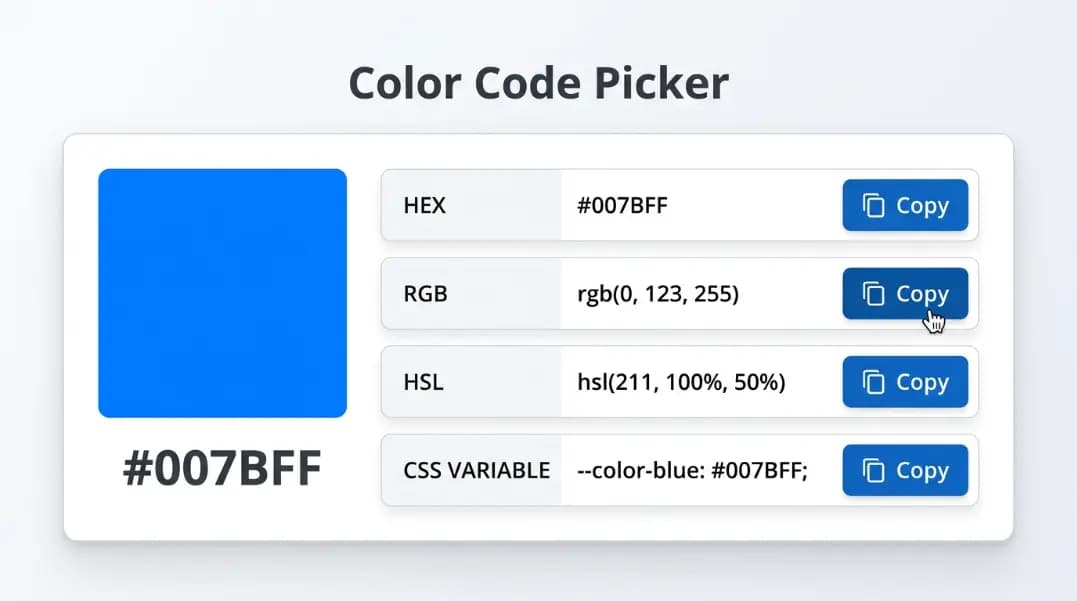
You have a brand blue saved as #3B82F6 in your CSS file. The design handoff shows it as rgb(59, 130, 246). Your design tokens store it as hsl(217, 91%, 60%). The Figma plugin outputs rgba(59, 130, 246, 1). All four are the same color, and none of them look like the others.
Switching between formats manually wastes time and introduces errors. A wrong RGBA alpha value breaks an overlay. An HSL with a misplaced saturation produces a hover state that does not match the brand. Choosing the wrong format for a CSS custom property means you cannot build opacity variants without duplicating values.
The Color Format Converter takes any HEX, RGB, or HSL input and outputs all formats simultaneously: HEX, RGB, RGBA, HSL, HSLA, CSS Variable, CSS RGB Variable, and Tailwind JIT. This guide explains what each format does, where each one fails, and which to reach for in each situation.
What Makes a CSS Color Format Different from Another?
Every CSS color format describes the same physical reality: a point in a three-dimensional color space defined by how much red, green, and blue light the screen emits. The formats differ in how they encode that point, not in what they describe.
HEX, RGB, and RGBA use the same underlying red-green-blue model. HSL and HSLA use a different coordinate system: hue, saturation, and lightness. CSS custom properties and Tailwind JIT are not separate color models. They are notation layers that wrap one of the above.
The choice of format affects three things: readability in code, what operations you can perform without recalculating, and browser/tool compatibility.
HEX Format: Compact and Universal
HEX is the most common format in CSS. #3B82F6 means the color has 59 red, 130 green, and 246 blue, expressed in base 16.
The conversion rule: take the first two digits (3B), convert from base 16 to decimal (3×16 + 11 = 59). Same for 82 = 130, F6 = 246. The Color Format Converter shows this breakdown the moment you enter any value.
When HEX is the right choice:
- Static colors in stylesheets that will not be calculated or manipulated
- Design tokens stored in JSON or CSS files
- Copy-paste from design tools (Figma, Sketch output HEX by default)
- Colors referenced by name in version control diffs (HEX is short and scannable)
When HEX breaks down:
- You cannot add transparency to a HEX value.
#3B82F6has no built-in alpha channel. You must convert to RGBA first. - You cannot programmatically lighten or darken a HEX without recalculating all three channels.
- The 3-digit shorthand (
#FFF,#38F,#000) only works when both digits of each channel are identical.#3B82F6cannot be shortened.
RGB and RGBA: Direct Channel Access
rgb(59, 130, 246) expresses the same color as #3B82F6 in decimal. The conversion is exact. There is no information loss and no rounding.
RGBA adds a fourth value for the alpha (opacity) channel: rgba(59, 130, 246, 0.5) renders the same blue at 50% transparency. Alpha runs from 0 (invisible) to 1 (opaque). It accepts decimals.
A common mistake: writing rgba(59, 130, 246, 50). Alpha above 1 is clamped to 1, so this renders fully opaque. The value you want is 0.5, not 50.
When RGB/RGBA is the right choice:
- You need transparency: RGBA is the most widely supported opacity format
- You need to pass channel values to JavaScript:
const [r, g, b] = color.match(/\d+/g)is straightforward with RGB - You are combining colors with JavaScript calculations (blending, contrast checking)
HSL and HSLA: Perceptual Color Control
HSL represents color as three independent axes: hue (0–360°), saturation (0–100%), and lightness (0–100%). This matches how humans think about color modification.
- Hue 0° = red, 120° = green, 240° = blue. These are positions on a color wheel.
- Saturation 0% = gray (color drained out), 100% = full color
- Lightness 0% = black, 50% = the full color, 100% = white
The key advantage: you can adjust one property without touching the others. hsl(217, 91%, 60%) lightened to hsl(217, 91%, 80%) is the same blue, just lighter. No hex calculation required.
HSLA adds alpha: hsla(217, 91%, 60%, 0.5) is the same blue at 50% transparency.
When HSL is the right choice:
- Generating hover, active, or disabled states from a base color
- Building tint and shade scales programmatically
- Theming where one color generates a full range of variants
- Any situation where color relationships matter more than exact values
The HSL near-achromatic trap:
HSL becomes mathematically unstable near grays. When saturation is very low (under 5%) or lightness approaches 0% or 100%, hue values become unreliable. A color like rgb(128, 127, 128) converts to roughly hsl(300, 0.4%, 50%), where the hue reads 300° (magenta) even though the color looks like plain gray. Converting it back produces a slightly different gray. For near-gray colors, stick to RGB or HEX. Use the Color Format Converter to verify what your converter is actually returning for any edge-case gray.
CSS Custom Properties: The Variable Layer
CSS custom properties (also called CSS variables) store color values for reuse:
:root {
  --color-brand: #3B82F6;
}

.button {
  background: var(--color-brand);
}
The Color Format Converter outputs two CSS variable formats. CSS Var outputs the full value: --color: #3B82F6. CSS RGB Var outputs raw channels only: --color-rgb: 59, 130, 246.
Why the CSS RGB Variable Matters
The CSS RGB Var format enables a trick that the full CSS Var cannot: opacity variants from a single source.
:root {
  --color-rgb: 59, 130, 246;
}

.button-hover {
  background: rgba(var(--color-rgb), 0.1);
}

.button-overlay {
  background: rgba(var(--color-rgb), 0.5);
}
If you had stored --color: rgb(59, 130, 246) instead, you cannot extract the channels to build rgba() variants. You would need a separate variable for each opacity level.
This pattern is standard in design systems supporting hover states, focus rings, alert backgrounds, and tinted surfaces, all derived from one brand color token. The field labeled "CSS RGB Var" in the converter outputs this format ready to copy.
Tailwind JIT: Arbitrary Color Values
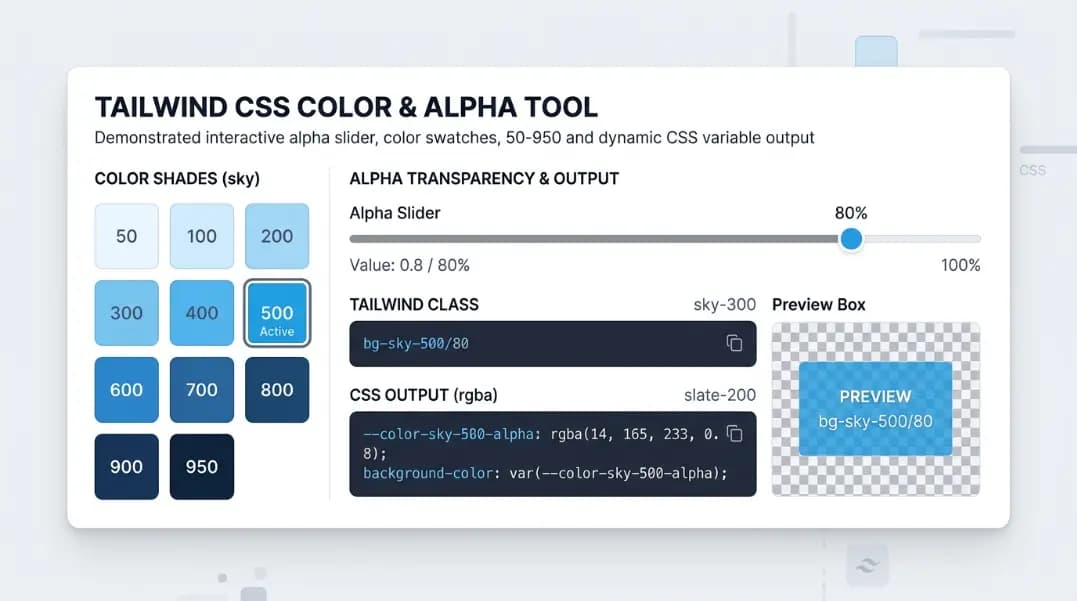
Tailwind JIT (Just-In-Time) mode compiles only the utility classes your project actually uses. For colors not in your tailwind.config.js, the bracket notation generates a class on demand:
<button className="bg-[#3B82F6] hover:bg-[#2563EB] text-white">
  Submit
</button>
The brackets accept any valid CSS color: HEX, RGB, or HSL. The Color Format Converter outputs the correct bracket-wrapped value in the Tailwind JIT field.
When to use bracket notation vs. config tokens:
- Bracket notation: one-off colors, prototype work, third-party brand colors used in a single component
- Config token: any color used in three or more places. Tokens let you change the color in one file and update everywhere.
For systematic use of a color across your project, add it to tailwind.config.js with a name. For a one-time background on a marketing page, the bracket syntax is faster.
Which Format Should You Use? A Decision Table
| Situation | Best Format |
|---|---|
| Static color in a stylesheet | HEX |
| Transparency needed | RGBA or HSLA |
| Generate lighter/darker variants | HSL |
| Pass channels to JavaScript | RGB |
| Design system opacity variants | CSS RGB Var |
| Tailwind one-off color | Tailwind JIT |
| Theme-wide brand token | CSS Var (HEX value) |
| Near-gray or achromatic color | RGB or HEX |
How Format Choice Affects Contrast Checking
Once you pick a final format for a color, contrast against backgrounds changes depending on the alpha value you use. A 50% transparent brand blue on white looks lighter than it is in HEX. The actual rendered contrast depends on what the background bleed-through produces.
When checking accessibility, always use the rendered color, not the raw value. The Contrast Checker accepts HEX inputs and gives you the WCAG ratio for that color on a background. If you are working with transparent overlays, test the flattened composite color (what the user actually sees) rather than the RGBA source.
How Color Formats Connect to Palette Generation
The format you work in affects how well your tools integrate. If you extract a color from an image in HEX format, then need to generate tints and shades for a full palette, you will need to convert to HSL first, because lightness and saturation adjustments only work in HSL space.
The Tints and Shades Generator accepts HEX and handles the HSL conversion internally. If you are building a color system from a source image, start at the Color Palette Generator from Image to extract swatches, then bring each HEX into the format converter to get all the representations you need.
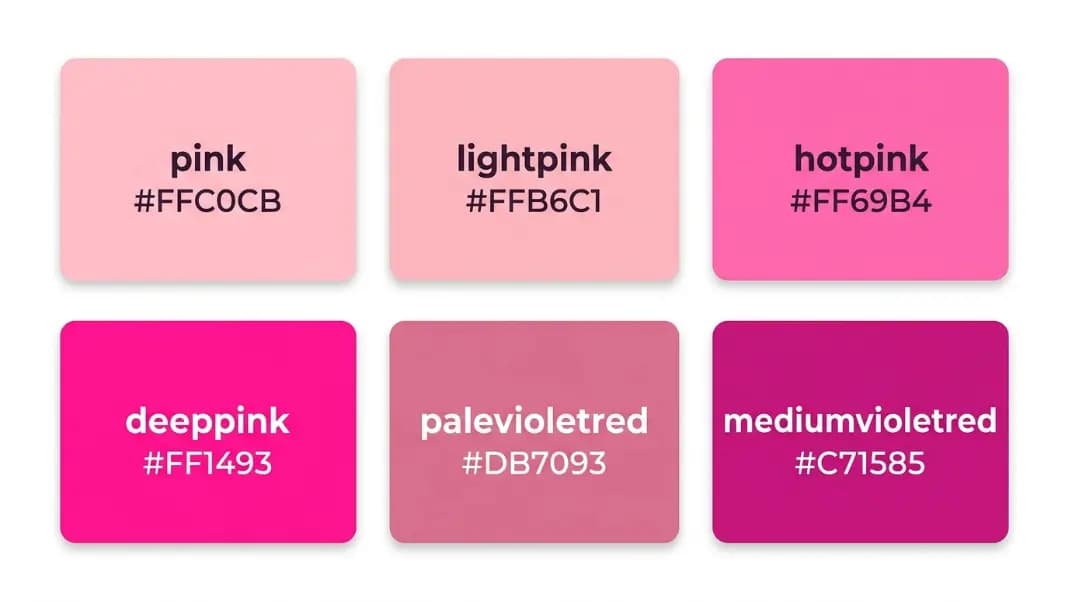
For named CSS colors (the 140+ keywords like cornflowerblue or rebeccapurple), you can find their exact HEX and RGB values in the Specific HEX Code Color Names reference. Named colors are valid in any CSS context where a color is expected.
Practical Workflow: From Design to Code
A typical design-to-code color workflow covers four format transitions:
- Designer delivers HEX (from Figma or Sketch):
#3B82F6 - Add to CSS custom properties as RGB channels for opacity flexibility:
--brand-rgb: 59, 130, 246 - Build HSL variants for hover/active/disabled states in the same hue family
- Use Tailwind JIT for one-off colors that do not belong in the token system
The Color Format Converter covers all four steps from a single input. Enter the HEX your designer gave you and copy each output as needed. No separate tool for each format, no manual calculation.
Explore the full set of Color Tools to complete your color workflow: contrast checking, palette building, gradient generation, and scheme creation.