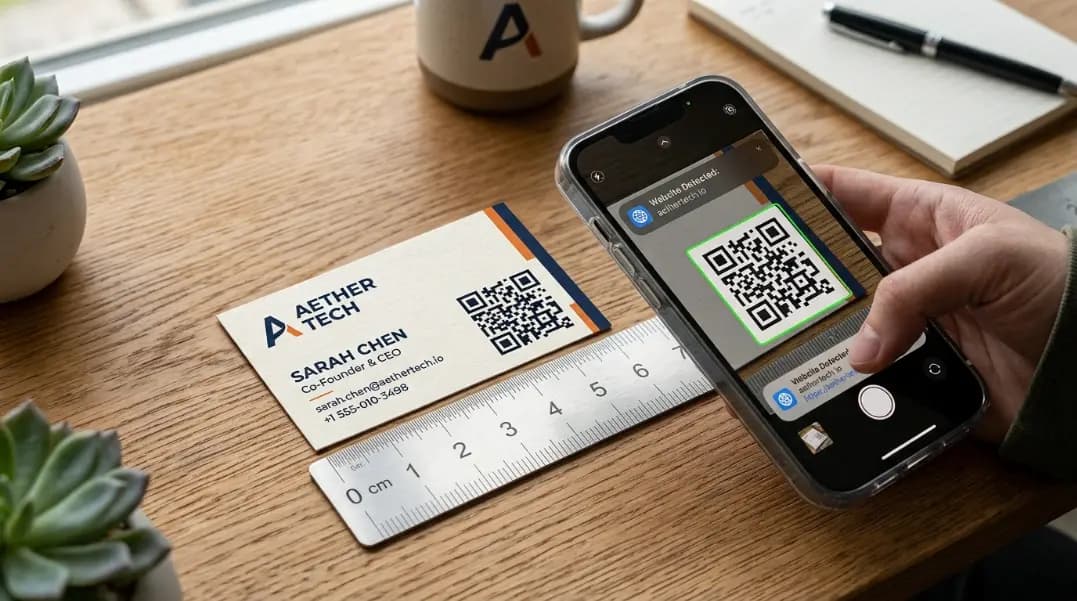
You order 500 business cards with a QR code linking to your website. Three months later, you migrate to a new domain. Every one of those 500 cards now points to a URL that no longer exists. This is the most common and most avoidable mistake with business card QR codes, and it happens because most guides skip the static versus dynamic distinction entirely.
The QR code generator at ToolCenterHub generates codes you can download as SVG or PNG, test before printing, and deploy on any card design. Before you export and send to print, there are five technical decisions that determine whether the code works reliably for the life of the card.
This guide covers each of them: the type of code to use, minimum print size, color and contrast rules, error correction level, and how to test before ordering.
Why Add a QR Code to a Business Card?
A business card has one job: make it easy for someone to contact you or learn more. The card's physical format limits what it can carry. A name, title, phone number, email, and website URL fill most of the card. There is no room for a portfolio, a photo, multiple contact methods, or a link to your latest work.
A QR code extends the card into digital space without cluttering the physical design. When someone scans it, they land on whatever page you choose: a personal site, a LinkedIn profile, a vCard download, or a full contact page with everything the card cannot hold.
The practical benefit is not novelty. It is the ability to update that destination without reprinting. If you move, change your email, rebrand, or want to route people to a new portfolio, a correctly set up QR code gives you that option without wasting printed cards.
The code also reduces transcription errors. Instead of typing your email or URL from the card into a phone, the person scans and the information transfers directly. This matters most for long URLs and for people receiving cards in noisy or distracted environments.
What Is the Right Size for a QR Code on a Business Card?
The minimum reliable size for a QR code on a standard business card is 2.5 centimeters (1 inch) square. Below this size, the failure rate rises sharply in real-world conditions: varying lighting, phone cameras with different focal lengths, and the slight blur that offset printing introduces at fine detail.
Standard business card dimensions are 85mm x 54mm (3.35 x 2.13 inches). A 2.5cm QR code occupies approximately 14 percent of the card's width and about 46 percent of its height on the short edge. Placed in a corner, it leaves sufficient room for contact information without dominating the design.
The module size inside the QR code determines how small the individual squares are. A higher data density (longer URLs, more text) means more modules and smaller individual squares at the same physical size. If the code is scanning unreliably, one fix is to shorten the destination URL using a redirect rather than reducing the QR code size. A shorter URL means fewer modules, which means larger individual squares at the same physical print size.
For cards with a colored or patterned background, add 0.5cm to the minimum size to compensate for the contrast reduction that patterned backgrounds create.
Static vs Dynamic QR Codes: The Decision That Matters Before You Print
This is the most important decision in the process, and it must be made before generating the code. Once printed, a static code cannot be changed.
A static QR code encodes the destination URL directly into the black-and-white module pattern. The URL is permanently part of the code. If the URL changes for any reason: a domain migration, a website rebuild, a redirect update, or a link rot scenario, every card in the print run becomes permanently incorrect. Static codes have no management overhead and no ongoing cost, but they offer no flexibility.
A dynamic QR code encodes a short redirect URL (typically hosted by a QR code management service) into the pattern. When someone scans the code, they hit the short redirect URL, which forwards them to your actual destination. You can change the destination URL at any time in the service dashboard without changing the printed code.
| Feature | Static | Dynamic |
|---|---|---|
| Destination URL | Fixed permanently | Changeable at any time |
| Cost | Free | Usually requires subscription |
| Scan analytics | None | Tracks scan count, location, device |
| URL length in code | Full URL encoded | Short redirect URL encoded |
| Module density | Higher (more data) | Lower (short URL = fewer modules) |
For business cards specifically, dynamic codes are worth the subscription cost because cards have long useful lives. A card printed today may still be in circulation two or three years from now. A static code linking to a URL that breaks in year two is permanently broken on every card already distributed.
Dynamic codes also produce slightly simpler QR patterns because the encoded URL is shorter, which means larger individual modules at the same print size and better scan reliability.
Color and Contrast Rules for Business Card QR Codes
QR codes do not need to be black and white. They can use brand colors as long as specific contrast requirements are met.
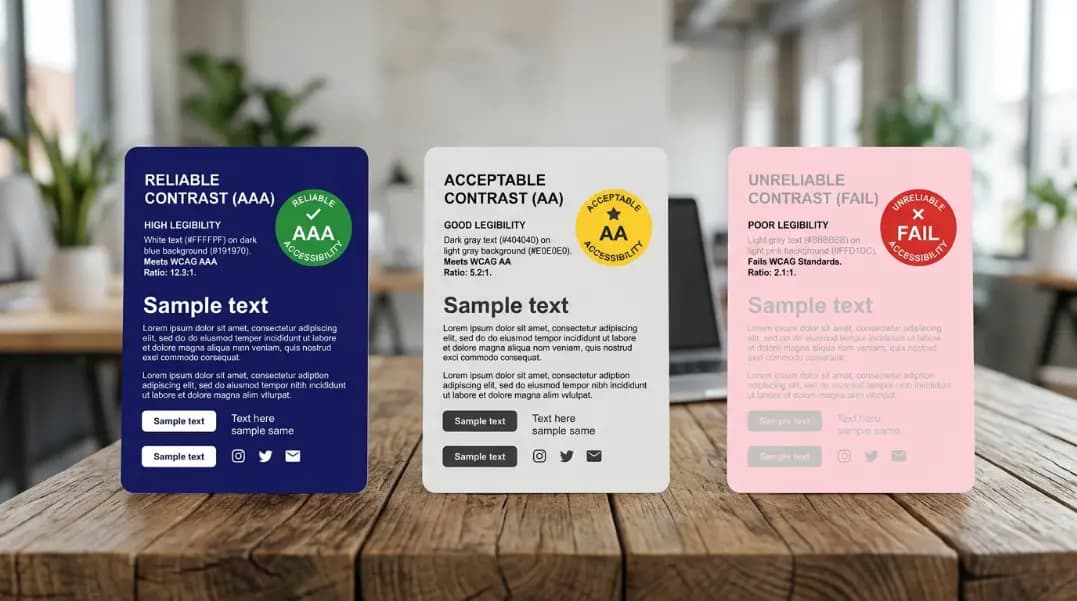
The dark modules (the black squares in a standard code) need at least 3:1 contrast ratio against the background. The contrast checker calculates this ratio from any two colors. A 3:1 ratio is the minimum. A 4.5:1 ratio or higher gives better reliability across all phone models and scanning apps.
The standard dark-on-light configuration (dark modules on a white or very light background) is the safest option and works reliably with every phone camera and QR scanning app. If your card uses a dark background, you can use light modules on a dark background (an inverted QR code), but this format fails more often with older phone cameras and some third-party scanning apps. If you use an inverted code, test it across at least five different phones before committing to the print run.
For brand-colored codes, dark navy or dark green modules on a white background work well. Avoid medium-value colors like medium gray, medium blue, or medium red because the contrast ratio at those values often falls below 3:1 and scan reliability suffers. Never use similar-value colors for modules and background (dark gray on medium gray, for example) regardless of how distinct they look on a calibrated monitor.
One print-specific risk: colors that appear as near-black on screen can print as noticeably lighter in CMYK. A dark navy module at RGB 0,0,80 looks almost black on screen but may print as a visible blue, reducing contrast below the scanning threshold. Generate your QR code in pure black and let your designer apply brand color adjustments only after confirming the contrast ratio on a physical test print.
Error Correction Level: Why Level H Is the Right Choice for Business Cards
QR codes include built-in error correction that allows them to scan correctly even when part of the code is damaged or obscured. There are four levels:
| Level | Name | Data Recovery Capacity |
|---|---|---|
| L | Low | Up to 7% of data |
| M | Medium | Up to 15% of data |
| Q | Quartile | Up to 25% of data |
| H | High | Up to 30% of data |
Higher error correction means the code is more robust against damage but also produces a more complex pattern with more modules, which requires a slightly larger physical size for the same scan reliability.
For business cards, Level H is the right default. Business cards are physical objects that get handled, stored in wallets, and occasionally bent or creased. Level H tolerates a crease through the corner of the QR code, minor ink smearing during printing, and slight surface damage without causing a scan failure.
The QR code generator lets you select the error correction level before generating. Choose Level H before generating the code rather than generating at a lower level and trying to change it afterward. Once generated, the error correction level is embedded in the code pattern and cannot be changed without regenerating from scratch.
The trade-off is that Level H codes are slightly more visually complex, which means they require a print size at or above the 2.5cm minimum. At smaller sizes, Level H complexity can make individual modules too small for reliable scanning.
Where to Place a QR Code on a Business Card
Placement affects both usability and design. The back of the card is the most common location and works well: it keeps the front clean and signals that the QR code is a supplementary element rather than the primary content. The downside is that recipients need to flip the card to find it.
If the code goes on the front, a bottom corner is standard. Bottom right or bottom left both work. The corner placement keeps the code out of the visual hierarchy of the name and contact details while remaining immediately visible when the card is in hand.
Avoid centering the QR code on the front of the card. A centered code competes with the name for visual dominance and can make the card feel like a QR code delivery vehicle rather than a professional introduction.
Regardless of placement, leave the quiet zone intact. The quiet zone is the blank white border around the QR code, at minimum 4 modules wide on all four sides. Cropping into the quiet zone during layout is the most common cause of scan failure on cards that looked correct on screen. Design software that automatically crops or trims images can remove part of the quiet zone without any visible warning. Always verify the quiet zone is present in the final exported print file.
What Should the QR Code Link To?
The destination should contain everything a person would want after meeting you, formatted for a mobile screen.
The most effective options:
A personal contact page or digital profile that includes your photo, full name, title, company, phone, email, website, and a downloadable vCard file. This gives the recipient everything from the physical card in a format they can save directly to their phone contacts.
A LinkedIn profile is a reliable choice because LinkedIn is recognized and trusted. The profile handles mobile formatting automatically, the URL is stable, and the profile can be updated without changing the QR code destination.
A portfolio or work page works well for creative professionals where showing work is more persuasive than listing credentials. Keep the page mobile-optimized, since the person will be reading it on the phone they just used to scan the code.
Avoid linking directly to a PDF, a file download, or a Google Drive folder as the primary destination. Many people hesitate to open unknown file downloads from a scanned QR code on a physical card from someone they just met. A web page with a clear identity and a secondary option to download the vCard is more likely to convert.
For the developer tools section, the QR code generator and contrast checker are available alongside the other tools that support print and digital workflows.
How to Test Before Ordering Business Cards
Never approve a business card for printing without a physical QR code test. Screen previews confirm the visual design, but they cannot confirm scan performance on a printed surface.
The process:
- Print a single test copy at the exact dimensions of the final card, on the same paper stock if possible.
- Scan with the native camera app on an iPhone, a mid-range Android, and an older Android if available.
- Test in bright light, normal indoor light, and dim light.
- Scan at the expected distance: holding the card normally and scanning from about 15 to 20 centimeters.
- If the code fails any test, identify the cause before ordering: size too small, quiet zone cropped, contrast too low, or error correction too low.
A single failed test before ordering prevents the scenario where 500 printed cards carry a code that does not work. The reprint cost is preventable and the test takes under ten minutes.
For the print-specific technical requirements that apply to QR codes on flyers, posters, and large-format materials, the QR codes in print guide covers resolution requirements, file format selection, and the CMYK conversion issues that cause scan failure at scale.