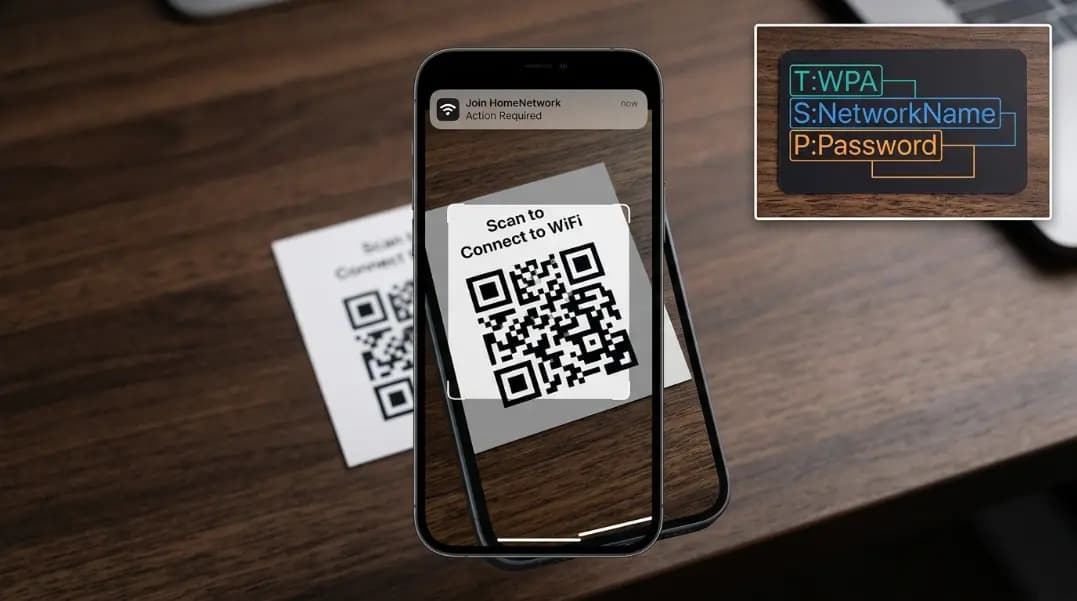
A guest arrives and asks for the WiFi password. You show them the back of the router. They squint at a 20-character string, misread a lowercase L as a 1, and type it wrong twice before asking you to just type it yourself. A WiFi QR code eliminates this entirely: they scan it, the phone shows a join notification, and they tap once to connect.
The QR code generator at ToolCenterHub creates WiFi QR codes entirely in the browser. The password you enter never leaves your device. This guide covers how WiFi QR codes work, the format specification behind them, how iPhone and Android handle scanning differently, why the QR breaks when your password changes, and where to display the code once it is generated.
How a WiFi QR Code Works
A QR code is a way to encode any text string in a 2D image pattern. Most people associate QR codes with URLs, but the format supports arbitrary text. When a phone camera scans a QR code, it reads whatever text is encoded inside.
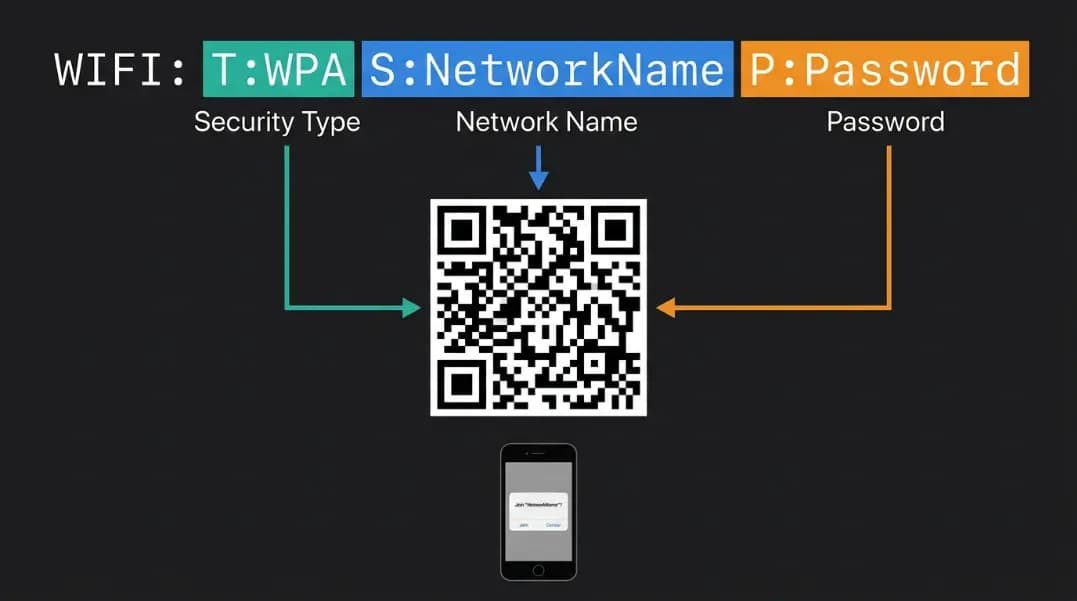
WiFi QR codes work because iOS and Android both recognize a specific text format as network credentials:
WIFI:T:WPA;S:YourNetworkName;P:YourPassword;;
Each component has a specific meaning:
| Field | Example Value | Meaning |
|---|---|---|
| T:WPA | T:WPA | WPA2 or WPA3 authentication (use for all modern routers) |
| T:WEP | T:WEP | Older WEP authentication (avoid for new setups) |
| T:nopass | T:nopass | Open network with no password required |
| S: | S:HomeNetwork | Exact SSID as shown in router settings |
| P: | P:MyPassword123 | Current network password |
| H: | H:true | Hidden network flag (optional) |
The double semicolon ;; terminates the record. Special characters in the SSID or password, including semicolons, backslashes, colons, and quotation marks, must be escaped with a backslash. A QR generator handles this automatically.
When a phone camera reads this string, the operating system parses the fields and passes them to the WiFi connection manager, which attempts to join the network. No URL is loaded. No internet connection is required during the scan. The entire exchange is local to the device.
How to Create a WiFi QR Code
Open the QR code generator and select the WiFi option. Enter your network name exactly as it appears in your router's admin settings, including any spaces and exact capitalization. Enter the current password. Select WPA as the authentication type for any modern WPA2 or WPA3 router.
The generator creates the QR code image in your browser. Your password is encoded locally and never transmitted to any server or stored anywhere outside your device. Download the generated image and print or display it where guests will need to connect.
Test the code before printing. Scan it with your own phone to confirm the join notification appears and the connection succeeds. If it fails, double-check that the SSID and password match exactly what is in your router's admin panel, not what you remember typing when the router was first set up.
For home routers installed by an ISP technician, the default SSID and password are usually on a sticker on the router itself. Use the sticker values rather than any remembered values when generating the code.
Which network to encode: Generate the QR code for a guest network rather than your primary network whenever possible. Your primary network is where personal computers, NAS drives, printers, and smart home devices connect. A guest device that joins the primary network, whether through intent or because it arrived with malware, can probe and communicate with everything else on that LAN. A guest network routes internet traffic only and isolates visitors from your local devices by design. Most modern routers include a guest network option in their admin settings. After setting it up, enable client isolation (also called AP isolation) in the guest network configuration, a single toggle that prevents guest devices from communicating with each other on the same network. For home use, rotate the guest network password quarterly and regenerate the QR code each time.
iPhone vs Android: How Scanning Differs
Android and iPhone both support WiFi QR codes but with different behavior depending on the operating system version.
Android: The Camera app recognizes WiFi QR codes from Android 10 (released 2019) onward. When the camera detects the code, a pop-up notification appears immediately offering to join the network. For WPA3 networks specifically, Android 10 or later is required. Older Android versions may not have native WiFi QR support and require a third-party QR scanner app that passes the credentials to the WiFi manager.
iPhone: The Camera app supports WiFi QR codes from iOS 11 onward. A notification banner appears at the top of the screen. Tap it to connect. WPA3 support via QR requires iOS 14 or later. If you are generating a QR for a WPA3-only network, anyone running iOS 13 or earlier will need to enter the password manually.
WEP networks: Both platforms can scan WEP credentials from a QR code, but WEP is a deprecated authentication standard with known security weaknesses. If your router still uses WEP, switching to WPA2 is worth the configuration change. The QR approach works far more reliably with WPA2 than WEP on modern phones.
| Platform | Minimum Version for WiFi QR | WPA3 Support via QR |
|---|---|---|
| Android | Android 10 | Android 10+ |
| iPhone | iOS 11 | iOS 14+ |
| Windows (Camera app) | Not supported natively | N/A |
| macOS (Camera app) | Not supported natively | N/A |
Windows and macOS laptops cannot join a network from a QR scan through any native camera interface. A laptop user at a business or event will still need the password typed manually or a third-party QR reader application that can pass the credentials to the system's WiFi manager.
What Happens When You Change Your WiFi Password
A WiFi QR code encodes your password as a static text string at the moment of generation. The QR image contains the literal password characters. When you change your router's password, the string inside the QR no longer matches the network, and any phone that scans it will fail to connect immediately.
There is no dynamic WiFi QR standard that automatically updates. Creating a truly dynamic version would require a redirect server that stores your network credentials and serves updated credentials when the QR is scanned. This means your password would live on an external server, which removes the primary security advantage of browser-local generation.
The practical workflow for password changes: regenerate the QR code immediately after changing the router password and replace all displayed copies before guests try to use the old one. If you laminate your QR code displays, factor in reprinting time when planning a password rotation.
If your network uses a long, complex password, the QR method becomes more valuable precisely because manual entry is error-prone. Choosing a strong WiFi password that benefits from QR delivery rather than being simple enough to type is the right tradeoff. The guide to creating strong passwords covers what length and character mix makes a password genuinely resistant to guessing while still being manageable.
Where to Display a WiFi QR Code
The QR code is most useful where connection requests are frequent and typing friction is highest.
Home: A laminated card near the router is the most common placement. Lamination extends the print life significantly in higher-humidity rooms like kitchens. Include the network name alongside the QR so guests know which network the code connects to, since phones show the SSID in the join notification and a mismatch between the label and the notification causes confusion.
Rental property: Frame the QR code alongside check-in instructions. Include the typed SSID and password as a fallback for older phones that do not support QR-based WiFi connection. Update both the QR and the typed version when you change credentials between guest stays.
Business or office: Table tent cards in conference rooms reduce IT support requests for guest WiFi passwords. A framed QR at the reception desk handles visitor onboarding without involving staff. For cafe or restaurant use, the QR codes in print guide covers paper type, lamination, and minimum size requirements for public-facing placement.
Events: An on-screen display cycling through the QR code between presentation slides allows attendees to connect during setup. A printed handout with the QR eliminates the "can you spell that again" problem at registration tables.
Print Size and Scanning Reliability
WiFi QR codes encode more text than a typical URL QR code because the WIFI format string is longer than most web addresses. More encoded data requires a denser pattern, which requires a larger minimum print size for reliable scanning.
For a typical home network with a moderate-length SSID and password, the minimum reliable print size is approximately 3 to 4 centimeters square. At this size, modern phone cameras scan reliably in good indoor lighting. For placement at a distance, such as a wall mount across a lobby or a screen at the front of a conference room, scale up proportionally to the expected scanning distance.
Higher error correction matters for printed codes in high-traffic areas that may get scratched or partially obscured. A code generated with high error correction can still be read when up to 30% of the image is damaged. Test scan the code in the actual lighting conditions where it will be displayed, not just at a desk in ideal light.
Hidden Networks and Special Characters
Hidden WiFi networks: If your router is configured not to broadcast its SSID, add the hidden flag to the format: WIFI:T:WPA;S:NetworkName;P:Password;H:true;;. Android handles hidden-network QR codes reliably from Android 10 onward. iPhone behavior with hidden SSIDs via QR code is inconsistent and may require the user to manually confirm the network name in iOS Settings after scanning.
Special characters in SSID or password: Network names or passwords containing semicolons, backslashes, colons, or quotation marks must be escaped with a backslash in the raw format string. The QR generator handles this automatically. The issue only appears if you are manually constructing the WIFI string rather than using a generator.
Emoji in SSID: Network names containing emoji are technically valid but may cause compatibility issues with some older QR scanner apps. The generator encodes emoji correctly using UTF-8, but if scanning fails on a specific device with an emoji SSID, the most reliable fix is removing the emoji from the network name in router settings.
For other QR code use cases, the QR code business card guide covers contact information QR codes, and the QR codes in print guide covers resolution and size requirements for all professional printing contexts. All tools in this guide are available from the developer tools hub without an account.