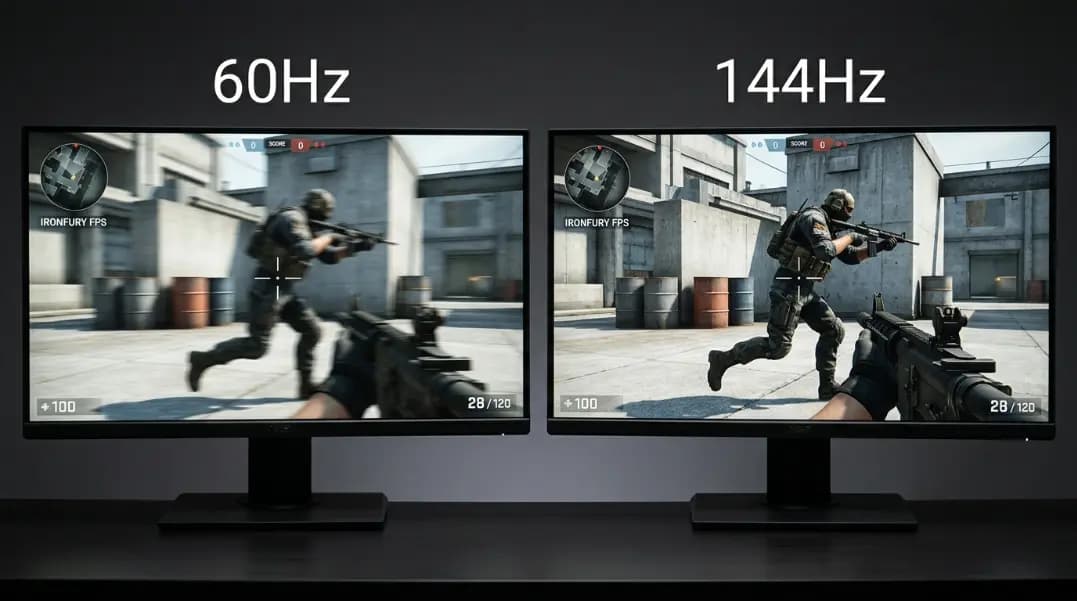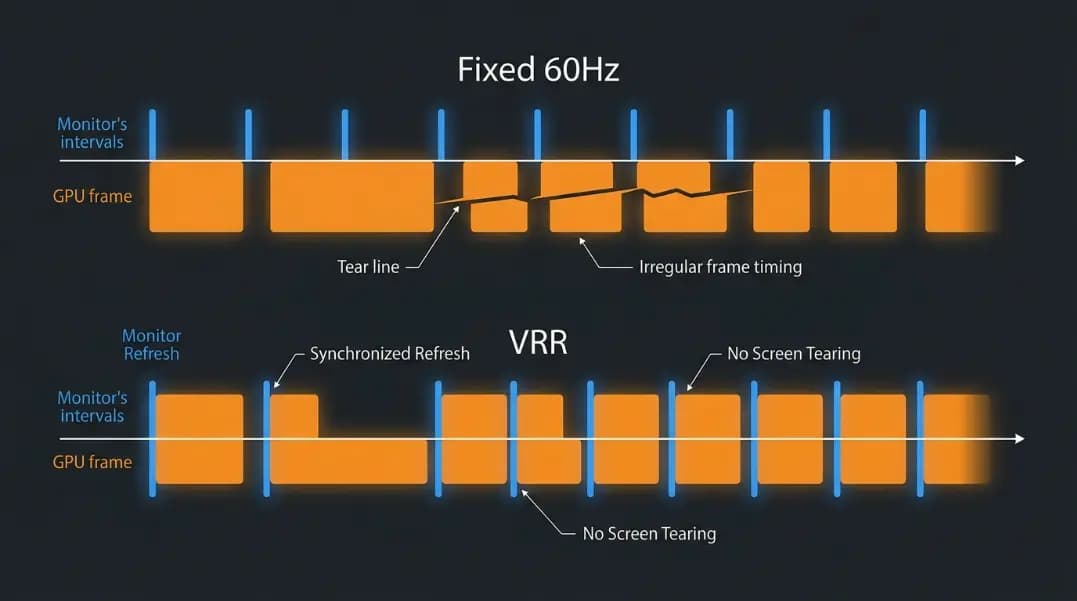
Screen tearing happens when your monitor refreshes in the middle of a frame. You see the top half of one frame and the bottom half of the next, split by a visible horizontal line. Fixed-rate V-Sync eliminates tearing by locking frame delivery to the monitor cycle, but it does this by introducing latency: your GPU renders a frame and then waits for the next monitor refresh before displaying it.
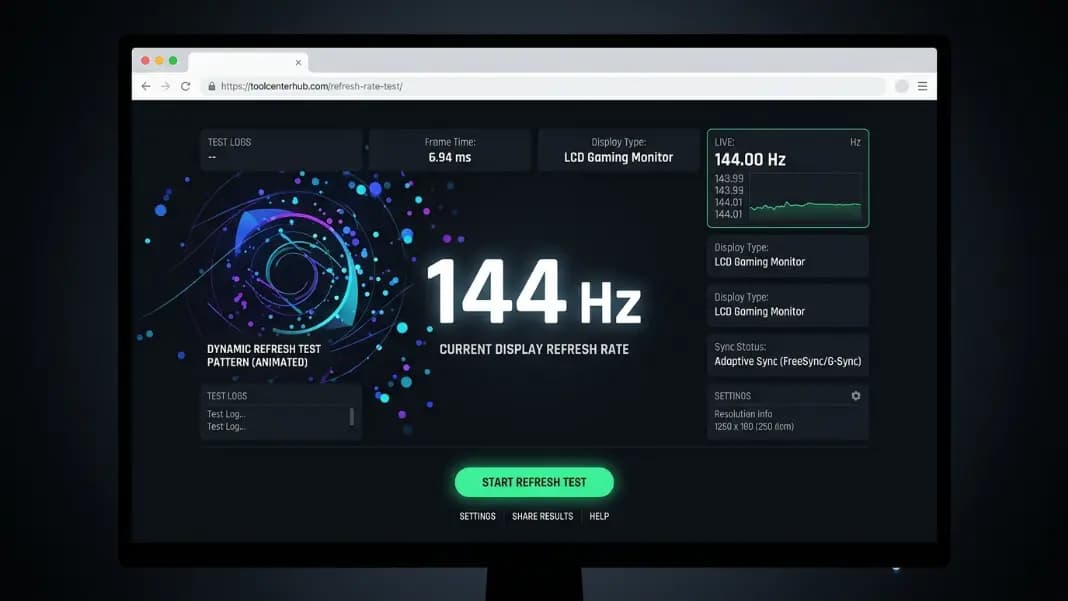
Variable refresh rate solves the same problem from the other direction. The monitor adapts its timing to the GPU rather than the GPU adapting to the monitor. Before deciding whether VRR adds benefit to your setup, confirm your monitor is running at its rated Hz by running the refresh rate test tool. A monitor delivering 60Hz when it should output 144Hz is the first problem to fix.
This guide covers how VRR works mechanically, the three implementations you will encounter, the minimum-range problem most guides skip, when enabling or disabling VRR produces better results, and how to verify the feature is actually active on your system.
How Variable Refresh Rate Works
A fixed-rate 144Hz monitor refreshes 144 times per second regardless of what the GPU sends. If the GPU delivers 80 frames per second, the monitor still refreshes 144 times. Most of those refreshes show the previous frame again, and occasionally a refresh catches the GPU mid-write to the frame buffer, producing a tear line across the screen.
VRR inverts this relationship. Instead of the monitor running on its own clock, the GPU signals the monitor when a new frame is complete. The monitor waits for that signal and then refreshes. Each monitor refresh corresponds to a completed GPU frame, eliminating the mismatch that produces tearing.
The communication protocol behind this is Adaptive Sync, standardized by VESA. G-Sync, FreeSync, and HDMI VRR are all implementations of the same underlying mechanism with different hardware requirements and naming conventions.
What Is the Difference Between G-Sync, FreeSync, and HDMI VRR?
G-Sync requires a dedicated NVIDIA hardware module embedded in the monitor. This module handles the timing signals between the GPU and panel. G-Sync monitors pair only with NVIDIA GPUs and historically carried a price premium due to the module cost. NVIDIA also certifies FreeSync monitors as G-Sync Compatible after testing them for tearing, blanking, and ghosting.
FreeSync is AMD's implementation of Adaptive Sync. It requires no hardware module, runs over standard DisplayPort or HDMI connections, and is royalty-free. FreeSync Premium and FreeSync Premium Pro are AMD's certifications for panels meeting higher thresholds, including Low Framerate Compensation support.
HDMI VRR is defined in the HDMI 2.1 specification and is the version used by gaming consoles. The PlayStation 5 and Xbox Series X both output VRR over HDMI 2.1. Most recent TVs support this in game mode.
| Implementation | Hardware Required | GPU Compatibility | Connection |
|---|---|---|---|
| G-Sync | Module in monitor | NVIDIA only | DisplayPort or HDMI |
| G-Sync Compatible | None | NVIDIA (certified FreeSync) | DisplayPort or HDMI |
| FreeSync | None | AMD and most NVIDIA | DisplayPort or HDMI |
| HDMI VRR | None | GPU with HDMI 2.1 | HDMI 2.1 only |
For practical use: if you have an NVIDIA GPU and a FreeSync monitor, enable G-Sync Compatible mode in NVIDIA Control Panel. If you have an AMD GPU and a G-Sync module monitor, VRR will not function. HDMI VRR is primarily relevant for console connections.
The VRR Range Problem Most Guides Skip
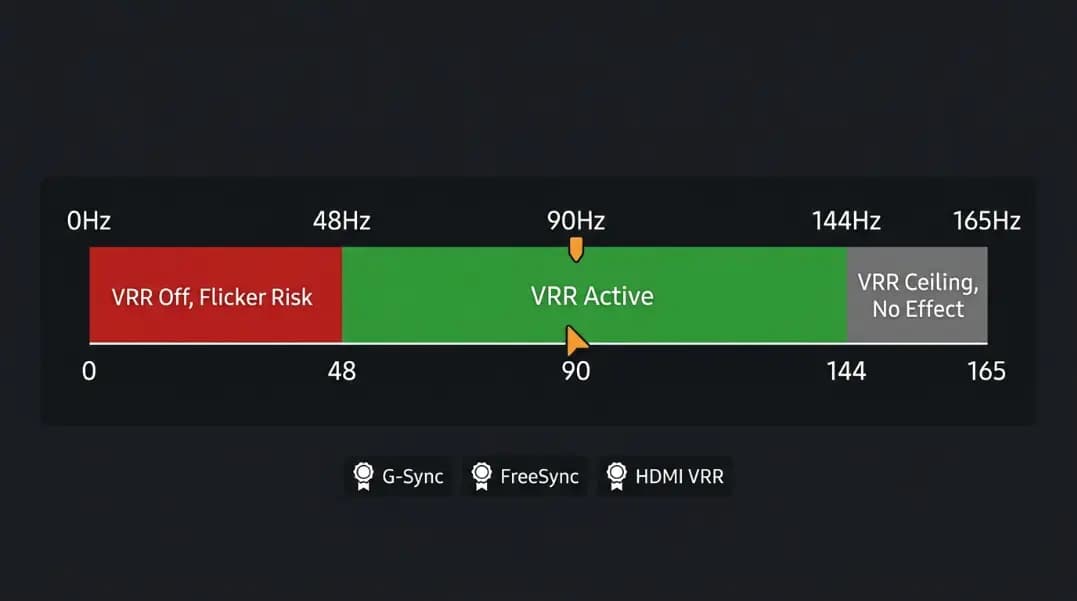
Every VRR monitor operates within a rated window, not just up to a maximum. A common spec is 48 to 144Hz. The monitor dynamically adjusts within that range. Below 48Hz, VRR stops operating.
This creates a specific failure mode. If your GPU drops to 40 FPS in a demanding scene, the monitor exits VRR and reverts to a fixed refresh cycle. That transition can produce a visible flicker, sometimes more disruptive than the tearing VRR was meant to eliminate.
Low Framerate Compensation resolves this. When FPS drops below the VRR minimum, LFC doubles or triples each frame's display time to keep the effective refresh rate inside the VRR window. For LFC to activate, the monitor's maximum VRR Hz must be at least twice the minimum floor. A 48 to 144Hz monitor qualifies because 144 is more than twice 48. A 90 to 144Hz monitor does not qualify.
VRR range specifications vary significantly between panels:
| Monitor Tier | Typical VRR Range | LFC Eligible? |
|---|---|---|
| Budget (75Hz) | 48-75Hz | Yes (75 is 1.56x of 48, borderline) |
| Mid-range (144Hz) | 48-144Hz | Yes |
| Gaming (165Hz) | 40-165Hz | Yes |
| Premium (240Hz) | 1-240Hz | Yes |
If your gaming session involves heavy frame rate swings, check whether your monitor's VRR minimum is below your expected FPS floor and whether LFC is listed in its specifications.
When Should VRR Be On or Off?
Turn VRR on when: Your GPU frame rate fluctuates between the VRR minimum and the monitor's maximum Hz. This is the scenario VRR was designed for. You get tearing-free output with lower input lag than V-Sync. A mid-range GPU delivering 70 to 120 FPS on a 144Hz monitor is a textbook VRR use case.
VRR is inactive when: Your GPU consistently exceeds the monitor's maximum Hz. At the ceiling, VRR cannot run faster than the panel's rated maximum. The display simply operates at its peak. In this situation, VRR neither helps nor hurts. See the refresh rate vs FPS guide for what happens to frames above the monitor ceiling.
Turn VRR off when: Frame rate regularly drops below the VRR minimum and your monitor lacks LFC. The flickering at the transition boundary is more visually disruptive than tearing for most people.
Consider disabling VRR for competitive play when: You are running at FPS well above your monitor's maximum Hz and want to minimize every possible millisecond of input lag. Some competitive players disable all sync technologies and cap FPS slightly below the monitor maximum using an external frame limiter.
VRR and Frame Pacing
Frame pacing is the consistency of intervals between frames. A GPU delivering 100 FPS does not necessarily deliver frames at exactly 10ms each. If some frames take 5ms and others 15ms, the motion on screen looks uneven even though the average FPS is correct.
VRR tracks frame delivery but cannot correct uneven pacing. If a game produces frames at inconsistent intervals, VRR will still display each frame as it arrives, but the visual rhythm will be irregular. This is why high average FPS with poor frame pacing can look worse than slightly lower FPS with consistent pacing.
Games with good frame pacing deliver smooth results under VRR. Games with poor pacing show stutter even with VRR active. If you notice stuttering despite VRR being enabled and FPS being within range, inconsistent frame delivery from the game engine is the likely cause.
VRR and HDR Together
Some monitors require you to choose between VRR and HDR: enabling one disables the other. This was a common limitation on monitors from 2018 to 2021. Most monitors released after 2022 support simultaneous VRR and HDR over DisplayPort and, increasingly, over HDMI 2.1.
If your monitor shows correct HDR output but VRR appears inactive, check the OSD for a simultaneous mode or look for a firmware update from the manufacturer. NVIDIA and AMD driver updates have also added support for combined VRR and HDR modes on panels that previously required a choice.
VRR on Consoles and TVs
Television VRR operates through HDMI 2.1 VRR. Game mode on most major TV brands from 2020 onward includes it. For console use, the system enables VRR automatically when the TV supports it and game mode is active. No manual per-game configuration is required.
For PC-connected TVs, the same drivers apply over HDMI where supported. Compatibility between specific GPU models and specific TV models is inconsistent and worth testing directly. The TV refresh rate guide covers the additional complication of TVs that advertise high motion numbers on physically 60Hz panels.
How to Confirm VRR Is Active
Enabling VRR in software settings does not guarantee the full chain is working. Several verification steps confirm the feature is operating:
Windows 11: Settings, System, Display, Advanced Display. Variable refresh rate status appears under the display information section.
NVIDIA Control Panel: Under "Set Up G-Sync," check whether the monitor appears as G-Sync or G-Sync Compatible. Enable the in-game indicator to see real-time VRR status during gaming.
AMD Radeon Software: FreeSync status appears in the Display section. The Radeon overlay can display VRR activity during gameplay.
Monitor OSD: Most VRR monitors show Adaptive Sync, FreeSync, or G-Sync status in the gaming submenu of the on-screen display.
Before troubleshooting VRR behavior, confirm your actual output with the refresh rate test and review the monitor refresh rate settings guide if the Hz reading is lower than expected.
For the underlying question of how human vision perceives the difference between Hz tiers, the human eye and refresh rate guide covers the science behind flicker perception and motion clarity at different Hz levels. For choosing between 60Hz, 144Hz, and 240Hz based on your GPU and game genres, the best refresh rate for gaming guide has the full comparison.