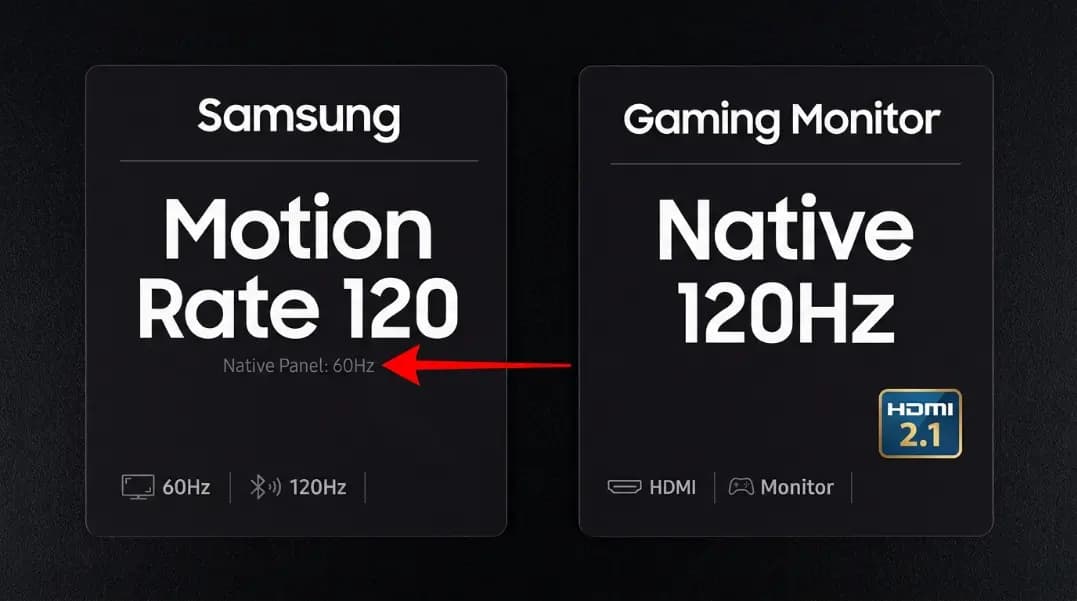
A Samsung TV listed as Motion Rate 120 is not a 120Hz television. The panel inside is physically 60Hz. The number on the box refers to a combination of backlight processing and motion smoothing, not the number of times the panel actually updates per second. LG labels the same type of TV as TruMotion 120. Sony uses MotionFlow XR. All three describe 60Hz panels using numbers that look like 120Hz.
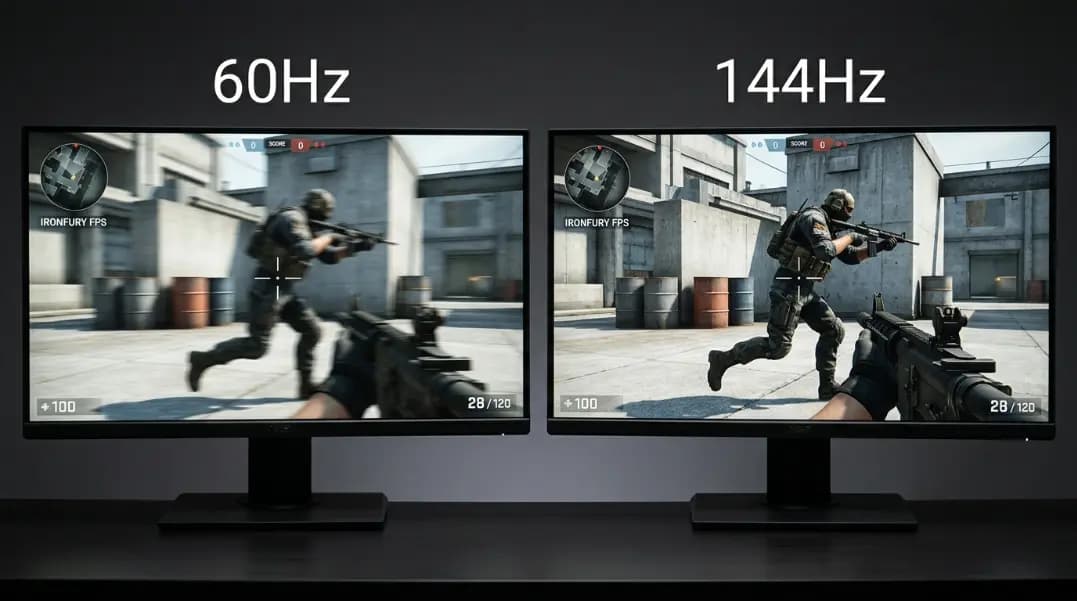
This distinction does not matter for casual TV watching. It matters enormously for gaming. A 60Hz native panel cannot display 120fps game output, cannot run variable refresh rate above 60Hz, and will produce input lag no lower than a 60Hz monitor regardless of what the motion processing label says.
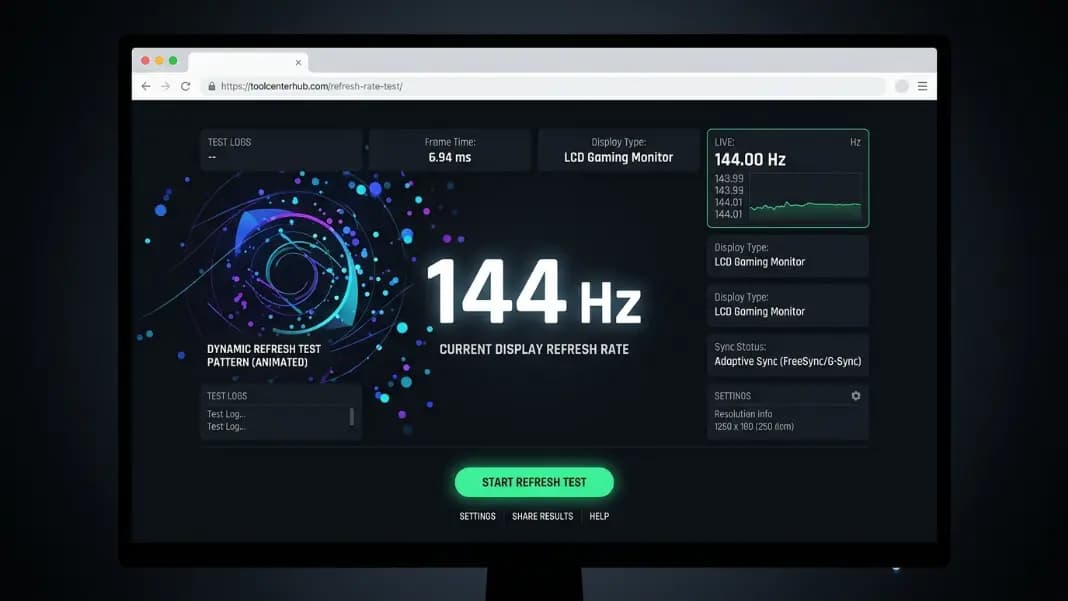
If you want to verify what refresh rate your TV is actually running for gaming purposes, connect a PC or laptop, open the refresh rate test tool, and read the actual panel output. The tool measures what the panel is delivering, not what the marketing spec claims.
This guide explains how the motion rate naming works across major manufacturers, what native refresh rate means and why it is the only number that matters for gaming, what motion smoothing does and when to disable it, and how to identify whether a TV you are buying or already own has a 60Hz or 120Hz native panel.
How TV Manufacturers Use Motion Numbers
The convention of advertising doubled or tripled Hz numbers for television began as a response to motion blur competition between manufacturers. When LG introduced a TV with a backlight strobing feature that reduced motion blur, they labeled it with a higher effective number than the native panel Hz. Samsung and Sony followed.
The result is a set of branded motion specifications that vary by manufacturer and do not consistently indicate native panel speed:
| Brand | Marketing Label | 60Hz Native Panel | 120Hz Native Panel |
|---|---|---|---|
| Samsung | Motion Rate | Motion Rate 120 | Motion Rate 240 |
| LG | TruMotion | TruMotion 60 or TruMotion 120 | TruMotion 120 or TruMotion 240 |
| Sony | MotionFlow XR | MotionFlow XR 120 or 240 | MotionFlow XR 960+ |
| TCL | Motion Rate | Motion Rate 60 | Motion Rate 120 |
| Hisense | Motion Rate | Motion Rate 60 | Motion Rate 120 |
LG is the exception that most closely approaches honest labeling: TruMotion 60 usually means 60Hz native, and TruMotion 120 usually means 120Hz native, though some LG models use TruMotion 120 for 60Hz panels with processing. Samsung's rule is simpler to apply: always divide by two. Motion Rate 120 means 60Hz. Motion Rate 240 means 120Hz.
Sony's MotionFlow XR numbers are the least consistent. MotionFlow XR 960 does not mean a 960Hz panel exists. Sony applies a multiplier based on their motion processing algorithm's claimed effectiveness, making the number less useful as an indicator of native Hz.
What Native Refresh Rate Controls
The native panel refresh rate determines three things that matter for gaming and interactive use:
Maximum displayable FPS. A 60Hz native panel can display at most 60 unique frames per second. Connecting a console or PC that outputs 120fps to a 60Hz panel results in every other frame being discarded. The extra frames are never shown. Motion processing cannot recover frames the panel has no time to display.
Variable refresh rate range. VRR technology (HDMI VRR, G-Sync, FreeSync) syncs the panel refresh to GPU frame output. A 60Hz native panel can vary its refresh rate up to 60Hz. A 120Hz panel can vary up to 120Hz. Consoles using VRR to eliminate tearing at 90fps require a panel that can run at 90Hz natively. A 60Hz panel cannot accommodate this.
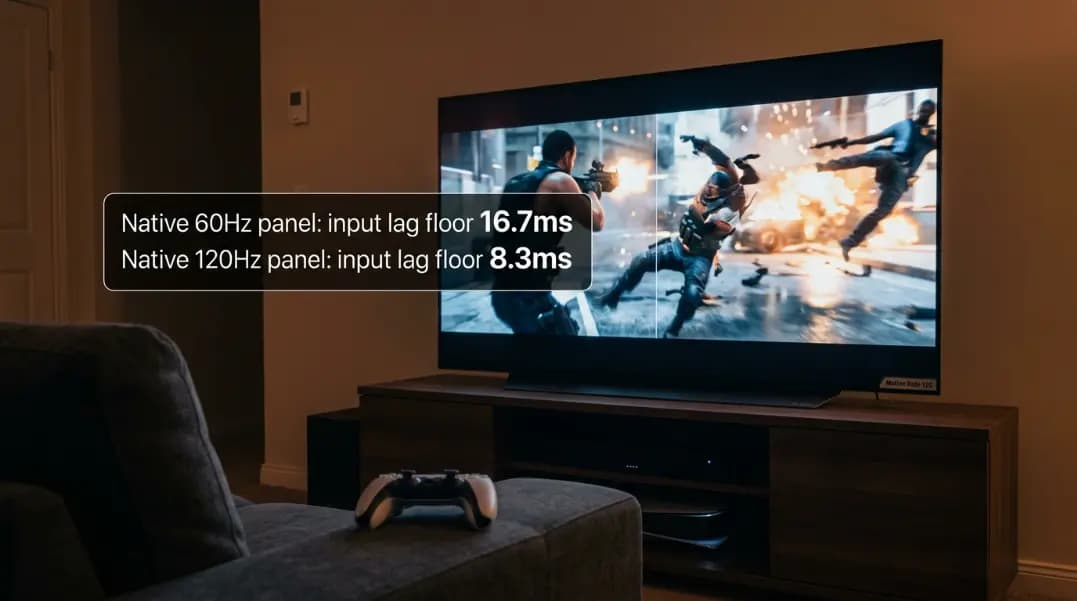
Input lag floor. The minimum possible input lag from the display is one refresh cycle: 16.7ms at 60Hz, 8.3ms at 120Hz. No software optimization, game mode setting, or motion processing reduces this below the physical panel speed. A 60Hz native panel in game mode will have higher minimum input lag than a 120Hz native panel in game mode, regardless of the TV's marketed motion number.
The Soap Opera Effect and Motion Smoothing
Motion smoothing (also called motion compensation or frame interpolation) is the technology behind most of the high motion numbers on TV spec sheets. The TV's processor analyzes two consecutive frames, predicts where objects in the scene should be at an intermediate point, generates an artificial frame, and inserts it between the originals.
For a 60Hz native panel processing 24fps film content:
- The film delivers 24 frames per second
- The TV inserts 2 artificial frames between each real frame
- The result is 72 effective frames per second on a 60Hz panel (3 frames × 24fps = 72 events distributed across 60 display cycles)
The visual result on motion-sensitive content is the soap opera effect: the film looks unnaturally smooth. The specific cadence of 24fps cinema is part of the artistic intent. Directors shoot at 24fps knowing how motion will look. Inserting artificial frames changes that cadence, and most viewers perceive the result as cheap, video-like, or uncanny.
The soap opera effect can be disabled entirely in TV picture settings. Look for motion smoothing, motion interpolation, motion compensation, TruMotion, or Motion Rate settings and set them to off or minimum. For gaming, this is always the correct setting because interpolated frames introduce additional processing delay. For sports and live television, the smoother appearance from interpolation is less objectionable because live video does not carry the same cinematic cadence expectations.
Identifying a 60Hz vs 120Hz Native Panel Before Purchase
The product listing headline is the wrong place to look. The specification table in the manufacturer's documentation is the right place. Search for the specific model number and the words "spec sheet" or "specifications." Look for "Native Refresh Rate" listed explicitly.
For Samsung televisions specifically:
- QLED Q60 series and below: typically 60Hz native
- QLED Q70 and above: typically 120Hz native
- Neo QLED: 120Hz native across the lineup
- Frame and Serif series: 60Hz native on most sizes
For LG televisions:
- OLED: 120Hz native across virtually all current models
- QNED and NanoCell 80 series and above: typically 120Hz native
- LED budget lines: typically 60Hz native
For Sony televisions:
- Bravia X90K and above: 120Hz native
- Bravia X80K and most X series below X90: 60Hz native
- Bravia A-series OLED: 120Hz native
The most reliable method for any TV is checking whether it includes HDMI 2.1 ports supporting 4K at 120fps bandwidth. This feature physically requires a 120Hz native panel. If the HDMI 2.1 spec is listed, the panel is 120Hz native.
Testing the Actual Native Hz of Your TV
If you already own a TV and want to know its native panel speed without parsing spec sheets, the practical method is direct measurement.
Connect a laptop or PC to the TV via HDMI. Open Display Settings in Windows, select the TV as the display, and look at the refresh rate options available in the dropdown. A 60Hz native panel will show 60Hz as the maximum. A 120Hz native panel will show 120Hz as an available option.
Open the refresh rate test tool in a browser on that connected PC. The tool measures actual display output using JavaScript animation timing and reports the real Hz the panel is delivering. If the panel is native 60Hz, the test will report 60Hz regardless of the TV's motion rate label. If it is 120Hz native, the test will confirm 120Hz when the output is set correctly.
This test bypasses all marketing language and reports the physical behavior of the panel directly. The same method applies to monitors: see the monitor refresh rate guide for the Windows and Mac settings steps.
VRR on TVs and Why Native Hz Determines Range
Console gaming with VRR (PlayStation 5 and Xbox Series X both support it) requires HDMI 2.1 and a native panel capable of running within the VRR frequency range. The HDMI 2.1 specification includes VRR support, and most recent major-brand TVs include it in game mode.
The VRR range is bounded by the native panel Hz. A 60Hz native panel with HDMI VRR can vary between approximately 40 and 60Hz. A 120Hz native panel can vary between 40 and 120Hz. A console outputting 90fps for a given game requires the TV's VRR range to extend to 90Hz. Only a 120Hz native panel accommodates this.
For console gaming at standard resolutions with high frame rate output, a 120Hz native panel is the practical requirement. The variable refresh rate guide covers how VRR functions in detail and the minimum Hz floor behavior that applies to TVs and monitors alike.
Game Mode and Input Lag on TVs
Most TVs include a game mode that disables post-processing to reduce input lag. In standard picture modes, the TV applies noise reduction, color enhancement, dynamic contrast, and motion processing before displaying each frame. This processing adds delay, typically 20 to 100ms depending on the TV.
Game mode bypasses most of this processing. The display passes the signal more directly to the panel, reducing input lag to near the physical minimum for the panel's native Hz. Many recent TVs apply game mode automatically when they detect a console or game output.
For the lowest possible input lag:
- Enable game mode explicitly in the TV's picture settings
- Disable motion smoothing, which adds processing delay even in game mode on some models
- Use a 120Hz native panel for an 8.3ms input lag floor rather than 16.7ms
- Enable HDMI VRR if the console and TV support it
The combination of a 120Hz native panel, game mode, disabled motion smoothing, and active VRR produces the lowest input lag a TV can provide.
The Right Expectation for TV Gaming vs Monitor Gaming
Televisions optimized for gaming with 120Hz native panels, HDMI 2.1, and game mode perform comparably to monitors at the same Hz for input lag. The panel technology is similar. The key differences are size (TVs are larger, adding pixel density considerations), placement (typically viewed from farther away), and processing defaults (TVs default to motion smoothing; monitors do not).
For any serious frame rate or refresh rate verification, the refresh rate test tool measures actual output directly. For understanding how Hz interacts with GPU frame output, see refresh rate vs FPS. For the Hz tier comparison relevant to gaming performance, see best refresh rate for gaming.