You buy a 144Hz monitor. You plug it in, boot your game, and feel nothing different from the 60Hz panel it replaced. The most common reason is straightforward: your GPU is outputting 70 frames per second, and a 144Hz monitor receiving 70 FPS behaves identically to a 60Hz monitor receiving 70 FPS. The refresh rate ceiling only delivers its benefit when your GPU consistently reaches it.
This guide covers what each refresh rate tier actually changes, the input lag math behind the improvement from 60Hz to 144Hz, how to match your Hz target to the games you play, and how to confirm your monitor is running at its rated speed rather than defaulting to 60Hz because of a cable limitation or driver setting.
The refresh rate test at ToolCenterHub reports the Hz your display is actually delivering in real time, not what Windows claims. Run it before changing any settings to see your true starting point.
What Is a Good Refresh Rate for Gaming?
For most gamers, 144Hz is the right answer. It sits at the point where the improvement over 60Hz is large and immediately perceptible, without requiring the GPU output that 240Hz demands.
| Refresh Rate | Best For | GPU Requirement |
|---|---|---|
| 60Hz | Single-player, RPGs, strategy, cinematic games | Any modern GPU |
| 120Hz | Console gaming, casual multiplayer | Mid-range GPU at 1080p |
| 144Hz | Competitive multiplayer, online shooters | Mid-to-high GPU at 1080p or 1440p |
| 240Hz | High-level competitive FPS | High-end GPU at 1080p |
| 360Hz+ | Professional and tournament FPS | Top-tier GPU at 1080p |
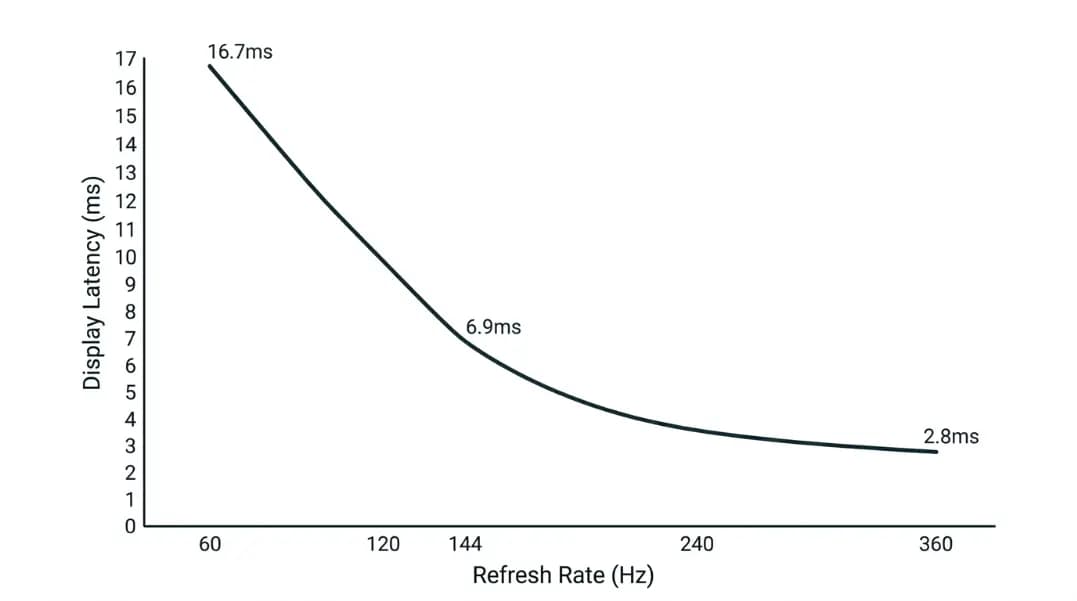
The key distinction is whether the game you play involves split-second reactions. First-person shooters, battle royale games, and competitive fighting games are built around response timing. Display latency at 60Hz (up to 16.7ms per frame) is measurable enough to create a disadvantage against players on faster panels. For single-player RPGs or turn-based strategy, display latency has no effect on outcome.
The practical decision point: if your most competitive title is a multiplayer shooter, 144Hz is the threshold that separates the pool of players with a display advantage from those without. If your primary games are story-driven or paced around decisions over seconds rather than milliseconds, 60Hz is adequate and the GPU budget is better spent elsewhere.
If you play a mix of genres, choose the monitor based on your most competitive title. A 144Hz monitor runs every type of game correctly, including titles that cap at 30fps or 60fps by design.
The Input Lag Math: What 60Hz, 144Hz, and 240Hz Actually Mean
Refresh rate is how frequently the monitor updates the image on screen. At 60Hz, the display refreshes 60 times per second, meaning a new frame can appear every 16.67 milliseconds. At 144Hz, every 6.94ms. At 240Hz, every 4.17ms.
| Refresh Rate | Time Between Frames | Display Latency Window |
|---|---|---|
| 60Hz | 16.67ms | Up to 16.7ms |
| 120Hz | 8.33ms | Up to 8.3ms |
| 144Hz | 6.94ms | Up to 6.9ms |
| 240Hz | 4.17ms | Up to 4.2ms |
| 360Hz | 2.78ms | Up to 2.8ms |
When you press a key or move a mouse, the game engine processes the input, the GPU renders a new frame with that input reflected, and the monitor displays that frame on its next refresh cycle. The display latency window is the worst-case wait between the GPU finishing a frame and the monitor displaying it. At 60Hz, that worst case is 16.7ms. At 144Hz, it is 6.9ms.
That 9.8ms difference is real and perceptible. In competitive play, reaction times under 250ms are standard, and reducing display latency by 10ms is meaningful at that scale. The 60Hz-to-144Hz jump is the largest single gain available in the entire refresh rate range. Every upgrade after that returns less improvement per dollar and per GPU frame.
Total input lag also includes game engine processing time, GPU render time, and the panel's pixel response time (the speed at which pixels transition between colors). The display timing covered by refresh rate is one component of the total, but it is the most consistent one. GPU render time fluctuates with scene complexity. Display timing is fixed by the Hz setting.
GPU Bottleneck: Why Your Monitor's Hz Ceiling Can Be Irrelevant
A 144Hz monitor only outperforms a 60Hz monitor when your GPU consistently delivers more than 60 frames per second. If your GPU outputs 55 FPS average, both monitors show 55 FPS. The higher ceiling adds nothing when the GPU never reaches it.
Think of the refresh rate as the pipe's maximum width. The GPU's frame output determines how much flows through. A wider pipe cannot push more water if the source only produces a trickle.
| GPU Output (Avg FPS) | 60Hz Monitor Shows | 144Hz Monitor Shows |
|---|---|---|
| 40 FPS | 40 FPS | 40 FPS |
| 65 FPS | ~60 FPS (minor frame drops at refresh boundary) | 65 FPS (no frame drops) |
| 120 FPS | ~60 FPS (nearly half of frames dropped) | 120 FPS (all frames shown) |
| 160 FPS | 60 FPS (capped) | 144 FPS (capped) |
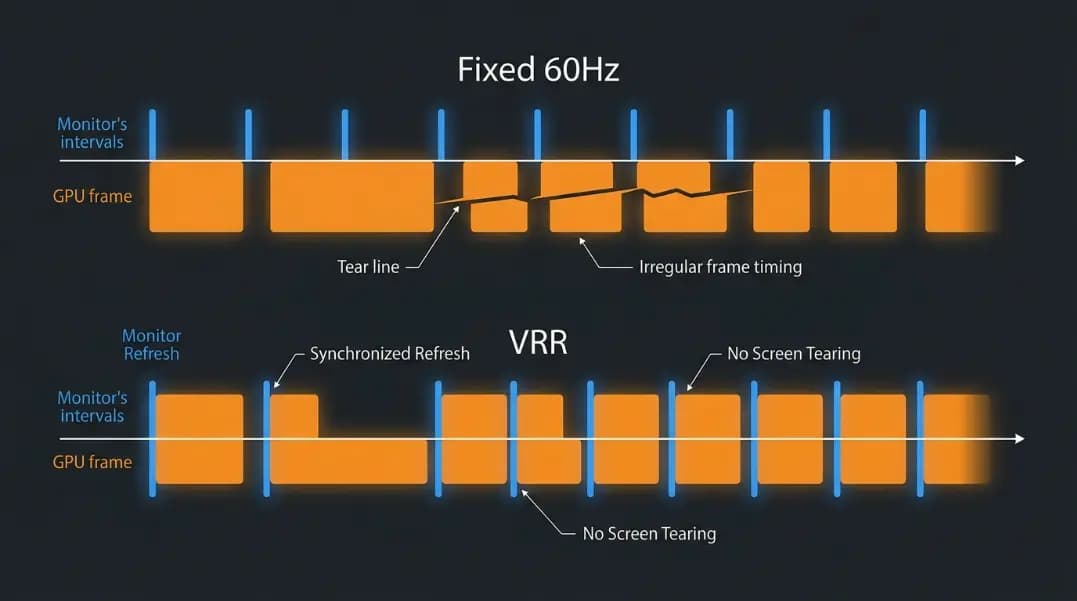
At 65 FPS on a 60Hz monitor, a small number of frames are dropped because the refresh cycle catches some frames twice and misses others at the timing boundary. At 120 FPS on a 60Hz monitor, nearly half of rendered frames never appear on screen. Both are visible as microstutter or reduced smoothness even when the FPS counter reads above 60.
Before buying a 240Hz monitor, check whether your GPU can sustain 200+ FPS in your primary game at your target resolution and settings. If it cannot, the 144Hz tier is the more practical upgrade. If your GPU averages below 100 FPS in your main game, prioritize the GPU first. The monitor ceiling cannot help a GPU that has not reached it.
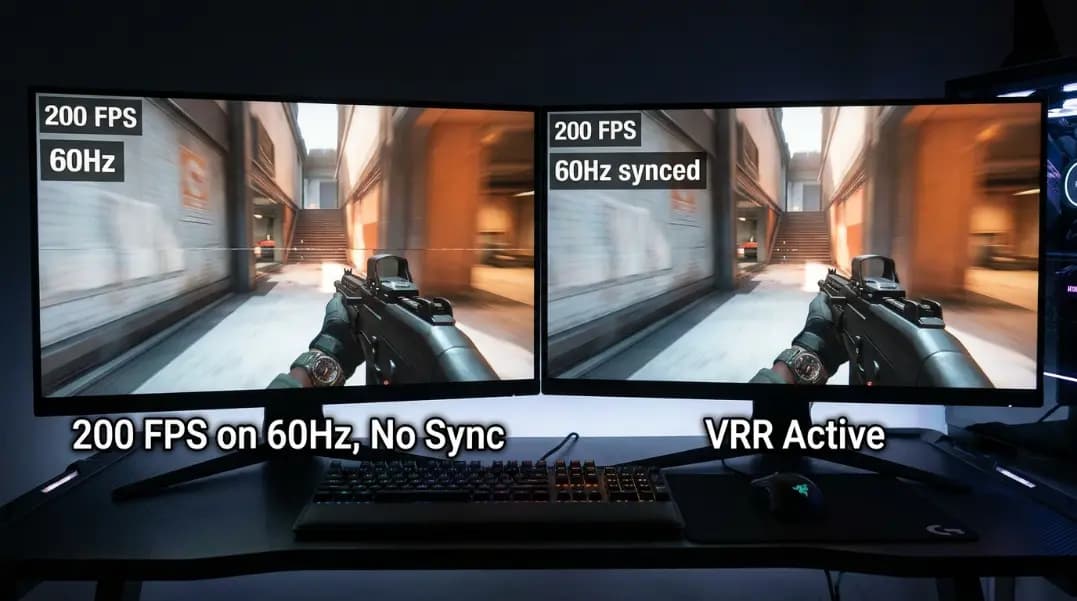
Variable refresh rate technologies address the mismatch between GPU frame rate and monitor refresh rate. When your GPU outputs 90 FPS and your monitor is 144Hz, the display cycle and frame delivery fall out of sync, causing screen tearing. NVIDIA G-Sync and AMD FreeSync tell the monitor to synchronize its refresh cycle to match actual GPU frame delivery, eliminating tearing without the input lag penalty of traditional VSync. The variable refresh rate guide covers how G-Sync, FreeSync, and HDMI VRR work, what the minimum Hz range means, and when enabling VRR actually helps versus when it does nothing.
What Refresh Rate Do You Need by Game Genre?
Genre determines how much of the refresh rate improvement you will actually use. Games built around reaction speed reward higher Hz directly. Games with deliberate pacing and fixed or slow camera movement do not.
| Genre | Examples | Recommended Hz |
|---|---|---|
| Competitive FPS | CS2, Valorant, Overwatch 2 | 144Hz minimum; 240Hz for high-level play |
| Battle Royale | Apex Legends, Warzone, Fortnite | 144Hz |
| Racing simulators | Assetto Corsa, iRacing | 144Hz (fast lateral motion benefits) |
| Fighting games | Tekken 8, Street Fighter 6 | 120Hz or 144Hz (frame timing matters) |
| MOBA | League of Legends, Dota 2 | 60Hz fine; 144Hz comfortable |
| Sports games | EA FC, NBA 2K | 60Hz acceptable |
| Open-world RPG | Elden Ring, Baldur's Gate 3 | 60Hz |
| Strategy and simulation | Civilization, Total War | 60Hz; refresh rate does not affect outcome |
| Cinematic single-player | God of War, Red Dead Redemption 2 | 30–60Hz; many titles target 30fps deliberately |
Competitive FPS games benefit most because the genre is built on sub-100ms reaction windows AND these games are designed to run at high frame rates. CS2 and Valorant consistently output 200 to 400+ FPS on mid-range hardware at 1080p, so the GPU can realistically supply frames up to a 240Hz ceiling. The genre is the one place where investing in 240Hz is directly connected to a competitive outcome you can measure in ranked play.
Fighting games require specific attention because frame data at 60fps is the foundation of competitive play. Each frame at 60fps is 16.7ms, and move timing is measured to the frame. Playing on a 120Hz or 144Hz monitor does not break that frame timing, but it smooths the visual experience and reduces perceived lag during execution-heavy sequences.
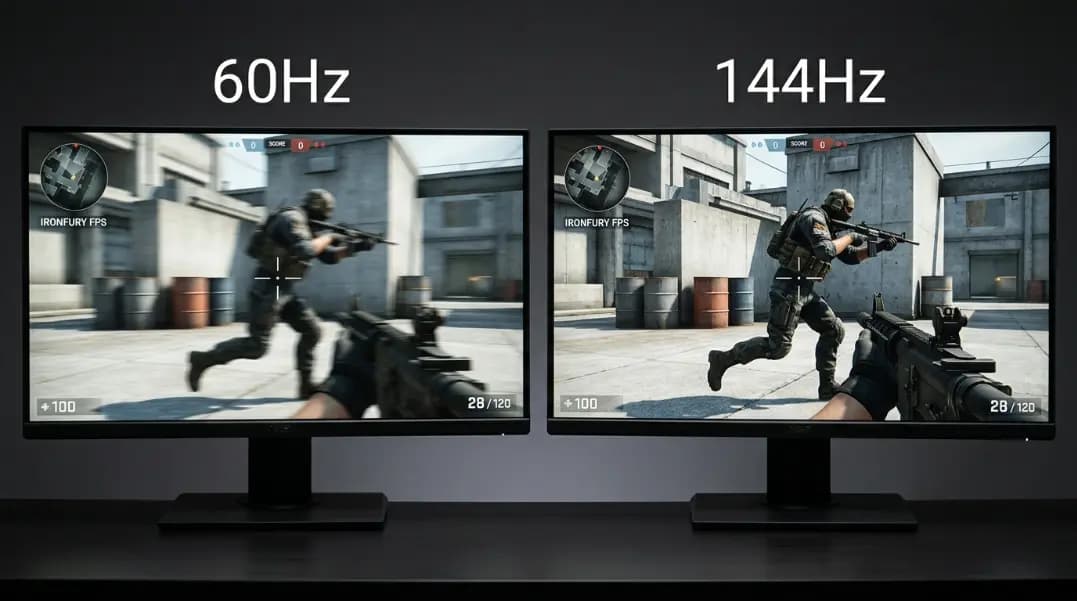
Racing simulators benefit from higher Hz specifically because fast lateral motion across the screen is where 60Hz motion blur is most visible. Tracking a competitor's car at speed on a 60Hz monitor produces smearing that 144Hz eliminates, making positional reads more accurate.
Panel Type and Response Time: The Other Variable
Refresh rate sets how often the monitor can display a new frame. Panel response time determines how quickly each pixel can change from one color to the next. Both interact to define the actual visual clarity at high refresh rates.
At 240Hz, the frame interval is 4.17ms. If the panel's pixel response time is 10ms, pixels are still in mid-transition when the next frame arrives. The result is ghosting: a faint afterimage trail behind fast-moving objects. The 4.17ms frame interval benefit is partially offset by pixels that cannot keep pace.
| Panel Type | Typical Response Time | Color Quality | Best Use |
|---|---|---|---|
| TN (Twisted Nematic) | 1ms gray-to-gray | Narrow viewing angles, lower color accuracy | Competitive gaming where speed is the priority |
| IPS (In-Plane Switching) | 1–4ms (fast IPS) | Wide angles, accurate color | General gaming and competitive play; most common at 144Hz+ |
| VA (Vertical Alignment) | 5–20ms | Best contrast ratio (3000:1+) | Dark environments, cinematic games; ghosting risk at 240Hz |
For 60Hz and 120Hz gaming, panel response time is rarely a visible issue. At 144Hz, IPS and fast TN panels are both suitable. At 240Hz, a VA panel with 15ms response time creates ghosting that partially cancels the frame-interval advantage, making TN or fast IPS the better choice for competitive play at that tier.
The implication: when comparing 240Hz monitors, check the rated response time alongside the Hz spec. A 240Hz VA panel and a 240Hz fast IPS panel are not equivalent in competitive gaming conditions, even though the refresh rate number is identical.
Diminishing Returns: When More Hz Stops Helping
The improvement from 60Hz to 144Hz is the largest available in the refresh rate range. It is a 9.8ms reduction in display latency per frame, and the difference is immediately visible to most players during any fast tracking or combat scenario. This is the upgrade that changes how gaming feels.
The improvement from 144Hz to 240Hz is a 2.7ms reduction. Competitive players at mid-to-high skill levels notice this in controlled conditions, and studies with professional FPS players show improved target acquisition at 240Hz compared to 144Hz. The benefit is real, but the threshold for perceiving it is higher, and the GPU cost to sustain 240+ FPS is significant. The human eye and refresh rate guide covers the underlying visual science behind these studies, including why human perception extends well beyond the 60Hz limit most people assume.
The improvement from 240Hz to 360Hz is a 1.4ms reduction. At this level, the per-frame latency difference falls within the margin of human reaction time measurement variation. Professional players compete on 360Hz panels, and the benefit is genuine at the highest tiers of play. For anyone outside the professional or semi-professional bracket, the hardware cost outweighs the perceptible gain.
The practical cutoffs based on GPU output:
- GPU consistently delivers 240+ FPS: 240Hz is a worthwhile target
- GPU consistently delivers 144+ FPS: 144Hz is the right tier
- GPU averages below 100 FPS: address the GPU before buying a higher-Hz monitor
For the full set of display diagnostics, the developer tools section has the refresh rate test alongside the dead pixel test and touchscreen test. Running all three on a new monitor takes under five minutes and covers the most common display defects worth checking before the return window closes.
How to Check If Your Monitor Is Running at Its Rated Refresh Rate
Many monitors default to 60Hz regardless of their rated specification. Three causes account for most cases.
Cable type is the most common culprit. HDMI 1.4 supports a maximum of 120Hz at 1080p and cannot deliver 144Hz at any resolution. HDMI 2.0 supports 144Hz at 1440p. DisplayPort 1.4 handles 240Hz at 1080p and 165Hz at 1440p. If your 144Hz monitor connects via an older HDMI cable that came with a different device, it is likely running at 60Hz regardless of what Windows shows.
Windows display settings reset to the lowest stable refresh rate after driver updates and hardware changes. Navigate to Settings > System > Display > Advanced Display Settings to see what refresh rate Windows has configured. This is the configured value, not the measured output.
Graphics driver settings can override Windows independently. NVIDIA Control Panel and AMD Radeon Software each maintain their own refresh rate settings. After a driver update or fresh install, these can revert to 60Hz even when Windows still shows the higher rate.
The refresh rate test measures what the display actually delivers, not what any setting reports. Run it after adjusting any configuration to confirm the change took effect. If Windows shows 144Hz but the test returns 60Hz, the cable is almost certainly the limiting factor.
For step-by-step instructions on adjusting refresh rate on Windows 11, Windows 10, macOS, and Linux, including laptop display quirks and multi-monitor edge cases, the how to check monitor refresh rate guide covers each platform in detail.
The choice of refresh rate comes down to two inputs: what you play and what your GPU produces. Identify the GPU's actual frame output in your primary game first. Then choose the Hz tier that matches your genre. Run the test to confirm your monitor is delivering what its spec claims.