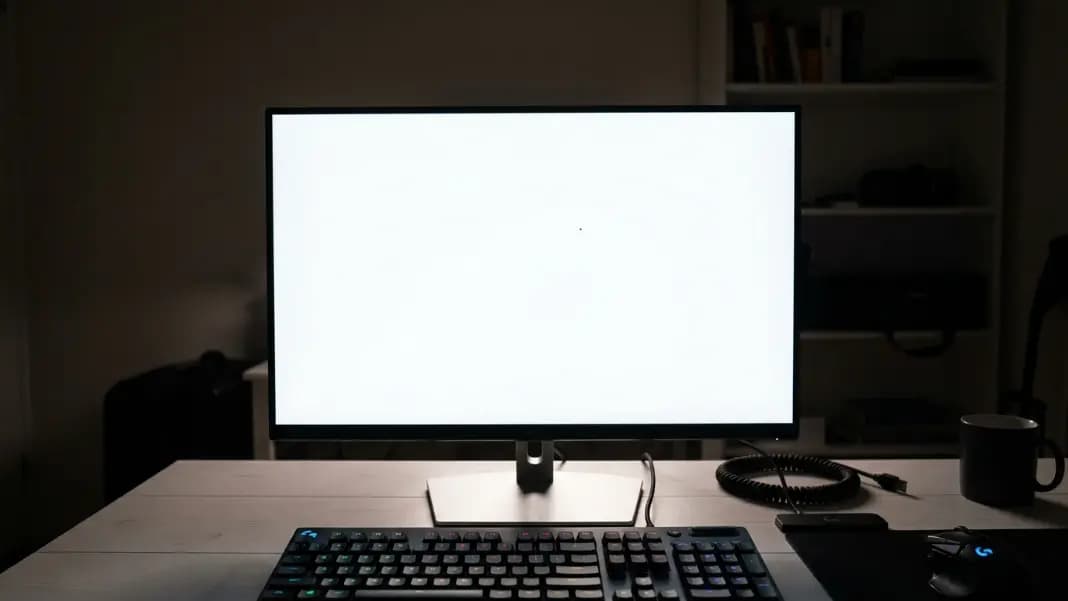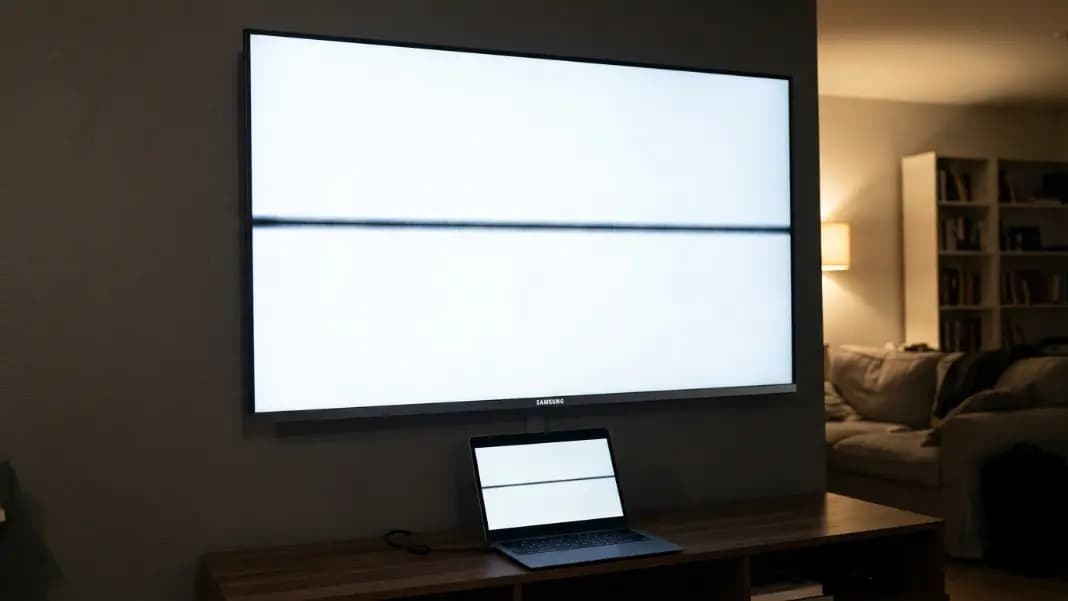
Your phone screen displays perfectly. Every pixel is sharp, colors are correct, brightness is fine. But one corner does not respond to taps, or the screen occasionally scrolls on its own when you are not touching it. The display is working. The digitizer is not.
The touchscreen test at ToolCenterHub maps the full active area of your display, checks how many simultaneous touches register, and makes ghost touches immediately visible by showing inputs on a blank canvas. It takes under two minutes and reveals digitizer problems that no visual inspection can find.
This guide covers what the test actually checks, how the digitizer differs from the display panel, what ghost touches indicate and what causes them, how to find dead zones, and what multitouch count means for your device.
What Is the Difference Between the Display and the Digitizer?
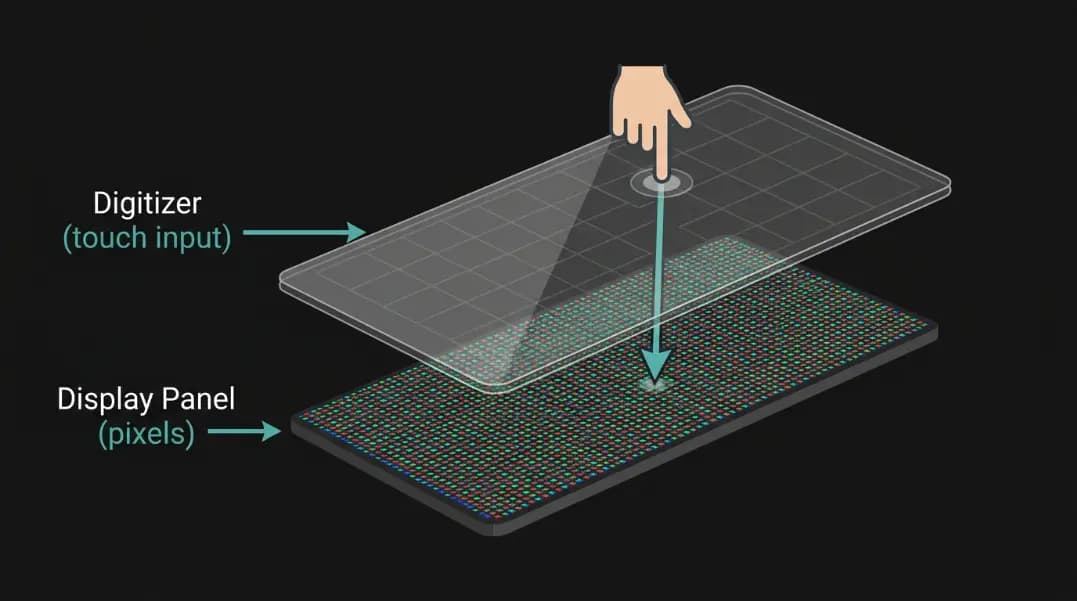
Most people treat the screen as one component. It is two.
The display panel is the layer that produces the image: the LCD or OLED panel with its pixel grid, backlight (on LCD), and color filters. When a pixel stops working, you get a dead or stuck pixel. Dead pixels are visible as black or colored dots on the image.
The digitizer is a separate transparent layer mounted above the display. It contains a grid of capacitive sensors that detect the electrical conductivity of a fingertip and calculate the position of each touch. The digitizer converts physical contact into coordinate data that the operating system receives as input events.
These two components fail independently. A cracked digitizer on a phone with an uncracked display will show no visual damage but will have dead zones or erratic touch behavior. A phone with dead pixels in one corner but a functioning digitizer will display the pixel defect but register touches normally in that area. The dead pixel test identifies display panel defects. The touchscreen test identifies digitizer defects. Running both covers the full screen health picture.
How to Run the Touchscreen Test
Open the touchscreen test tool in your browser and enter fullscreen mode. The tool presents a blank canvas that records every touch as a visible line.
Testing for dead zones: Draw slowly across the full screen area in a series of overlapping strokes covering every part of the display. Move from edge to edge in horizontal passes, then vertical passes. Any area where the line disappears or skips is a dead zone: the digitizer is not registering touch in that region. Pay close attention to corners and edges, which are more likely to have issues from physical impact.
Testing multitouch: Place two fingers on the canvas simultaneously. The tool shows how many touch points are registering. Increase to three, four, and five fingers. The number of simultaneous registered touches shown on screen is the actual multitouch capability of your device. Stop when the count stops increasing: that is your device's multitouch limit.
Testing for ghost touches: Set the phone on a flat surface and do not touch the screen. Watch the canvas for 15 to 30 seconds. Any lines or dots that appear without physical contact are ghost touches. A single brief ghost touch occasionally can be electrical noise. Continuous or repeating ghost touches indicate a hardware problem.
What Dead Zones Reveal About Digitizer Health
Dead zones fall into several categories based on their shape and location:
Impact dead zones appear near the point of a drop or impact. Physical shock can shatter the digitizer sensor grid at the impact site. These zones are often irregular in shape and appear directly at or near a visible crack in the glass. Even when the glass does not visibly crack, internal digitizer damage can occur.
Edge dead zones near the bezel are sometimes manufacturing tolerance rather than damage. The outermost 1 to 2 millimeters of the touchscreen often has lower sensitivity than the center. If the dead zone extends significantly into the active area (more than 3 to 5 millimeters), it indicates damage rather than normal edge behavior.
Stripe dead zones running horizontally or vertically across the screen suggest connector or cable damage. The digitizer sensor grid is organized in rows and columns, and a damaged connector pin can knock out an entire row or column, producing a dead stripe.
Expanding dead zones that grow over time after water exposure indicate ongoing corrosion of the digitizer circuitry. Water damage that initially produces a small dead zone can spread as corrosion continues. Document the zone extent with a screenshot from the test and compare over days if you suspect water-related progression.
Ghost Touches: Hardware vs Software Causes
Ghost touches (screen inputs with no physical contact) have two root causes, and the distinction determines whether you have a hardware problem.
Software ghost touches appear after a system update, app installation, or when a specific app is running. They stop when the app is closed or the device is rebooted. These are bugs in touch event handling, not hardware failure. The touchscreen test rules these out if the blank canvas shows no ghost touches with no apps running.
Hardware ghost touches appear on the blank canvas during the test with no apps open. They do not stop after rebooting. The specific hardware causes are:
A cracked or delaminated digitizer. Physical damage can cause layers of the digitizer to contact each other at points outside the intended sensor grid, generating false inputs at those contact points. The ghost touches often appear near the crack line.
Moisture between digitizer layers. Water that has entered the device can create a conductive path between sensor nodes, triggering touch events at random positions. The ghost touches often shift position as moisture moves. Removing the battery (if accessible) and drying the device in a warm, dry environment for 24 to 48 hours may resolve this if the moisture has not caused corrosion.
A faulty charging cable or charger. Some third-party chargers produce electrical noise that couples into the digitizer circuit, generating ghost touches while charging that stop when the charger is unplugged. If ghost touches only appear while plugged in, test with a different cable and charger before assuming hardware failure.
Multitouch Count and Why It Matters
Every capacitive touchscreen has a maximum number of simultaneous touch points it can track. The actual limit depends on the digitizer hardware, not the software.
| Device Type | Typical Multitouch Points |
|---|---|
| Budget Android (2020 and earlier) | 2-5 points |
| Modern Android midrange | 5-10 points |
| iPhone (all models from 2010+) | 10 points |
| Windows laptop touchscreen | 5-10 points |
| Professional stylus tablets | 10+ points (stylus + fingers) |
| Older iPad models | 5 points |
| Modern iPad | 10 points |
The multitouch count matters because gestures require specific numbers of simultaneous inputs. Pinch-to-zoom requires 2. Three-finger swipe (used for app switching on iPhone) requires 3. Four-finger gestures on iPad require 4. If your device's multitouch test shows fewer points than expected, either the digitizer has degraded or the manufacturer limited the software-reported count below the hardware maximum.
A device that previously supported 5 simultaneous touches and now shows only 2 during the test has experienced digitizer degradation, usually from heat, moisture, or impact.
Testing a Touchscreen After Screen Replacement
Third-party screen replacements sometimes use digitizers with different specifications than the original. After any screen repair, running the touchscreen test confirms:
- Whether the replacement digitizer supports the same multitouch point count as the original
- Whether dead zones were introduced during installation (common near cable connector areas)
- Whether the edge sensitivity matches the rest of the display
Some budget replacement screens use digitizers with 5-point multitouch limits to replace original 10-point digitizers. The test identifies this immediately. A reputable repair shop should replace like-for-like or disclose the specification change.
Related Display Tests
The touchscreen test covers the input layer. Two other tests cover the display layer itself.
The dead pixel test cycles the display through solid color backgrounds to identify stuck or dead pixels in the panel beneath the digitizer. Running both tests together takes under five minutes and covers every common screen hardware issue: pixel failures, dead zones, ghost touches, and multitouch degradation.
The refresh rate test verifies whether the display's output frequency matches its specification. On devices with high-refresh screens (90Hz, 120Hz), confirming the panel is running at its rated Hz after a system update or repair is worth checking alongside the touch and pixel tests.
All three tools run directly in the browser at the developer tools hub with no download or account required.