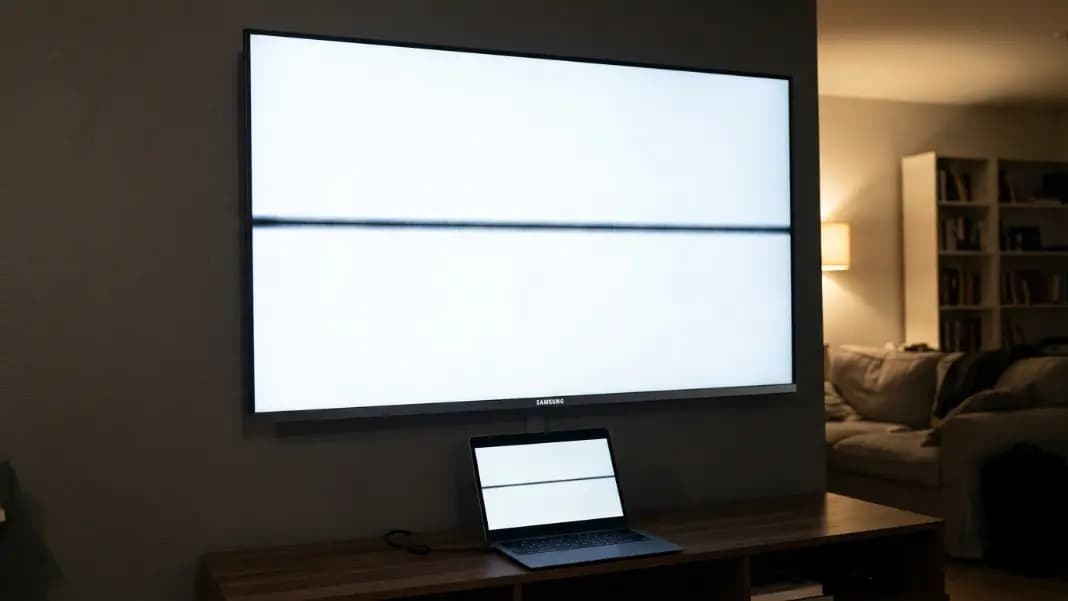
The dot appeared after the Chromebook came back from a weekend trip. It was in the bag alongside the charger, a water bottle, and everything else that accumulated over two days. Now there is a small black point on the screen that does not move and does not disappear on any background color you switch to. You have a Chromebook dead pixel.
Chromebook dead pixels follow the same rules as any LCD display failure, with one difference: Chromebook panels are generally thinner than panels in premium laptops, which makes them more susceptible to pressure damage from everyday carry habits. Before doing anything else, run the dead pixel test in Chrome and press F11 to enter fullscreen. Cycle through every background color. Confirm whether the dot is a dead pixel, a stuck pixel, or something like dust that explains itself differently depending on the background.
That confirmation changes everything that comes next. A stuck pixel on a Chromebook has a software fix worth trying before any hardware conversation. A genuine dead pixel goes straight to warranty or repair. The two defect types look similar but require completely different responses.
How to Run the Dead Pixel Test on a Chromebook in Fullscreen
Open the dead pixel test in Chrome. Press F11 to enter fullscreen mode. This removes the browser toolbar and address bar and fills your entire Chromebook display with the test colors.
Cycle through each solid background one at a time: black, white, red, green, and blue. For each color, scan the entire screen methodically. Start from the upper portion of the display, near the hinge, because that area is closest to the hinge mechanism and is where pressure damage tends to appear first on Chromebooks. Then check the center and all four corners.
On the black background: a dot that is completely invisible has no light output and is consistent with a dead pixel. A dot that glows any color on the black background is a stuck pixel with a still-functioning transistor.
On the white background: a black dot against solid white is the clearest possible dead pixel confirmation. On red, green, and blue: a dead pixel appears as a black point against each color. A dot that stays the same fixed color regardless of what background surrounds it is stuck.
Take a photo with your phone showing the dot on at least the white background and the black background before doing anything else. Those two photos together confirm the defect type and give you the documentation you will need for a warranty claim.
What Dead and Stuck Pixels Look Like on a Chromebook Screen
A dead pixel on a Chromebook appears as a perfectly sharp black dot. It has clean, pixel-defined edges, exactly one pixel wide. On a white background it is the clearest possible contrast. On a black background it is completely invisible because it produces no light and the surrounding area also produces no light. On any colored background it appears as a black point against the color.
Dust under the glass behaves differently. Dust has soft, uneven edges because it is a physical object with depth and dimension. It can appear slightly different on different background colors because scattered light changes how dust looks against different wavelengths. A dead pixel appears identical in shape and position on every background color without variation. For the full breakdown of how a dead pixel differs from dust, a scratch, and a stuck pixel, see what is a dead pixel.
The distinction between dead and stuck matters specifically for Chromebooks because stuck pixels have a recovery option. If the dot you found is visible on the black test background as a colored point, you have a stuck pixel, and the next step is the color cycling recovery attempt before any hardware decision. Dead pixels skip that step entirely and go straight to warranty or repair.
A white or bright pixel on a Chromebook screen is almost always a stuck pixel rather than a dead one. LCD Chromebook panels can develop stuck pixels from prolonged display of static content at high brightness. OLED Chromebook screens, used in some premium models like the Asus Chromebook Flip or the higher-end Samsung Chromebook Pro models, are more prone to stuck pixels than dead ones.
How to Attempt a Stuck Pixel Fix on a Chromebook
If the dead pixel test confirms a stuck pixel rather than a dead pixel, run a stuck pixel cycling session before any hardware decision.
The dead pixel test tool includes a stuck pixel fixer that rapidly alternates colors in a small adjustable box. Position the cycling box directly over the stuck pixel. Keep the Chromebook plugged into power, set the screen brightness to maximum, and let the tool run for at least 20 minutes. Do not move or touch the Chromebook while the cycling is running.
Check after 20 minutes. If the dot has changed color, flickered, or disappeared, the recovery is working. Continue for up to two hours total. A pixel that shows any response to cycling is partially recovering, and continued cycling often finishes the job. Stop when the dot is fully gone or when two hours of continuous cycling have produced no change at all.
If two hours of cycling produces no result, the pixel is either genuinely dead or frozen in a state that color cycling cannot address. At that point the software path is exhausted. The how to fix dead pixels on laptop guide covers the power cycling method as a lower-risk hardware alternative to try before booking a repair, along with a realistic success rate for each approach.
A genuine dead pixel on a Chromebook cannot be recovered by software. The thin-film transistor that controls it has permanently failed. Cycling colors cannot restart a failed transistor. The next step after a failed cycling attempt is warranty claim or screen replacement.
Why Chromebook Panels Are More Vulnerable to Pressure Damage
Chromebooks are designed to be affordable, thin, and light. Most consumer and education-market models use LCD panels with less structural rigidity than panels in premium business laptops. The glass substrate is thinner, the chassis flex under force is greater, and the screen frame offers less protection from pressure transferred through the lid.
This creates a specific vulnerability to pressure damage from carry habits that would not affect a thicker laptop. A school Chromebook tossed into a backpack alongside a textbook, a lunch container, and a charger brick is exposed to irregular compression forces every day. The damage is often not visible immediately. It can take one to three days after a pressure event for the affected cells to fully lose their voltage response and appear as black dots.
Common sources of Chromebook pressure damage:
- The power adapter or a USB hub sitting against the outside of the lid in a backpack
- A hardback textbook pressing flat against the closed lid in a bag
- Carrying the Chromebook one-handed with a thumb pressed on the lid center
- Placing the Chromebook flat in a bag that then gets stacked under heavy bags
Budget 11-inch Chromebooks, which dominate the school market, are particularly thin and have the least structural resistance to compression. One firm squeeze from a crowded bag is enough to damage a cluster of cells. If the dead pixel appeared after a day the Chromebook was carried differently than usual, that event is the most likely cause.

What Chromebook Warranties Cover for Dead Pixels
Most Chromebook manufacturers include a one-year limited warranty that covers hardware defects, including dead pixels from transistor failure. The specific requirements vary by brand.
Google Pixelbook and Pixel Slate devices follow a strict policy: a single defective pixel near the center of the screen can qualify for replacement as a hardware defect. Lower-cost Chromebooks from Acer, Lenovo, HP, and ASUS typically follow the ISO 13406-2 display defect standard, which classifies defect levels by pixel count and position. A single dead pixel in a corner may not meet the replacement threshold under that standard. Multiple dead pixels or a cluster near the center usually does.
Physical damage disqualifies a warranty claim under every manufacturer's policy. A dead pixel cluster that formed after the Chromebook was dropped, bent, or caught in a bag with a heavy object will be assessed for physical damage indicators during the repair evaluation. If the technician finds stress lines on the glass, flex marks in the chassis, or evidence of compression damage, the defect is classified as accidental damage rather than manufacturing defect, and standard warranty does not apply.
The full brand-by-brand breakdown of dead pixel thresholds and what documentation each manufacturer requires for a successful claim is in the dead pixel test guide.
School-Issued Chromebooks: Who Handles the Repair Bill
A school-issued Chromebook operates under a different set of rules than a personally purchased device.
Most school districts that issue Chromebooks purchase them through an education lease or procurement program that includes an Accidental Damage Protection plan. This plan covers a defined number of damage incidents per device per year, depending on the district's contract terms. Dead pixels from pressure damage may be covered under that plan rather than rejected as a standard warranty claim.
The first step is always to report the defect to the school's IT department, not to the manufacturer directly. IT staff manage the device fleet and process repairs through the district's purchasing contract. They have direct relationships with the device supplier and understand the coverage terms. Attempting to contact the manufacturer directly on a school-issued device often results in the claim being rejected because the device is registered to the institution rather than the individual student.
Whether the student is charged for the repair depends entirely on the district's policy. Some districts absorb all repair costs. Others charge a fixed per-incident fee for accidental damage. Others hold the student responsible for the full replacement cost if the damage appears to result from misuse or improper storage rather than a manufacturing defect.
For personally owned Chromebooks that are no longer under warranty and showing a single dead pixel, the realistic options are accepting the defect or paying for screen replacement. A replacement panel for a common 11-inch Chromebook costs $30 to $60 for the part. Labor at a repair shop adds $40 to $80. If the dead pixel sits in an area that does not affect your normal use, accepting it is often the more practical choice.
When Chromebook Screen Replacement Is the Right Call
If the warranty period has passed and a stuck pixel cycling attempt did not work, screen replacement is the remaining hardware option.
The decision is straightforward: compare the replacement cost to the device's remaining useful value. A Chromebook that cost $250 new and is two years old is worth approximately $80 to $120 in working condition. Paying $120 to repair a $90 device does not make financial sense. A Chromebook that cost $450 and still has two or three years of productive use in it is worth repairing.
Location of the defect matters before committing to a repair decision. A single dead pixel in the top-left corner of a Chromebook used for writing documents is invisible during normal use. A bright stuck pixel in the center of the screen on a Chromebook used for video calls is genuinely disruptive. If the pixel count is low and the position is peripheral, documenting the defect and waiting on it is a legitimate choice.
If you are concerned about whether the defect might grow into a larger cluster over time, the answer for most stable single-pixel defects is that they do not. For the full breakdown of what causes dead pixel counts to increase, see do dead pixels spread, which covers pressure damage patterns, manufacturing defect zones, and how to tell a stable defect from one that is actually getting worse.
The developer section has the dead pixel test and stuck pixel fixer in one place. Run the full color cycle at maximum brightness before making any repair or replacement decision. A dot that seems significant on first notice often turns out to be far less disruptive than expected once you resume normal use and stop checking for it every five minutes.