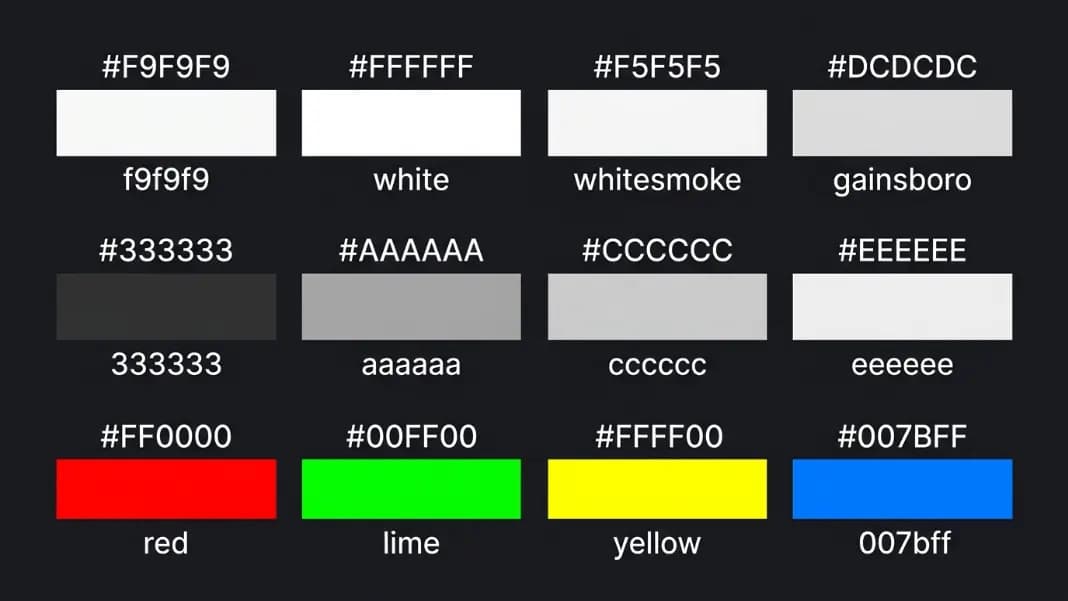
You have a photo, a logo, or a screenshot with a color you want to match exactly. The problem is that "looks like teal" is not a value you can paste into CSS or Figma. You need the HEX code or RGB value.
The image color picker at ToolCenterHub lets you upload any image and click on any pixel to get the exact color values instantly. No design software needed, no sign-up, no installation. Click, copy, paste.
This guide explains how pixel color extraction works, what the different color format outputs mean, how to get accurate results from different image types, and what to do with the values once you have them.
Why extract colors from an image
The most common reason is brand color matching. A company's logo uses specific colors that need to match across websites, print materials, social media graphics, and UI components. If the original brand files are not available or the designer who created them is unavailable, extracting the color from the logo directly gives you the exact values without guessing.
The second most common reason is design inspiration. You find a photograph with a color combination that works well and want to replicate it in a UI, a presentation, or a print layout. Extracting the specific values from the image removes all approximation.
Developers also need this when integrating third-party brand assets. A client provides a JPEG of their logo and asks you to match the background color in the app. Eyeballing it in CSS produces something close but not correct. Sampling the pixel gives you the value to 8-bit precision.
How to use the image color picker
Open the image color picker tool and upload your image. Supported formats include JPEG, PNG, WebP, and GIF. The image displays in the tool's workspace.
Click on any pixel in the image. The tool reads the RGB value at that pixel position and immediately converts it to all three common formats: HEX, RGB, and HSL. Each value is shown with a one-click copy button.
A few tips for accurate sampling:
Zoom in before clicking. Images displayed at reduced size may have pixels interpolated or averaged by the browser's rendering engine. Zoom in to see the actual pixels clearly before sampling a specific point.
Click the center of the color area, not the edge. Pixels at the border between two colors may be blended by anti-aliasing in the original image. Sampling from the center of a solid-color area gives you the truest value.
Sample multiple points. If you are trying to identify a specific color from a photo, click several nearby pixels and compare the values. A very small range confirms you are in a solid area. A wide range means you are in a gradient or textured region.
Understanding HEX, RGB, and HSL output
The three formats represent the same color in different ways. Each format has situations where it is more practical to use.
HEX is a six-character string in the format #RRGGBB. Each pair of characters represents the red, green, and blue components in hexadecimal notation, ranging from 00 (none) to FF (full). HEX is the standard in HTML, CSS, and most design tools. It is compact and copy-pasteable into almost any context.
RGB represents the same color as three decimal integers, each from 0 to 255. The format in CSS is rgb(59, 130, 246). RGB is useful when you want to manipulate individual channels, for example to increase the blue component by 20 while keeping red and green constant.
HSL uses hue (a degree on the color wheel from 0 to 360), saturation (how vivid the color is, as a percentage), and lightness (how light or dark the color is, as a percentage). The format is hsl(217, 91%, 60%). HSL is the most intuitive format when you need to create variations of a color. To make a darker version, lower the lightness percentage. To make a less saturated version, lower the saturation percentage. The hue stays the same.
For web CSS work, HEX is the default choice. For JavaScript color manipulation, RGB is easier to work with. For creating tints, shades, and tone variations, HSL makes the math straightforward.
Dominant colors versus pixel sampling
Pixel sampling gives you the exact value of one specific point. Dominant color extraction analyzes the entire image and identifies the most common color groups.
The color palette generator from image takes this a step further by grouping similar pixel colors together and returning the five or six colors that best represent the image as a whole. This is useful for generating a palette from a photograph rather than pinpointing one specific color.
Use pixel sampling when you have a specific color you want to identify, like the exact blue in a logo or the precise background shade in a screenshot. Use palette generation when you want a set of harmonious colors from a photo to inform a design.

Image format and accuracy
Not all image formats preserve color with equal accuracy, and this affects what you get when you sample pixels.
PNG is lossless. Every pixel retains its exact original value. If you export a logo from Illustrator as a PNG and then sample it, the value you get is exactly what was in the original file.
JPEG uses lossy compression that introduces small color shifts. The degree of shift depends on the compression level. A high-quality JPEG (quality 90 and above) may shift colors by only 1 to 3 RGB points, which is usually imperceptible. A low-quality JPEG compressed for small file size may shift colors by 10 to 20 points, which is enough to produce a noticeably wrong value when you paste it into a design.
WebP can be either lossless or lossy depending on how it was exported. Lossless WebP preserves color exactly, like PNG. Lossy WebP has similar accuracy characteristics to JPEG.
If you are extracting colors for brand or production work and accuracy matters, use PNG or lossless WebP as your source. If only JPEG is available, sample from the largest, highest-quality version of the file you can find, and accept that the value may be slightly off from the original source file.
Using extracted colors in your workflow
Once you have HEX, RGB, or HSL values, the most common next steps are:
CSS: Paste the HEX directly into a color property. background-color: #3B82F6; or color: rgb(59, 130, 246); both work. For CSS custom properties, use HSL for easier theming since you can adjust lightness with calc().
Figma: In the color picker, click the HEX field and paste the value. Figma also accepts RGB values entered in the picker directly.
Adobe tools: Photoshop, Illustrator, and InDesign all accept HEX codes in their color pickers. In Photoshop, double-click the foreground color to open the color picker and paste the HEX in the # field.
Tailwind CSS: Convert the HEX value using the color format converter to identify the nearest Tailwind color class, or define a custom color in your tailwind.config.js using the HEX value directly.
Building a palette from extracted values
Single color extraction is the starting point, not the end. Once you have an anchor color, you can build out a full palette.
The tints and shades generator takes a single HEX input and produces a range of lighter and darker variations at uniform steps. This is how design systems generate an entire color scale, from a very light tint for backgrounds to a very dark shade for text, all from one source color.
The color scheme generator takes a single color and generates complementary, analogous, triadic, or split-complementary palettes based on color theory relationships. If you extracted a brand blue from a logo, you can use the scheme generator to find accent colors and neutral tones that harmonize with it.
Getting the exact color for print
Print color work adds a layer of complexity. Screens use RGB, which is additive color. Print uses CMYK, which is subtractive. An RGB value extracted from a screen image will not convert directly to an exact CMYK match, and what looks vibrant on screen often looks duller in print.
For print projects, use the extracted HEX or RGB as a reference and convert it to CMYK using dedicated software or a conversion tool. Then verify the CMYK output against printed color references like Pantone swatches before committing to a print run.
If you are working on a brand identity that spans both digital and print, identify the Pantone color that most closely matches the extracted RGB value and use that Pantone as the canonical color reference. The RGB and CMYK values flow from the Pantone standard.
Related color tools for your workflow
After extracting colors, the color contrast checker is worth running on any foreground and background combination you plan to use for text. It shows the WCAG contrast ratio and tells you whether the pair meets accessibility standards for normal text, large text, and UI components. A color that looks readable in a design mockup can still fail accessibility requirements.
The gradient maker accepts extracted HEX values as start and end points and generates the CSS gradient code directly. If you extracted two colors from a brand image and want to use them in a gradient, the tool gives you the CSS linear-gradient() output ready to paste.
All of these tools are available at the color tools hub and run entirely in the browser.