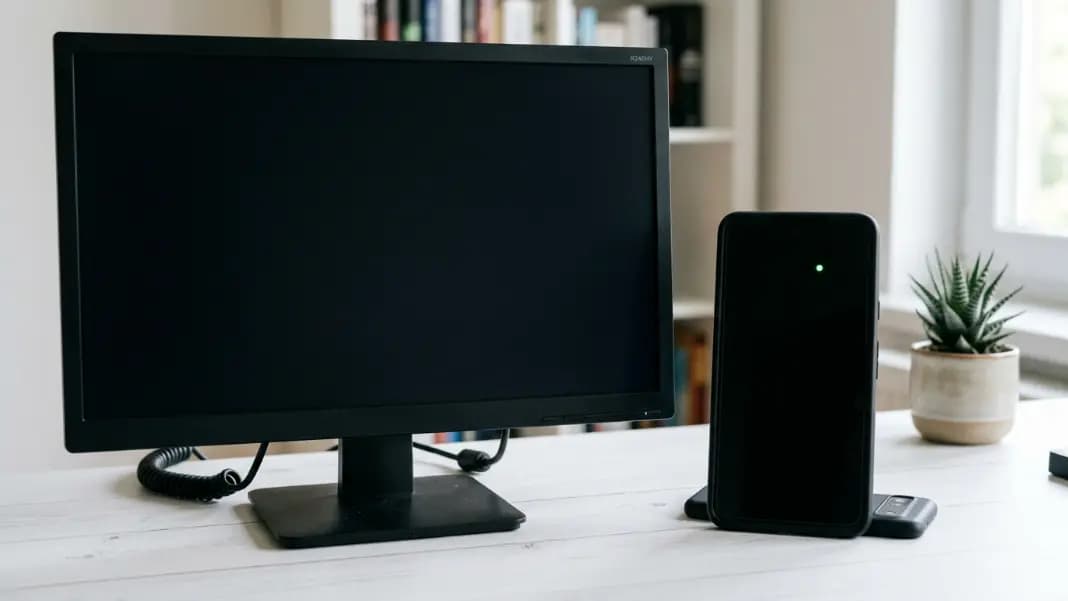
You noticed a small glowing dot on your phone screen. Every dead pixel guide you found said dead pixels are black. Your dot is bright green and clearly visible in the dark. The guides are not wrong. Your phone has a different type of display, and it fails differently.
OLED and LCD panels fail in different ways at the hardware level. On an LCD screen, a dead pixel is always black because the transistor controlling that cell has permanently failed. On an OLED screen, the most common visible defect is a stuck pixel showing a constant bright color because OLED organic emitters degrade differently than LCD transistors. Before running the dead pixel test, knowing what to look for on each panel type tells you which test results matter and what your options are.
The confusion comes from mixing up the two technologies. Most dead pixel guides were written for LCD monitors, which dominated the market for decades. As phones, tablets, and high-end laptops shifted to OLED, the same vocabulary carried over even though the failures look completely different.
How LCD Dead Pixels Work: Always Black, Always Fixed
An LCD pixel is a liquid crystal cell between two layers of glass, with a backlight behind it. A thin-film transistor (TFT) at each pixel controls how much backlight passes through by adjusting the orientation of the liquid crystal molecules.
When that transistor fails, the crystal defaults to its natural closed position permanently. No voltage reaches it, so it blocks the backlight regardless of what signal the display is supposed to show. The result is a pixel that is always dark: a sharp black dot with pixel-exact edges, the same appearance on every background.
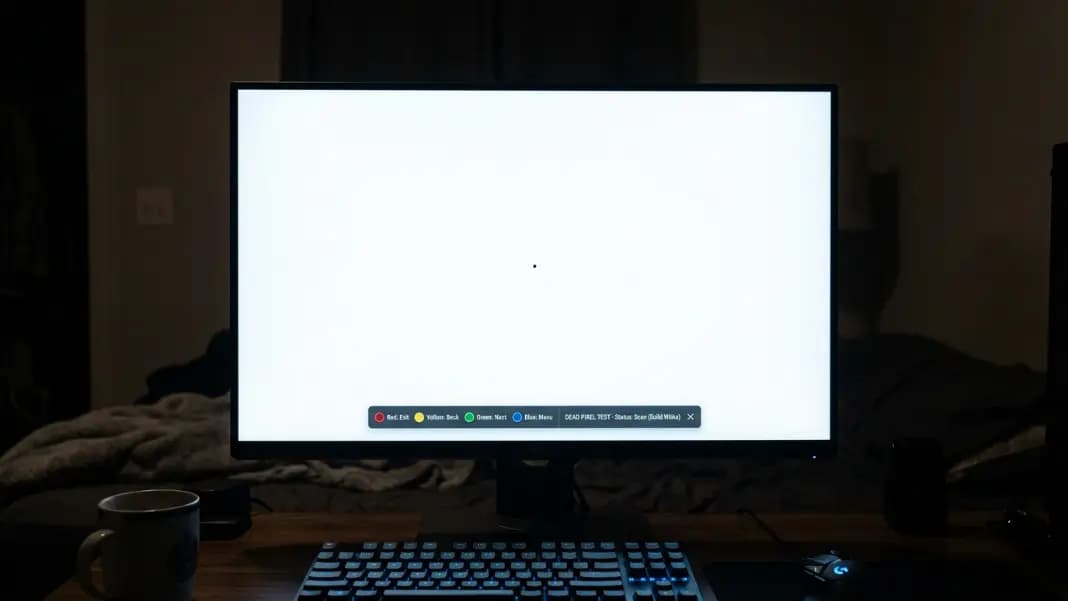
This is why the white background test works so well for LCD screens. White is maximum backlight output. Every working pixel is fully open, which makes the single dead pixel that is permanently closed stand out with maximum contrast. On a black background, the dead pixel is invisible because every surrounding pixel is also closed and no backlight passes through either one.
An LCD dead pixel is a hardware failure with no software fix. The transistor is gone. Rapid color cycling cannot restart a failed transistor. For a detailed explanation of what is happening at the subpixel level across different panel types, see what is a dead pixel.
How OLED Dead Pixels Behave Differently from LCD
OLED panels work from the opposite direction. Each pixel generates its own light through organic compounds that emit photons when current passes through them. There is no backlight to block. A pixel set to black is simply turned off and emits nothing.
A true OLED dead pixel, where the organic emitter or its driver circuit has completely failed, appears permanently dark on every background. It is invisible on black because the surrounding pixels are also off. On white, it shows as a dark dot. The visual result is similar to an LCD dead pixel.
The difference is in how the failure happens. LCD transistors either work or fail completely as a binary switch. OLED organic material degrades gradually over thousands of hours of use. Complete sudden failure of an OLED subpixel driver is less common than partial degradation that produces a stuck illuminated state. True dead OLED pixels, permanently dark from total emitter failure, are relatively rare in the first few years of a display's life compared to stuck pixels.
Why Stuck Pixels Are More Common Than Dead Pixels on OLED
A stuck OLED pixel occurs when an organic subpixel's drive circuit locks in an ON state. The subpixel cannot turn off. It emits light continuously regardless of the signal it receives.
This is what most people see when they report a dead pixel on an OLED phone or laptop screen. The defect is a small bright colored dot, most visible on a dark background because the surrounding pixels are off while the stuck subpixel is glowing. On a white background, it may appear as a faint off-color point.
Stuck pixels on OLED screens follow the subpixel color that is locked:
- A stuck red subpixel appears as a red dot
- A stuck green subpixel appears as a green dot
- A stuck blue subpixel appears as a blue dot
- When all three subpixels are locked, the pixel glows white
Testing on multiple backgrounds reveals which type you have. A bright dot clearly visible on a black background is a stuck pixel. A dark dot visible on white and invisible on black is a true dead pixel.
The practical difference matters for repair options. Rapid color cycling sometimes recovers OLED stuck pixels because the stuck state is not always a complete physical failure. If the organic material locked into an illuminated state from a brief electrical anomaly rather than permanent degradation, cycling can sometimes break the lock. True OLED dead pixels, where the emitter has failed entirely, cannot be recovered through software.
AMOLED Dead Pixels: Same Technology, Different Name
AMOLED stands for Active Matrix Organic Light-Emitting Diode. Samsung uses this term for their OLED panels across Galaxy phones, Galaxy tablets, and select laptop and monitor products.
The Active Matrix part refers to the transistor addressing layer that controls each pixel, as opposed to a passive matrix arrangement where entire rows and columns are addressed sequentially. Active matrix is standard in modern displays of all types, not specific to OLED. The OLED part is identical to any other OLED panel: organic light-emitting diodes that produce their own light without a backlight.
A dead or stuck pixel on an AMOLED display behaves identically to one on any other OLED panel. Samsung Galaxy phones get stuck pixels in the same way iPhones do. A bright colored dot visible on black is a stuck subpixel. A dark dot visible on white is a true dead pixel. The dead pixel on iPhone guide covers the OLED comparison in detail, including how Samsung Galaxy AMOLED panels fail compared to Apple's OLED displays.
For Samsung TVs, the situation is different. Most Samsung TV product lines use QLED, which is LCD with quantum dot color enhancement and LED backlighting, not OLED. Dead pixels on QLED TVs follow LCD rules and are always black. The Samsung TV dead pixel guide covers this distinction along with the T-con board failures that cause lines rather than dots on large LCD panels.
LED Monitors Follow LCD Rules, Not OLED Rules
The word LED in a monitor's name does not mean OLED technology. LED monitors are LCD displays that use LED strips for their backlight. This is the standard configuration for almost every monitor sold over the past decade. The alternative, fluorescent backlighting (CCFL), was phased out well before 2020.
In an LED monitor, the LEDs sit behind the panel providing the backlight. The pixels themselves are liquid crystal cells controlled by thin-film transistors, exactly the same as in any other LCD. The LEDs replaced the fluorescent tubes as the light source but did not change how the pixels work.
Dead pixels on LED monitors are always black. The test is identical to any LCD: white background reveals dark dead pixels, black background makes them invisible, color backgrounds reveal subpixel failures. None of this changes because the backlight uses LEDs instead of fluorescent tubes.
QLED and MiniLED are additional variations that are still LCD technology at the pixel level. QLED adds a quantum dot filter layer for wider color gamut. MiniLED uses smaller LEDs for more precise local dimming zones. Both are still liquid crystal displays controlled by transistors. Dead pixels on QLED or MiniLED panels are black, not bright.
MicroLED is a genuinely different technology, where each pixel is an individual microscopic semiconductor LED that self-illuminates. MicroLED is available only in a small number of very high-cost products. For any standard consumer monitor, if the product is not explicitly marketed as OLED, dead pixels will be black.
OLED Burn-In vs a Dead Pixel: Two Different Problems
Burn-in is the most common OLED display issue people confuse with dead pixels. It is a separate problem with different causes and a completely different appearance.
OLED burn-in happens when static content is displayed at high brightness for extended periods. News channel logos, taskbars, status bars, and fixed navigation bars are the common culprits. The organic material in the pixels that displayed those elements degrades faster than surrounding pixels because it has been active more. Over time, the difference in degradation becomes visible as a faint ghost of the static element, mainly on gray or mid-tone backgrounds.
A burn-in image is diffuse and spread over a larger area. It looks like a shadow or a subtle discoloration rather than a sharp dot. It is most visible on uniform mid-tone gray content and nearly invisible on bright or varied content.
A dead or stuck pixel is a single sharp point with pixel-exact edges. On close inspection, the difference between the two is clear. If you are unsure which you have, run the test on a solid gray background. Burn-in shows as a faint image ghost spread across a region. Dead pixels appear as sharp, precisely defined points.
No fix exists for true OLED burn-in. Apple uses True Tone, Night Shift, and automatic brightness management partly to slow down OLED degradation. Samsung applies similar dynamic brightness controls across its AMOLED products. Neither prevents true dead pixels from physical component failure.

Testing Any Panel Type with the Same Tool
The dead pixel test works regardless of whether your display is LCD, OLED, AMOLED, QLED, or an LED-backlit monitor. What changes is how you read the results.
On LCD and LED monitors, a dark dot visible on white and invisible on black is a dead pixel. A bright dot visible on black is a stuck pixel, which is less common on LCD than on OLED but does occur.
On OLED and AMOLED screens, a dark dot visible on white and invisible on black is a true dead pixel. A bright colored dot visible on black is a stuck pixel. Stuck pixels are more common than on LCD because of how organic material degrades.
On any panel type, color backgrounds reveal subpixel failures with the same rules. A cyan dot on a red background means the red subpixel has failed at that location. A magenta dot on a green background means the green subpixel has failed. A yellow dot on a blue background means the blue subpixel has failed. These rules apply equally across LCD, OLED, and AMOLED panels because all use the same red-green-blue subpixel arrangement.
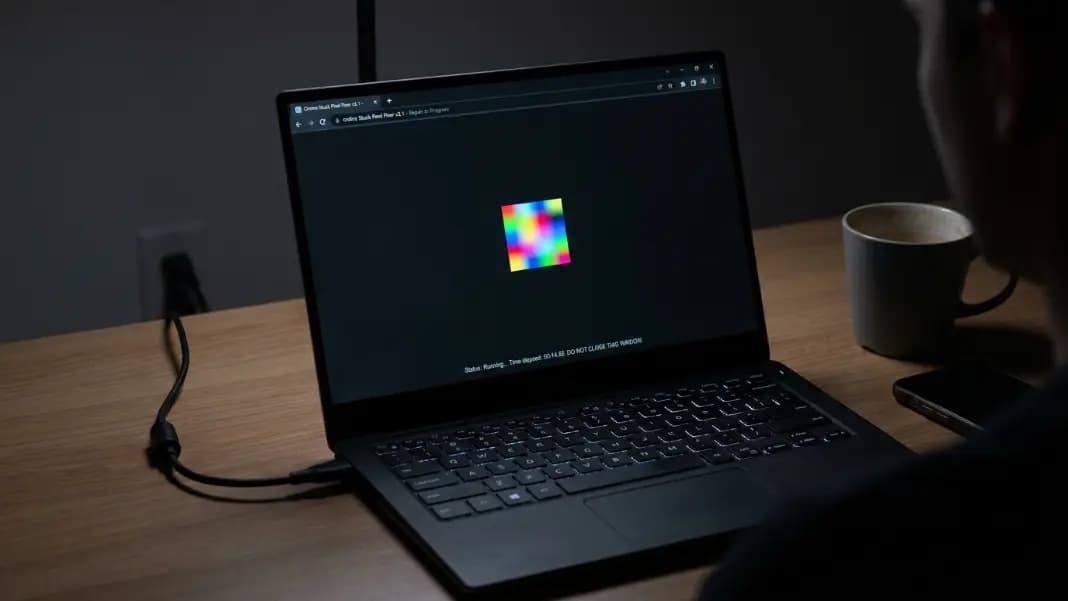
Test at full screen brightness. OLED stuck pixels are small and easy to miss at arm's length, especially on high pixel-density phone screens. Get close and examine each background systematically. Document what you find on each color before making any warranty or repair decision.
The how to fix dead pixels on laptop guide covers the stuck pixel fixer method that is worth running first if you have an OLED device with a bright dot. If cycling produces no change after 30 minutes, move to warranty. The complete breakdown of what each test background reveals for every defect type is in the dead pixel test guide. All the test tools are in the developer section.