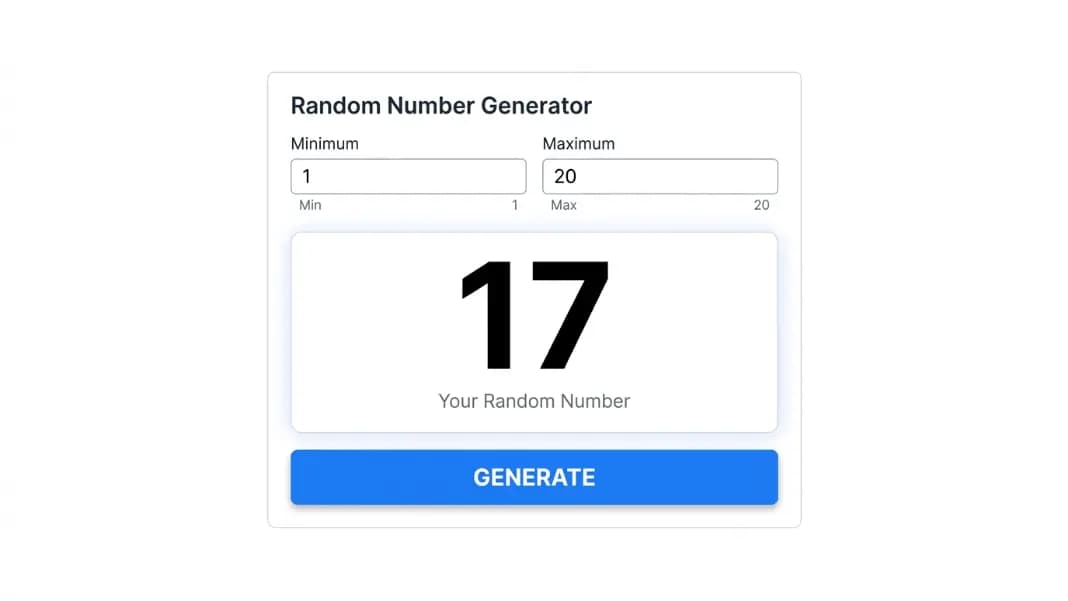
Most people who generate random numbers in Excel do not actually want a spreadsheet function. They want a number. The formula is the path, not the destination, and the recalculation behavior is the first thing that causes problems. Enter data in any cell and every RANDBETWEEN formula in the workbook silently regenerates. Close and reopen the file and every result is gone. What looked like a documented draw is now a different set of numbers with no record of what the original results were.
The random number generator produces a result that does not change after generation. There is no formula recalculation, no accidental refresh, and the settings (range minimum, maximum, count) are visible alongside the result. For draws where the output needs to mean something after the moment of generation, that stability matters more than the convenience of doing everything in one tool.
This guide covers exactly how RANDBETWEEN and RAND work, where they fit, where they fall short, and when moving the generation step outside of Excel is the more reliable choice.
RANDBETWEEN: The Excel Function for Whole Numbers in a Range
RANDBETWEEN is the Excel function for generating integers within a specified range. The syntax is:
=RANDBETWEEN(bottom, top)
Both arguments are required. Bottom is the minimum value. Top is the maximum. Both can be literal numbers or cell references.
Examples:
=RANDBETWEEN(1,6): simulates a single die roll=RANDBETWEEN(1,100): generates a number from 1 to 100=RANDBETWEEN(A1,B1): uses the values in cells A1 and B1 as the range boundaries
The result is always a whole number. If you need the number 1 included and the number 100 included, RANDBETWEEN(1,100) is inclusive on both ends. Setting RANDBETWEEN(1,6) can produce exactly 1 and exactly 6, just like rolling a physical die.
RANDBETWEEN is available in Excel 2007 and later, LibreOffice Calc, and Google Sheets with identical syntax. The function is one of the most portable across spreadsheet applications.
One limit: RANDBETWEEN only generates integers. If your range boundaries are decimals, it rounds them inward. RANDBETWEEN(1.7, 5.3) produces a result from 2 to 5, not 1.7 to 5.3. For decimal ranges, use RAND instead and scale the result.
RAND: When You Need Decimals or a 0-to-1 Distribution
RAND takes no arguments and generates a uniformly distributed decimal number between 0 (inclusive) and 1 (exclusive). The syntax is simply:
=RAND()
On its own, this is useful for probability calculations, simulations, and sorting. Adding RAND as a column next to a list of items and sorting by that column produces a randomly shuffled order, which is a quick way to randomize the sequence of a list.
To generate a decimal in a custom range using RAND, scale the result:
=RAND() * (maximum - minimum) + minimum
For a decimal between 5 and 10: =RAND() * (10-5) + 5
For a whole number in a range using RAND (less common, RANDBETWEEN is cleaner for this):
=INT(RAND() * (maximum - minimum + 1) + minimum)
RAND is the right function when the result needs to be a continuous value rather than a specific integer, or when you are building a formula where the raw probability value feeds into a larger calculation. For most everyday uses, RANDBETWEEN is simpler.
Google Sheets Random Number Functions: Same Syntax, One Difference
Google Sheets implements both RAND and RANDBETWEEN with identical syntax to Excel. Any formula that works in Excel works in Google Sheets without modification for these two functions.
The behavioral difference worth knowing: Google Sheets also offers RANDARRAY, imported from Excel 365. RANDARRAY generates a two-dimensional array of random numbers in a single formula.
=RANDARRAY(rows, columns, min, max, integer)
Setting the fifth argument to TRUE produces integers. Setting it to FALSE produces decimals. This generates a full grid of random numbers without copying a formula across many cells.
For Google Sheets users who need a column of 20 random numbers from 1 to 100, RANDARRAY(20,1,1,100,TRUE) produces all 20 in one formula with the result spilling down 20 rows automatically.
The same recalculation behavior applies in Google Sheets: RAND and RANDBETWEEN both recalculate on every edit. Paste as values to freeze results before sharing the sheet.
The Recalculation Problem and How to Freeze a Result
This is the part that surprises most people the first time it causes a problem. RAND and RANDBETWEEN are volatile functions. They recalculate:
- Every time you type in any cell in the workbook
- Every time you press F9
- Every time the file opens
- Every time any formula in the workbook recalculates and triggers a chain reaction
The result you saw a minute ago is gone. The formula that appeared to document a raffle draw has already produced a different number by the time someone else opens the file to verify it.
There are three ways to freeze a RANDBETWEEN result after generating it:
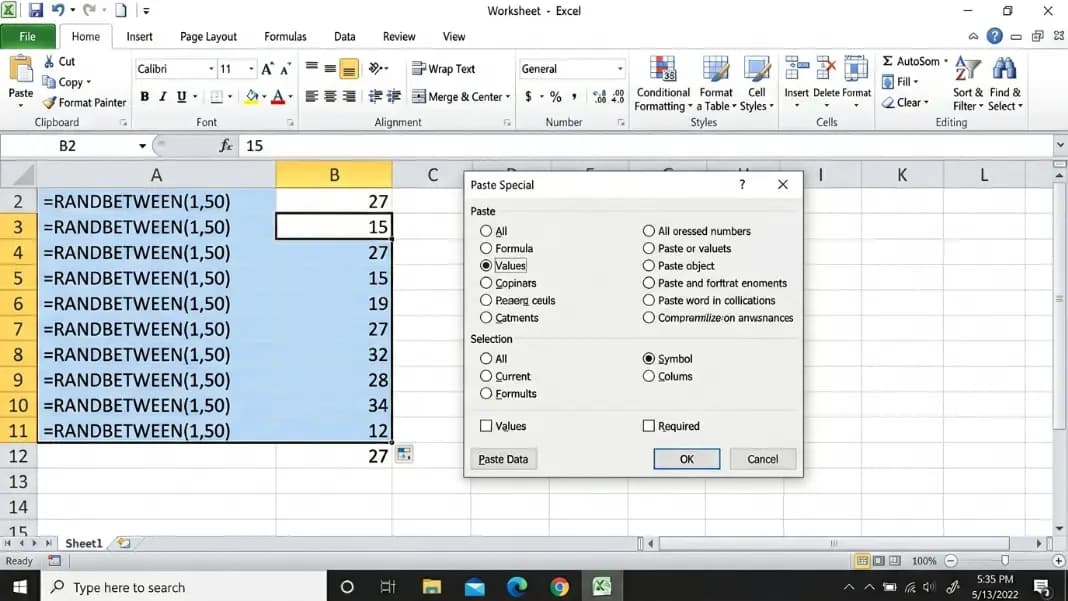
Method 1: Paste as values. Copy the cell. Right-click and select Paste Special, then Values. The formula is replaced by the static number. This is the most reliable method.
Method 2: F9 in the formula bar. Click the cell, press F2 to enter edit mode, then press F9. Excel replaces the formula with the current calculated value while still in the formula bar. Press Enter to commit. This works in Excel but not consistently across all spreadsheet applications.
Method 3: Manual copy. Record the result by eye and type it into a different cell as a plain number. Tedious for multiple results but zero risk of formula contamination.
For any draw where the result matters after the moment of generation, freeze the value before doing anything else. One accidental keystroke in an unfrozen workbook changes every RANDBETWEEN result simultaneously.
Generating Unique Random Numbers Without Repeats in Excel
RANDBETWEEN can produce the same number more than once across multiple cells. If you need a column of 10 unique random numbers from 1 to 50, ten separate RANDBETWEEN formulas will often produce duplicates.
Excel 365 users have RANDARRAY with the unique parameter, but this feature is not available in older Excel versions or all Google Sheets configurations. The older approach uses a helper column:
- In column A, enter the values 1 through 50 (or however large your range is)
- In column B, enter
=RAND()next to each value - Sort the combined range by column B
- The order of values in column A is now a random permutation
- Take the first N rows as your unique result set
This works but requires setup, a full list of range values, and careful sorting. Any edit to the RAND column reshuffles the result.
The practical alternative for most users: an online generator with unique mode enabled. The random number generator no repeats guide covers how unique mode works and why the Fisher-Yates shuffle algorithm produces a genuinely uniform distribution of results, equivalent to the helper-column method but without the formula overhead. For lists up to 500 unique numbers, the online generator is typically faster to use than building the helper-column setup from scratch.
When an Online Generator Works Better Than Excel
For static documentation, the online generator wins. A draw run in the number generator shows the range minimum, maximum, count, and whether unique mode was active, alongside the result. That combination functions as a record of how the draw was conducted, not just what it produced.
An Excel RANDBETWEEN formula shows nothing except the current value, which changes every time anyone looks at the file. For a raffle, classroom activity, or team assignment draw where participants might ask how the numbers were picked, the online tool provides an answer. The spreadsheet function does not.
For quick on-the-spot generation with no documentation needed, Excel and Google Sheets are faster if the workbook is already open. Type the formula, press Enter, read the number. For that specific use case, the spreadsheet wins on speed.
For large lists of unique numbers, the comparison is closer. Excel 365's RANDARRAY with unique parameter generates them in one formula. For older Excel versions or users who find the formula syntax confusing, the online generator with unique mode and a count setting is more accessible.
The are online random generators really random guide covers how the browser's crypto.getRandomValues() function compares to Excel's internal random number source in terms of cryptographic quality, which matters for high-stakes draws.
Combining Excel and an Online Tool for Documented Draws
The most practical workflow for formal draws is to use both.
Generate the numbers using the online tool, with the settings (range and count) visible in the interface. Take a screenshot of the result panel. Download the text file if the draw is large. These become the documentation.
Import or manually enter the results into Excel for any further analysis, sorting, or data combination you need. Because the numbers are now static values in the spreadsheet, editing other cells does not regenerate them.
This approach gives you the documentation and reproducibility of an online generator combined with the analysis and formatting tools of a spreadsheet. The random number list generator guide covers the download and copy functions in the online generator, and the random number generator for raffles guide covers structured draw documentation for formal selection processes.
When to Use Each Tool
The decision is straightforward once you know what each tool does reliably.
Use RANDBETWEEN in Excel or Google Sheets when: you are already working in a spreadsheet, the result is temporary and does not need to persist, you need the number to feed directly into a formula, or you are building a simulation that recalculates are part of the design.
Use the online random number generator when: the result needs to be documented, unique numbers are required, multiple people need to see the draw happen or verify the result afterward, or the draw is part of a formal process where the method matters alongside the output.
The random tools section covers everything for number-based selection beyond the generator itself. For any draw that runs inside a spreadsheet and needs to stay there, RANDBETWEEN handles it. For any draw where the result needs to outlast the session, start outside the spreadsheet.